










































 (1)-20251204034946188.jpg)


































Welcome to OSCAL (Well-known China brand of Android tablet, rugged smartphone, and portable power station) blog. Hope this guide has been helpful.
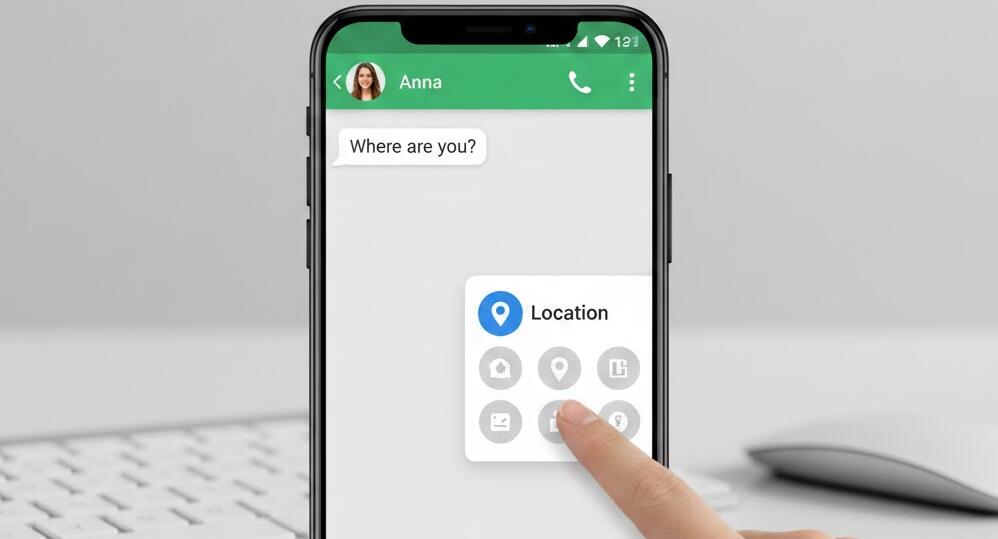
Sharing your location on WhatsApp is a quick way to help friends, family or colleagues find you, coordinate meetups, or get help in an emergency. WhatsApp offers two main options: send your current (static) location or share your live location for a set period. Static location sends a snapshot of where you are at that moment; live location updates continuously and can be stopped at any time by the sender.
- Read also: How do you know if someone archived you on WhatsApp?
- How to archive or unarchive someone on WhatsApp?
- How to tell if someone muted you on WhatsApp?
- How to mute or unmute someone on WhatsApp?
- How to record WhatsApp video call with audio?
This guide explains the differences between static and live location, how to send each on Android, iPhone and WhatsApp Web/Desktop, and important privacy and safety considerations you should know before sharing. Examples and step-by-step instructions are written clearly so you can follow along whether you are a new user or just need a quick refresher.
Before we start, make sure WhatsApp has permission to access your device’s location and that you are connected to mobile data or Wi-Fi. If you don’t see the location option, check your phone settings to enable location services and grant WhatsApp the required permissions.
Key differences: static location vs live location
Understanding which option to use will help you make the right choice for safety and convenience.
- Static location: a one-time pin showing where you were when you sent it. Useful for meeting points or sharing an address.
- Live location: shares your moving location in real time for a chosen time (usually 15 minutes, 1 hour, or 8 hours). Useful when someone is on the way to meet you, when you want someone to track progress, or in an emergency.
- Control: the sender can stop live location sharing at any time. Live location is also automatically turned off after the chosen period ends.
Before you begin — permissions and settings
On both Android and iPhone you must give WhatsApp access to location services. Typically this is done when prompted the first time you try to share a location, but you can also set it manually in system settings.
- Android: Settings → Apps → WhatsApp → Permissions → Location → Allow only while using the app (or Always, if you prefer).
- iPhone: Settings → WhatsApp → Location → While Using the App or Always (choose while using for better privacy).
- WhatsApp Web/Desktop: Location sharing uses your browser’s location permission — grant it when prompted.
How to send a static (current) location
Send a static location if you only want to share your current spot or a nearby place (e.g., a cafe or landmark).
On Android
- Open the chat (individual or group) where you want to send the location.
- Tap the attach icon (paperclip) next to the message box.
- Choose Location.
- Select Send your current location or pick a nearby place from the list, then tap Send.
On iPhone
- Open the chat.
- Tap the plus (+) icon to the left of the message field.
- Tap Location.
- Choose Send Your Current Location or select a nearby place, then tap Send.
On WhatsApp Web / Desktop
- Open WhatsApp Web/Desktop and the chat you want.
- Click the paperclip icon (or the three-dot menu on some versions) and choose Location.
- Your browser will request location permission — allow it. Then confirm the location pin and send.
How to share live location
Live location shows your movement in real time for a chosen timeframe. This is useful when you want someone to monitor a trip or make sure you arrive safely.
On Android
- Open the chat (individual or group).
- Tap the attach icon (paperclip) → Location.
- Select Share live location.
- Pick the duration (15 minutes, 1 hour, 8 hours, or a custom option if available) and optionally add a comment.
- Tap Send. A map with a live-updating pin appears in the chat.
- To stop sharing early, tap the live location message and choose Stop sharing.
On iPhone
- Open the chat and tap the plus (+) icon → Location.
- Tap Share Live Location.
- Choose the duration and add an optional message.
- Tap Send. To end it manually, open the live location message and select Stop Sharing.
On WhatsApp Web / Desktop
- Open the chat in WhatsApp Web/Desktop.
- Click the attach icon → Location. Grant browser location permission if necessary.
- If live location is supported in your desktop/browser version, you’ll be able to select Share live location and choose a duration. If not available, use your phone to share live location.
Privacy & safety tips
Location sharing can be convenient but also sensitive. Follow these straightforward rules to protect your privacy and safety.
- Only share live location with people you trust. In groups, everyone will see your live location for the duration you choose.
- Use the shortest reasonable sharing duration — don’t leave live location on longer than needed.
- Stop sharing immediately if you feel unsafe or notice unexpected behavior from recipients.
- Review your phone’s location permission settings periodically and set WhatsApp to “While using the app” where possible.
- Remember that screenshots or forwarded messages can spread your location beyond the intended recipients.
Troubleshooting common issues
If location sharing fails or the recipient reports an incorrect pin, try these fixes:
- Enable location services in your phone settings and ensure WhatsApp has permission to access location.
- Turn on high-accuracy (Android) or precise location (iPhone) so the map shows an exact pin.
- Check network connectivity — a weak signal can delay updates for live location.
- Restart WhatsApp or your phone to refresh permissions and services.
- Update WhatsApp to the latest version from your app store; older versions may have bugs or missing features.
When not to share location
Think twice before sharing your location in these situations:
- With unknown contacts, public groups, or channels where many strangers can see it.
- When attending private or sensitive meetings where confidentiality matters.
- When the person asking for your location has a history that makes you uncomfortable — trust your instincts.
Quick FAQ
Q: Can someone track me after live location ends?
A: No — live location stops automatically after the chosen time or when you tap “Stop sharing.” A static location snapshot does not update.
Q: Can I share live location with multiple people?
A: Yes — share live location in a group chat and everyone in that group will see it for the duration.
Q: Is location data encrypted?
A: WhatsApp uses end-to-end encryption for messages and attachments, including location information shared within chats.
Q: Will battery drain faster if I share live location?
A: Slightly — live location uses GPS and data in the background. Limit the sharing duration to conserve battery.
Q: Can I edit or delete a location I sent?
A: You can delete the message from your own chat; to remove it from everyone’s chat use the “Delete for Everyone” option within the allowed timeframe. Live location must be stopped rather than edited.
Sharing location on WhatsApp is a powerful convenience — when used thoughtfully it makes meetups easier and can increase safety during travel. Follow permissions and privacy tips above to stay in control.
Now that you know how to send a static location and share live location across Android, iPhone, and desktop, try a quick test with a trusted contact to become comfortable with the steps. Remember to stop sharing when you no longer need to be tracked.


