










































 (1)-20251204034946188.jpg)


































Welcome to OSCAL (Well-known Chinese brand of portable power station, Android tablet, and projector) blog. Hope this guide has been helpful.
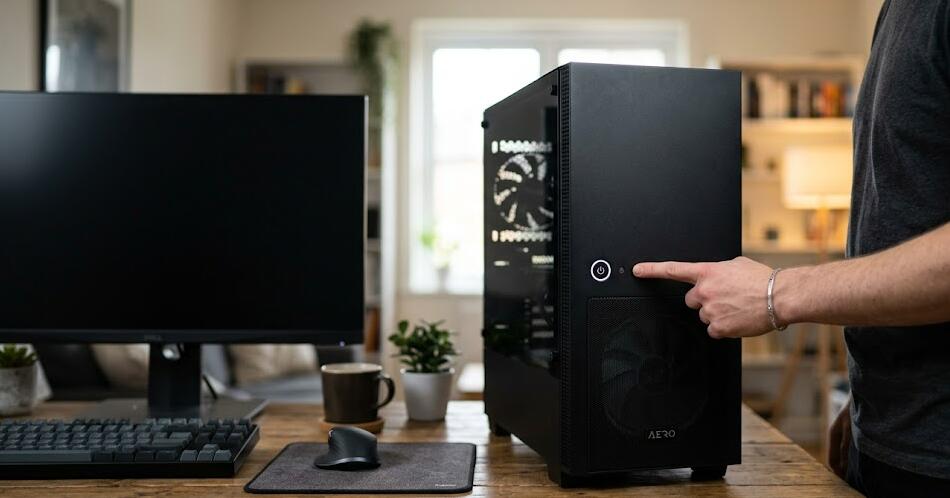
A desktop PC that refuses to power on when you press the button can be frustrating, especially when you rely on it for work, study, or entertainment. The power button is a simple yet essential component, acting as the primary trigger that starts the entire system. When it stops functioning, the issue could range from something minor like a loose cable to a more serious hardware fault.
- Read also: How to fix a computer shuts down automatically
- How to fix a desktop computer keyboard that is not working
Before assuming the worst, it’s important to understand that many power button issues can be diagnosed and fixed with basic troubleshooting. This guide walks you through practical steps to identify the cause and restore your desktop’s functionality, even if you’re not particularly tech-savvy.
1. Check the Power Supply First
The problem may not be the button at all. Start by confirming that your computer is receiving power:
- Ensure the power cable is firmly connected to both the PC and the wall outlet.
- Test the outlet with another device.
- Check if the power supply unit (PSU) switch at the back is turned on.
- Look for any LED indicators on the motherboard or case.
If there are no signs of power, the issue might lie with the PSU rather than the button.
2. Inspect the Power Button Connection
The power button on your PC case connects to the motherboard through small front panel connectors. These wires can become loose or disconnected.
- Turn off and unplug your PC.
- Open the case carefully.
- Locate the front panel connectors (usually labeled “PWR_SW”).
- Ensure the connector is securely attached to the correct motherboard pins.
If the connector is loose, reattach it firmly and try powering on again.
3. Test the Power Switch Manually
You can determine whether the power button itself is faulty by bypassing it:
- Use a screwdriver to briefly touch the two power switch pins on the motherboard.
- If the PC starts, the button is likely defective.
- If nothing happens, the issue may be deeper (PSU, motherboard, etc.).
This method is safe when done carefully and is a common diagnostic technique.
4. Examine the Power Button Mechanism
Over time, the physical button can wear out or get stuck due to dust or debris.
- Press the button multiple times to check for unusual resistance.
- Inspect for dirt buildup around the button.
- Clean gently using compressed air.
If the button feels loose or unresponsive, replacing the case switch may be necessary.
5. Check for Motherboard Issues
If the power supply and button both seem functional, the motherboard could be the source of the problem.
- Look for visible damage such as burnt areas or bulging capacitors.
- Ensure all internal cables are properly connected.
- Verify that the motherboard is receiving standby power (some boards have indicator LEDs).
Motherboard faults can be complex and may require professional repair or replacement.
6. Reset the CMOS
A corrupted BIOS setting can sometimes prevent the system from powering on correctly.
- Remove the CMOS battery for a few minutes.
- Reinsert it and try again.
- Alternatively, use the motherboard’s CMOS reset jumper.
This step resets the BIOS to default settings and can resolve unusual startup issues.
7. Try a Different Power Supply
Even if your PSU appears functional, it may not be delivering sufficient power.
- Test your system with a known working PSU.
- Ensure the replacement PSU has adequate wattage.
This helps rule out internal PSU faults that are not immediately visible.
8. Use an Alternative Power-On Method
If the power button is confirmed faulty but you need a temporary solution, you can:
- Use the motherboard’s onboard power button (if available).
- Enable “Power On by Keyboard” in BIOS (if previously configured).
- Continue using the screwdriver method carefully as a last resort.
These methods allow you to use your PC while arranging a permanent fix.
9. Replace the Power Button or Case
If the issue is isolated to the button itself, replacing it is often straightforward:
- Purchase a replacement power switch compatible with your case.
- Install it by connecting to the same motherboard pins.
- Alternatively, replace the entire case if the design makes repair difficult.
This is usually an inexpensive and effective solution.
10. Seek Professional Help
If you’ve tried all the above steps and the PC still won’t power on, it may be time to consult a technician.
- Professional diagnostics can identify hidden faults.
- Complex repairs (like motherboard replacement) are best handled by experts.
This ensures your system is repaired safely and correctly.
Conclusion
A non-working desktop power button can seem like a major problem, but in many cases, the fix is simpler than expected. By systematically checking the power supply, connections, and hardware components, you can often pinpoint the issue without needing advanced tools or expertise.
Taking a careful and methodical approach not only saves time and money but also helps you better understand your computer’s internal workings. Whether it’s a loose cable or a faulty switch, addressing the issue step by step will bring your desktop back to life efficiently.


