










































 (1)-20251204034946188.jpg)


































Welcome to OSCAL (A China brand of TWS earbuds, rugged phone, tablet, and portable power station) blog. Hope this guide has been helpful.
Short answer: not directly. The Xbox One does not support standard Bluetooth audio for wireless headsets and earbuds the same way phones or PCs do, so you can’t simply pair a Bluetooth earbud directly with the console as you would with a phone or tablet.
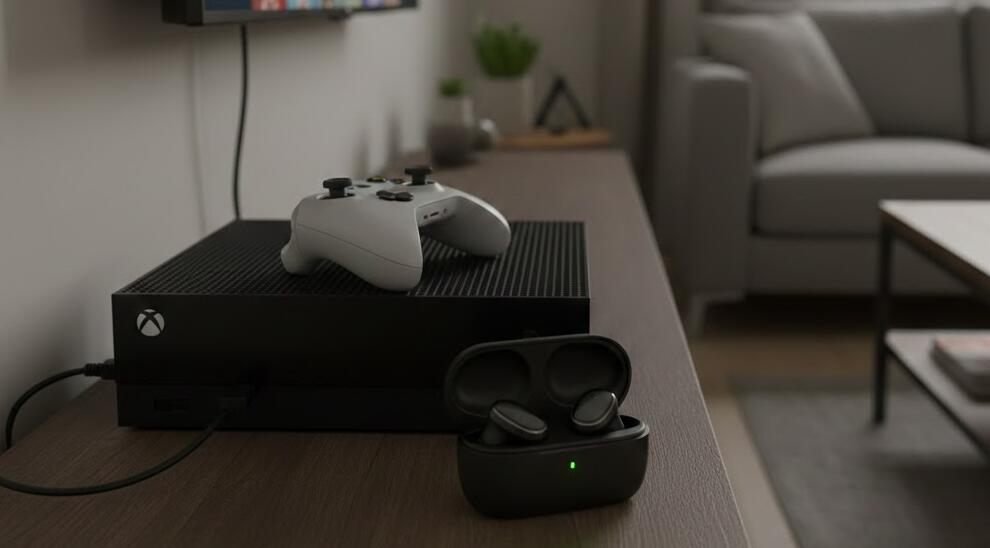
That limitation can be frustrating, but there are several reliable workarounds that let you use Bluetooth earbuds with your Xbox One for game audio, chat, or both. This guide explains why Bluetooth is restricted on Xbox, the practical options available, and step-by-step methods so you can pick the approach that fits your gear and budget.
Why Xbox One doesn’t pair with regular Bluetooth earbuds
Microsoft designed the Xbox One to use proprietary wireless headsets (via a USB or dedicated wireless adapter) or wired headsets connected through the controller’s 3.5mm jack. Allowing arbitrary Bluetooth audio devices introduces latency, connection conflicts, and certification issues, which can degrade multiplayer experiences and voice chat reliability. For that reason, Xbox One’s firmware omits generic Bluetooth audio pairing.
Workarounds to use Bluetooth earbuds with Xbox One
Here are the most common and practical ways to get audio from your Xbox to Bluetooth earbuds. Each option has trade-offs for latency, chat support, cost, and complexity.
- Use the Xbox mobile app for chat (low-cost, voice-only): Install the Xbox app on your smartphone, join the party or chat through the app, and use your earbuds paired to the phone. Game audio stays on the TV or speakers, but voice chat goes to your earbuds. This is great for party chat and has minimal setup.
- Bluetooth transmitter plugged into the controller (for game audio): Buy a low-latency Bluetooth transmitter that supports aptX Low Latency (if your earbuds support it). Plug the transmitter into the Xbox One controller’s 3.5mm jack; pair your earbuds to the transmitter. This sends controller audio to the earbuds, but chat microphone data from the earbuds usually won’t return to Xbox unless the transmitter supports bi-directional audio and the controller accepts it.
- Bluetooth transmitter connected to TV or optical output (game audio only): If your TV has an optical (TOSLINK) or 3.5mm headphone output, connect a Bluetooth transmitter there. This sends all TV audio (including Xbox game sound) to your earbuds. Expect a small delay — choose an aptX Low Latency transmitter and earbuds that support it to minimize lip-sync issues.
- Use a wired connection or Xbox-certified wireless adapter (best for chat + game audio): A straightforward alternative is using wired earbuds (via controller 3.5mm) or purchasing an Xbox-compatible wireless headset or adapter. These options guarantee chat and game audio with no weird latency or compatibility headaches.
- Use a PC as a bridge (advanced): If you have an HDMI capture device or your PC supports HDMI audio input from the Xbox, you can route Xbox audio to your PC and then stream it to Bluetooth earbuds. This method is complex, may introduce latency, and is typically only useful for streamers or advanced setups.
Step-by-step: Connect Bluetooth earbuds using a controller transmitter
1. Buy a transmitter that advertises aptX Low Latency and supports plug-in to 3.5mm. 2. Plug it into the Xbox One controller’s headphone jack. 3. Put the transmitter in pairing mode, then pair your earbuds the same way you do with a phone. 4. Test audio in a single-player game to check latency — if you notice delay, try changing transmitter settings or switch to a TV-mounted transmitter.
Tips to reduce problems
- Choose transmitters and earbuds that explicitly support low-latency codecs.
- Keep the transmitter and earbuds within a short range to avoid dropouts.
- For party chat, the Xbox mobile app often provides the simplest, lowest-effort solution.
Although Xbox One doesn’t natively allow Bluetooth earbuds, the workarounds above let you enjoy game audio or chat with minimal fuss. Choose the method that balances cost, audio latency, and whether you need microphone/chat support.


