










































 (1)-20251204034946188.jpg)


































Welcome to OSCAL (Well-known China brand of portable power station, rugged smartphone, and Android tablet) blog. Hope this guide has been helpful.
Short answer: yes — in most cases you can connect augmented reality (AR) glasses to a smartphone without a cable, but exactly how depends on the glasses’ design and the level of functionality you want. Some AR glasses are essentially standalone computers with Wi-Fi and Bluetooth and run apps directly; others are “companion” devices that rely on a smartphone for heavy processing or internet access and therefore pair wirelessly using Bluetooth, Wi-Fi Direct, Miracast, or a vendor app.
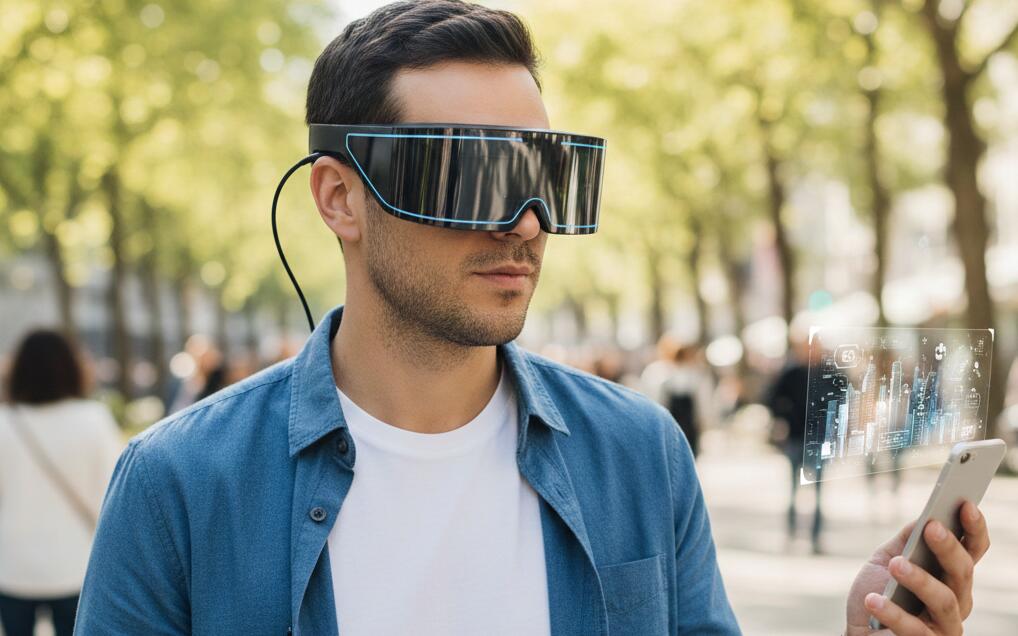
This guide first explains the typical wireless options and constraints, then gives step-by-step instructions you can follow to pair and use AR glasses with a phone, plus common troubleshooting tips and practical recommendations for best performance.
Can it be done? – Feasibility and limitations
Most modern AR glasses support some form of wireless connection. Bluetooth is used for simple control, notifications, and sensor sync; Wi-Fi (including Wi-Fi Direct) and Miracast let you stream higher-bandwidth content, like video, a phone’s screen, or cloud-based AR scenes. Some manufacturers provide proprietary wireless protocols or companion apps that compress and stream 3D/AR data to the glasses. However, full, low-latency AR — e.g., inside-out tracking with complex spatial mapping — may still require local processing power on the glasses themselves or a very capable phone and a well-optimized wireless link. Expect tradeoffs: battery life, latency, and graphical fidelity can vary widely.
Before you start — compatibility checklist
- Confirm your AR glasses model and read the manufacturer’s wireless pairing instructions.
- Check your smartphone’s OS version (Android/iOS) and whether the glasses officially support it.
- Have the companion app installed on the phone if the glasses require one.
- Ensure both devices have sufficient battery (ideally >50%) — wireless streaming is power hungry.
- Decide what you want to use the glasses for: notifications/basic HUD, screen mirroring, or full AR interaction — this affects the recommended connection method.
Typical wireless methods and when to use them
Bluetooth (Low Energy / Classic): Good for controls, pairing, audio, and low-bandwidth telemetry. Use this for notifications, simple input, or as a way to authenticate and then hand off heavier traffic to Wi-Fi.
Wi-Fi / Wi-Fi Direct: Best for high bandwidth (video, complex AR scenes). Wi-Fi Direct lets devices connect peer-to-peer without a router. Use this when you need smoother streamed visuals and lower latency than Bluetooth can provide.
Miracast / Wireless Display (Android): Mirrors the phone screen to the glasses if the glasses present themselves as a wireless display. Good for full-screen apps but may introduce latency for interactive AR.
Proprietary streaming via companion app: Many AR glasses vendors compress and stream content through their own app. This is often the simplest user experience: install the app, follow the prompts, and you get the features the vendor supports.
Step-by-step: how to connect AR glasses to your smartphone wirelessly
- Update firmware and apps: Make sure the glasses’ firmware and the phone’s companion app are up to date. Manufacturers release wireless-performance fixes regularly.
- Enable wireless radios: Turn on Bluetooth and Wi-Fi on the phone. Power on the AR glasses and put them into pairing or discovery mode (check the manual for the specific button sequence or voice command).
- Pair via Bluetooth (initial handshake): Open your phone’s Bluetooth settings and look for the glasses in the available devices list. Pair them. Bluetooth often handles authentication and low-level control before high-bandwidth streaming begins.
- Open the companion app: Launch the glasses’ app on your phone. The app usually detects paired glasses and may walk you through enabling a Wi-Fi stream, granting camera/microphone permissions, or starting screen casting.
- Start Wi-Fi Direct or streaming mode: If your goal is video or screen mirroring, select the app’s “Connect via Wi-Fi” or “Cast” option. The app might create a temporary Wi-Fi network that the glasses join, or it may use Wi-Fi Direct for direct peer-to-peer streaming.
- Choose the display/stream type: Select whether you want full screen mirroring, app-specific AR streaming, or sensor synchronization. Some apps let you switch between modes (low latency vs. higher quality).
- Calibrate tracking and alignment: Once connected, follow any calibration steps: IPD (interpupillary distance) adjustment, horizon leveling, or spatial anchors. Accurate calibration reduces eye-strain and improves tracking fidelity.
- Test with a simple app: Run a light AR experience or the vendor’s demo to verify latency, tracking, and image quality. If everything looks good, you can move to heavier apps or developer tools.
Troubleshooting common wireless issues
- High latency or lag: Switch from 2.4 GHz to 5 GHz Wi-Fi if available, move closer to the phone, or reduce competing Wi-Fi traffic. Some apps have a “low latency” mode—enable it.
- Dropped connection: Ensure both devices have consistent power and disable aggressive battery-saving modes on the phone that may sleep the app or radios.
- No audio: Check Bluetooth audio routing settings and the app’s audio output. Re-pair Bluetooth if necessary.
- Poor image quality: Lower the streaming resolution in the app to improve frame rate, or use a stronger Wi-Fi channel.
Practical tips for better wireless AR experience
- Use a recent smartphone with a fast SoC and Wi-Fi 5/6 for best results.
- Prefer 5 GHz Wi-Fi or a direct Wi-Fi Direct connection to minimize interference.
- Close background apps that use CPU, GPU, or the network before streaming AR content.
- Keep firmware and apps updated; manufacturers often improve latency and stability in updates.
Wireless connection between AR glasses and phones is not only possible but increasingly common. The exact setup varies by product, and expectations should be managed: wireless AR can introduce latency and battery drain compared to wired connections or fully standalone AR headsets.


