










































 (1)-20251204034946188.jpg)


































Welcome to OSCAL (Well-known brand of rugged smartphone, tablet, and portable power station) blog. Hope this guide has been helpful.
Playing Steam games has traditionally meant sitting in front of a desktop or laptop computer, but modern cloud technology has changed that assumption. Today, it is entirely possible to enjoy many Steam titles directly on a tablet, without owning or running a PC at home. This opens the door for gamers who prefer portability, touch-based devices, or simply want to reduce hardware costs.
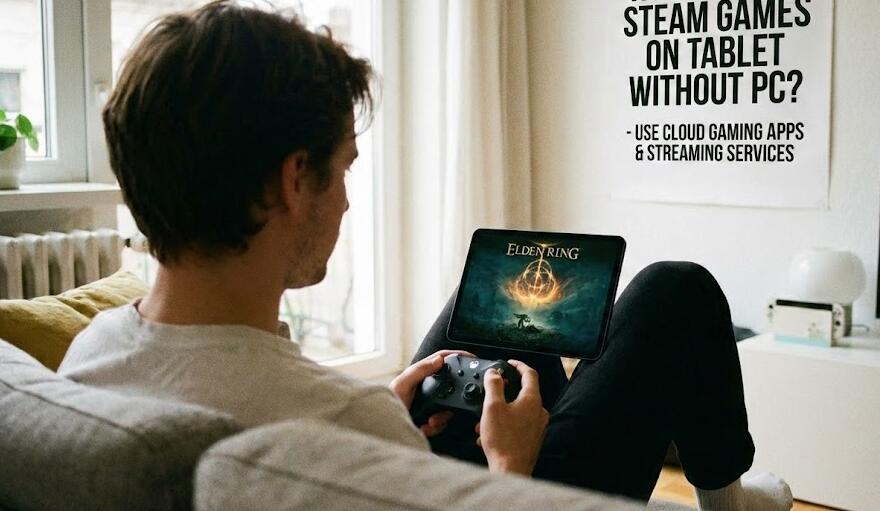
This guide explains how you can play Steam games on a tablet without a PC, what services make this possible, and what limitations you should expect. By the end, you will understand the practical steps, required subscriptions, and best practices to get smooth gameplay on Android or iPad tablets.
Understanding the core idea: cloud gaming
The key concept behind playing Steam games without a PC is cloud gaming. Instead of running the game on your own hardware, the game runs on powerful remote servers. Your tablet simply streams the video output and sends your inputs back to the server. This means the tablet itself does not need strong processing power.
Several cloud gaming platforms support Steam libraries directly or indirectly. These platforms log into your Steam account on their servers and launch the games for you. As long as you have a stable internet connection, you can play demanding PC games on a lightweight tablet.
Choosing a compatible tablet
Most modern tablets can handle cloud gaming, but there are still some minimum expectations. Your tablet should support recent versions of Android or iPadOS and have reliable Wi-Fi connectivity. While high-end hardware is not required, a decent screen resolution and refresh rate can significantly improve your experience.
- Android tablets running Android 9 or later are generally supported.
- iPads running a recent version of iPadOS work well with browser-based services.
- A screen size of at least 8 inches is recommended for readable UI elements.
Selecting a cloud gaming service
Not all cloud gaming platforms support Steam in the same way. Some allow direct access to your Steam library, while others offer selected games that you must already own on Steam. It is important to read each service’s compatibility list before subscribing.
Common features to look for include session length limits, supported regions, controller compatibility, and pricing. Some services offer free tiers with restrictions, while others require monthly subscriptions for higher performance and longer play sessions.
Setting up your Steam account
Once you choose a cloud gaming service, you will need to connect your Steam account. This typically involves logging in through the service’s interface or browser. Security is handled through official Steam authentication, so you do not need to share your password directly.
After logging in, your game library will appear, allowing you to install and launch games just as you would on a PC. Installation happens on the remote server, not on your tablet, so storage space on your device is not a concern.
Using controllers and input methods
Although some Steam games can be played using touch controls, most PC games are designed for keyboard and mouse or game controllers. For the best experience, pairing a Bluetooth controller with your tablet is strongly recommended.
- Most modern Bluetooth gamepads are supported on Android and iPad.
- Some services offer customizable on-screen controls.
- Keyboard and mouse support may be available via Bluetooth or USB adapters.
Before starting a long session, test your controls in a game’s settings menu to ensure responsiveness and comfort.
Optimizing internet connection
Cloud gaming relies heavily on network quality. A slow or unstable connection can cause lag, blurry visuals, or disconnections. Ideally, you should use a high-speed Wi-Fi network rather than mobile data.
For best results, aim for at least 15 Mbps download speed, low latency, and minimal packet loss. Playing close to your router and avoiding heavy network usage from other devices can also improve performance.
Understanding limitations and expectations
While cloud gaming is powerful, it is not perfect. Visual compression may reduce image quality compared to native PC gaming, and latency-sensitive games like competitive shooters may feel less responsive.
Additionally, not every Steam game is supported on every platform. Some games with special launchers or anti-cheat systems may not work. Always check compatibility before planning long play sessions.
Managing costs and subscriptions
Most cloud gaming services operate on a subscription model. You may need to pay monthly fees to access higher resolutions, longer playtime, or better hardware. In addition, you must already own the games on Steam.
To control costs, consider starting with a free or trial tier if available. This allows you to test performance and compatibility before committing to a paid plan.
Tips for a better tablet gaming experience
Small adjustments can significantly improve comfort and immersion when playing Steam games on a tablet. Using a tablet stand, headphones, and a dedicated controller can make long sessions much more enjoyable.
- Lower in-game graphics settings to reduce latency.
- Enable performance modes within the cloud gaming app.
- Play in a quiet environment to focus on audio cues.
Conclusion
Playing Steam games on a tablet without a PC is no longer a futuristic idea. With cloud gaming services, a compatible tablet, and a stable internet connection, you can access a vast library of PC games from almost anywhere. This approach is especially appealing for gamers who value portability and flexibility.
Although there are limitations related to latency, visual quality, and subscription costs, the convenience often outweighs these drawbacks. By choosing the right service and optimizing your setup, you can enjoy Steam gaming on your tablet with surprisingly good results.


