










































 (1)-20251204034946188.jpg)


































Welcome to OSCAL (Well-known China brand of Android tablet, rugged phone, and portable power station) blog. Hope this guide has been helpful.
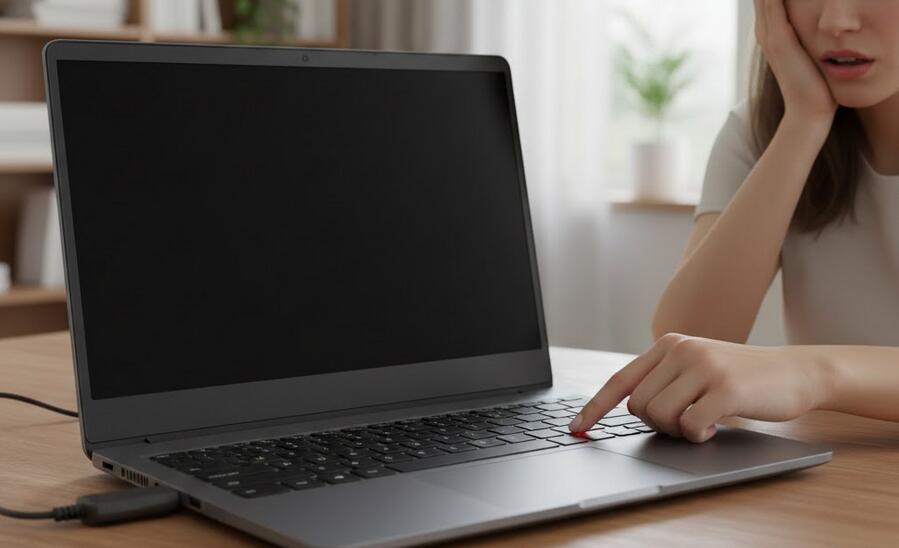
If your laptop refuses to power on, it can be an alarming moment — especially when you have work to finish, files to retrieve, or a deadline looming. The good news is that many causes are straightforward to diagnose and resolve with simple tools and patience. This guide walks you step-by-step through safe, effective troubleshooting techniques that range from quick checks you can do in minutes to more involved actions for hardware issues. Follow the instructions carefully and stop if you feel uncomfortable doing any step that requires opening your laptop; in that case seek professional help.
- Read also: How much RAM does a laptop need?
Before you start unplug anything and remove power sources, so you can work safely. Even when a laptop appears dead, residual power in capacitors can cause problems; removing the battery and unplugging the AC adapter helps protect you and the device. Keep a small Phillips screwdriver, a non-metallic spudger or plastic pry tool, a can of compressed air, and a clean, static-free workspace ready. If you have an anti-static wrist strap, use it.
This guide is split into clear sections: quick power checks, battery and adapter tests, display and indicator troubleshooting, internal hardware checks, and what to do if you need to seek professional repair. Use the checklist portion to keep track of steps you've tried. Don’t skip steps — many “won’t turn on” problems end up being simple fixes like a bad power adapter or a stuck power button.
Quick preliminary checks (5 minutes)
Start with the fastest and least intrusive checks. These often reveal the problem immediately.
- Confirm power sources: Make sure the AC adapter is plugged into a working wall outlet. Try a different outlet, ideally one you know works with other devices.
- Inspect adapter and cable: Look for frays, kinks, burn marks, or bent connectors. A damaged cable or connector can prevent charging and may be dangerous.
- Look for lights or sounds: When you press the power button, note any LED activity (charging light, power indicator) or fan/drive noises. Even a faint LED blink is a clue.
- Remove peripherals: Unplug external devices (USB drives, HDMI, docking stations) — a faulty peripheral can stop the boot process.
- Try a power-only boot: Remove the battery if it's removable, plug in the AC adapter, and try to power on. Conversely, try booting on battery only (with AC unplugged) if it has some charge.
Power adapter and battery testing
Power adapters and batteries are the most common culprits. Testing them early saves time.
Test the adapter: If you have a multimeter, measure the adapter’s DC output against the rating on the adapter label (e.g., 19V). If you don’t have a multimeter, try a different compatible adapter if possible — borrow one from a friend or use one from the same model line. Note: using the wrong voltage or polarity can damage the laptop; only swap with known-compatible adapters.
- If the adapter shows no output or unstable voltage, replace it.
- Try wiggling the connector gently while the adapter is plugged in — a power jack with a poor connection sometimes only works at certain angles.
Test/inspect the battery: For removable batteries, examine contacts for dirt or corrosion and wipe them with a clean, dry cloth. Re-seat the battery and try to boot. If the laptop runs with AC but not on battery, the battery may be dead and will need replacement. For non-removable batteries, a long “drain and charge” cycle can sometimes revive a deeply discharged cell: unplug everything, hold the power button for 15–30 seconds to discharge capacitors, then plug in the AC adapter and let it charge for at least an hour before trying to power on.
Display and indicator diagnostics
Sometimes the laptop is on but the screen is blank. These steps will help you determine whether the laptop is running with a display problem or truly not powering up.
- External monitor test: Connect an external monitor or TV via HDMI or VGA. Press the display-switch key (usually Fn + one of F1–F12) to toggle output. If the external monitor shows the desktop, the laptop’s internal display, backlight, or inverter may be at fault.
- Listen for boot sounds: Fans spinning or drives whirring indicate the system is running. If you hear activity but the screen stays black, the issue is likely display-related.
- Check indicator LEDs: Many laptops show a combination of LEDs for charging, power, and disk activity. A rapid blinking pattern can signal a specific hardware error — note the pattern and consult the manufacturer’s support documentation for blink codes.
- Keyboard backlight and caps-lock test: Press Caps Lock and observe if the LED toggles. If it does, the system may be booting but the screen is dead.
Resetting internal state: power cycle and CMOS reset
A power cycle and CMOS reset clear temporary states and can fix issues caused by firmware or residual charge.
Power cycle: Remove the AC adapter and battery (if removable). Press and hold the power button for 15–30 seconds. Reconnect AC (leave battery out) and try powering on. This clears static charge and resets some hardware components.
Reset CMOS/BIOS: If comfortable opening the laptop and the power cycle didn’t help, disconnect power and remove the service cover to locate the CMOS battery (a coin cell). Remove it for 1–5 minutes, then reinsert. Some models have a dedicated CMOS reset jumper or button — check your service manual. Resetting BIOS restores default hardware settings and can resolve issues caused by recent BIOS configuration changes.
RAM and storage checks
Faulty or poorly seated RAM and storage devices can prevent a laptop from posting or booting. These checks require opening the laptop; ensure you follow anti-static precautions.
- Reseat RAM modules: Remove and reinsert each memory module. If there are two sticks, try booting with one at a time to isolate a bad stick or slot.
- Reseat or test storage drive: A failing SSD or HDD can hang the boot process. Remove the drive and try to power on (some laptops will POST without a drive). If the laptop posts without the drive, consider cloning the drive to a new one and testing it externally.
For M.2 SSDs, ensure the screw is present and the module is seated at the correct angle — an incomplete connection can cause no-boot situations.
Inspect the power button and internal power delivery
If other components appear healthy, the power button or internal power circuits could be at fault.
- Check the power button: Make sure it’s not stuck or physically damaged. In some models you can short the power switch header on the motherboard briefly with a non-conductive tool to simulate the power button — only attempt this if you are comfortable and have guidance for your model.
- Inspect the DC jack: A loose or damaged jack on the chassis can prevent charging even with a good adapter. Look for movement or bent pins.
- Look for burn or smell: Any burned components, scorch marks, or strong electrical odors indicate serious hardware failure; stop and consult a technician.
Firmware, BIOS, and recovery options
If the laptop powers on but doesn’t boot the OS, firmware or bootloader issues may be the cause.
- Access BIOS/UEFI: Boot into BIOS by pressing the manufacturer’s key (Esc, Del, F2, F10, etc.) immediately after powering on. If BIOS loads, hardware is likely fine and the problem is OS/drive related.
- Try a recovery USB: Create a bootable USB with a recovery or live OS (Windows recovery media or a Linux live USB). Boot from it to check whether the laptop can run from external media. If it does, you can back up data and attempt OS repair.
- BIOS update caution: Only update BIOS if you have a clear, specific reason and stable power — interrupted BIOS updates can brick a laptop.
When the laptop shows signs of life but won’t boot the operating system
If the laptop powers up, fans spin, and you can access BIOS or a recovery environment, focus on software and disk health.
- Safe Mode/Recovery: For Windows, try Safe Mode or the Startup Repair tools. For macOS, use Safe Boot (hold Shift) or Recovery Mode (Command + R).
- Check SMART data: If you can boot from a live USB, run a SMART test on the drive to detect imminent failure.
- System restore or reinstall: If data is backed up or can be backed up via live USB, consider reinstalling the OS. Reinstalling often resolves corrupted system files that prevent booting.
Advanced hardware issues and signs you need professional repair
Some problems are beyond DIY repair. Seek a qualified repair service if you encounter any of the following:
- Visible motherboard damage (burn marks, exploded capacitors)
- Persistent smoke or a strong burning smell
- Faulty or cracked power connector soldered to the motherboard
- Non-functional components after testing with known-good parts (adapter, RAM, drive)
- Water damage — even if it powers on initially, corrosion can cause later failure
Professional technicians have diagnostic tools (bench power supplies, logic analyzers) and replacement parts to identify and repair complex faults such as failed voltage regulators, GPU issues, or corrupted embedded controllers.
Data recovery considerations
Your data is often recoverable even when a laptop won’t power on. If the drive is intact, you can remove it and connect it to another computer using a SATA-to-USB adapter or M.2 enclosure. Clone the drive or copy important files before attempting repairs that could risk data loss. If the drive has failed mechanically or electrically, specialized data recovery services may be required — they can be expensive, so weigh the value of the lost data before proceeding.
Preventive maintenance to avoid future power failures
Once you resolve the current issue, adopt these habits to reduce future risks:
- Avoid running the battery to zero frequently; shallow discharges prolong battery life.
- Use a surge protector to guard against power spikes.
- Keep vents clean and ensure good airflow to prevent overheating, a common cause of sudden shutdowns.
- Periodically inspect cables and connectors for wear and replace aging adapters.
- Back up important files regularly using cloud storage or external drives.
Checklist — quick reference
Use this checklist to track what you’ve tried:
- Checked wall outlet and adapter connection
- Inspected adapter and cable for damage
- Tested with another compatible adapter
- Removed and reseated battery (if removable)
- Performed power cycle (hold power button 15–30s)
- Connected external monitor to test display
- Reseated RAM and storage modules
- Attempted boot from USB recovery media
- Checked BIOS/UEFI for signs of hardware detection
- Considered professional service for hardware faults
Safety reminders
Always prioritize safety. Unplug the laptop and remove the battery before opening the case. Avoid using metallic tools near the motherboard unless you are grounded with an anti-static strap and know what you are doing. If you smell burning or notice blown components, stop and consult a professional. Never attempt to solder or replace surface-mounted components unless you have the right equipment and training.
If your laptop is under warranty, contact the manufacturer or the place of purchase before opening the device — tampering may void the warranty. Many manufacturers provide authorized service centers that can diagnose and fix complex issues while preserving warranty coverage.
Keep receipts, warranty information, and records of any troubleshooting steps you performed — these help technicians and may be required for warranty claims.
Many “won’t power on” situations are fixable with patient troubleshooting — a bad adapter, a dead battery, a loose RAM stick, or a simple BIOS hiccup are common offenders. Start with non-invasive checks, document what you try, and escalate carefully.
If the laptop shows physical damage, smells of burning, or you are unsure about opening it, stop and seek professional service. Protecting your data is often the priority — remove and secure the drive when possible, and choose a reputable repair or data-recovery provider.
Products you might be interested in:
#Budget laptop for students, #15.6-inch Windows 11 laptop


