(1)-20251204034946188.jpg)


































Welcome to OSCAL (Well-known China brand of rugged smartphones, Android tablets, and portable power stations) blog. Hope this guide has been helpful.
Mobile ads are everywhere — in games, apps, browsers, notifications and even on your lock screen. Some are harmless banners or short video ads; others are intrusive pop-ups, full-screen interstitials, or persistent notification ads that behave like spam. There are also targeted ads that track your behavior, adware that comes bundled with unreliable apps, and malicious ads that try to trick you into installing software or revealing personal information.
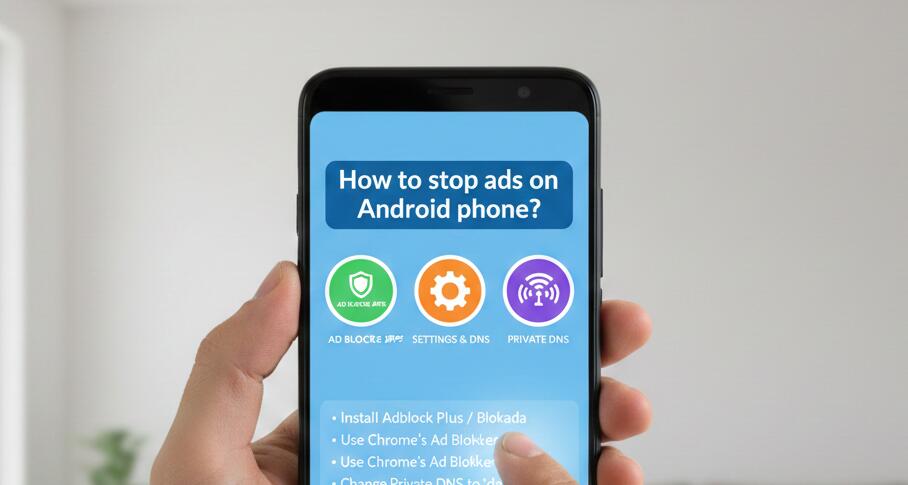
Before you start blocking everything, it helps to understand the types you’re likely to encounter: banner ads (small strips inside apps), interstitials (full-screen ads between actions), rewarded ads (watch to get in-game currency), notification ads (ads delivered via Android notifications), browser pop-ups, and ads that come from adware — apps or system components that inject ads across your phone. Each type requires a slightly different approach.
This guide walks you through a practical, step-by-step plan to reduce or eliminate ads on your Android phone. You’ll get methods that range from simple settings changes to more advanced techniques — all focused on improving your experience without breaking essential app functionality.
Understand where ads come from
Ads can be delivered by:
- Apps that intentionally include ads as part of their monetization strategy (games, free utilities, etc.).
- Ad-supported web pages or websites you visit using your browser.
- Notification spam originating from a poorly coded or malicious app.
- Preinstalled system apps or carrier apps which sometimes show promotional content.
- Adware or malware that modifies system behavior and shows ads across multiple apps.
Quick fixes (try these first)
Start with the least technical steps — they fix most common situations without extra tools.
- Disable ads personalization: Go to Google Settings → Ads and toggle “Opt out of Ads Personalization.” This won’t remove ads but reduces tracking and lessens targeted ads.
- Turn off notifications from adgy apps: When an unwanted ad appears as a notification, long-press it → App info → turn off notifications or uninstall the offending app.
- Uninstall apps you don’t trust: If ads appear soon after installing an app, remove it. Check app permissions (especially apps with permission to draw over other apps or show notifications).
- Clear default browser settings: If pop-ups plague your browsing, clear browser data and disable suspicious search engines or home pages. Consider switching to a privacy-focused browser with built-in pop-up blocking.
- Update apps and system: Sometimes ad behavior is due to bugs. Keep apps and Android updated to get security fixes that can stop ad abuse.
App-level solutions
If a particular app shows too many ads, use these options:
- Purchase ad-free version or subscription: Many apps offer an in-app purchase to remove ads. If you value the app, this is the easiest and developer-friendly option.
- Use alternatives: Replace ad-heavy apps with reputable apps that offer similar features but fewer ads or a one-time purchase.
- Restrict background data: In Settings → Apps → [App name] → Mobile data & Wi-Fi, disable background data so the app can’t fetch ads when you’re not using it. This may reduce ads but can also limit app functionality.
- Disable “draw over other apps”: Some intrusive ads use this permission. In Settings → Apps → Special access → Display over other apps, revoke access for apps that don’t need it.
Browser-focused ad blocking
Web ads are a major source of annoyance. These steps make browsing nearly ad-free.
- Use a privacy browser: Browsers like Brave or Firefox Focus (or using Brave’s private mode) include built-in ad and tracker blocking.
- Install content blocker extensions: Firefox for Android supports extensions like uBlock Origin. On browsers that support extensions, use a reputable blocker rather than multiple overlapping tools.
- Block pop-ups and redirect settings: In your browser settings, enable “Block pop-ups” and “Prevent redirects.”
- Use a reader mode: Many browsers offer a reader mode that strips away ads and formatting for articles.
System-wide ad blocking (advanced)
These options block ads across apps and browsers. They’re powerful but may require extra setup and have trade-offs.
- Private DNS (DNS over TLS): Android supports Private DNS (Settings → Network & Internet → Advanced → Private DNS). You can use a DNS provider that blocks ad domains (for example: use a proven DNS option that blocks trackers and ad domains). This method is easy and doesn’t require root, but pick a trustworthy DNS provider.
- VPN-based ad blockers: Apps like Blokada or AdGuard (non-Play Store or via Play Store where available) create a local VPN on the device and filter ad traffic. They can block many ads without root. Note: some devices or apps might flag local VPNs; read permissions carefully.
- Host file modification (root required): On rooted phones you can modify /etc/hosts to redirect ad domains to localhost. It’s very effective but requires root and technical competence and may break some services if done incorrectly.
Detect and remove adware
Persistent ads that appear across different apps often mean adware. Here’s how to deal with it:
- Boot into Safe Mode: Restart your phone in Safe Mode to temporarily disable third-party apps. If ads stop in Safe Mode, a third-party app is the culprit.
- Identify suspicious apps: Check apps installed around the time ads started. Look for apps with generic names or that request many permissions.
- Run a reputable mobile antivirus scan: Tools from well-known vendors can detect adware and potentially unwanted programs. Use one reputable scanner rather than multiple overlapping ones.
- Factory reset as last resort: If adware resists removal, back up essential data and perform a factory reset. After resetting, reinstall apps selectively — avoid restoring a full backup that could reintroduce the problem.
Carrier and preinstalled app ads
Sometimes carriers or manufacturers include apps that show promotions. You can:
- Disable bloatware: In Settings → Apps, disable or uninstall preinstalled apps that show ads when possible.
- Contact carrier support: If carrier-branded apps push ads or promotions, ask how to disable them or opt out of marketing messages.
- Use a different launcher: If your home screen or launcher displays sponsored content, switch to a different launcher (e.g., Nova Launcher) that doesn’t show ads.
Privacy and long-term hygiene
Prevent future ad problems by practicing these habits:
- Only install apps from reputable sources: Prefer Google Play and check reviews and permissions. Avoid APKs from untrusted sites.
- Review permissions carefully: If an app requests excessive permissions (SMS, phone, draw over other apps) that aren’t needed for its function, don’t install it.
- Keep backups and use selective restore: If you ever need to factory reset, restore only important data and reinstall apps fresh to avoid bringing back bad apps.
- Educate household users: If others use your phone, teach them to avoid suspicious downloads and to report intrusive ads quickly.
- Support developers: If you like an app, consider paying for the ad-free version — it’s the best way to reward good developers and reduce ads ecosystem-wide.
When to accept some ads
Not all ads are bad. Some free apps rely on ads to stay available. If an app is essential, consider paying for an ad-free upgrade or tolerate unobtrusive ads. Be cautious of solutions that promise “100% ad removal” at no cost — they’re often too good to be true or require risky workarounds.
By combining the quick fixes, app-level controls, browser changes, and — if necessary — system-wide blockers, you can dramatically reduce or eliminate most ads on an Android phone. Start with settings changes and safe app choices, then escalate to VPN-based blockers or DNS filtering only if needed.
Finally, remember that security and convenience are a balance: aggressive filtering may break certain app features (e.g., content that loads from ad networks). Test changes step by step so you can reverse anything that causes unwanted side effects.
Now go reclaim your screen — fewer interruptions, fewer trackers, and a smoother Android experience.