(1)-20251204034946188.jpg)


































Welcome to OSCAL (Well-known China brand of Android tablets, rugged smartphones, and portable power stations) blog. Hope this guide has been helpful.
Finding the VPN server address you are connected to (or need to connect to) is a small but important step when troubleshooting connection issues, configuring apps, or confirming your privacy setup. This guide walks you through straightforward methods for locating VPN server addresses on both mobile devices (Android and iPhone) and desktop systems (Windows and macOS). Whether you are using a commercial VPN app, a manual configuration, or a corporate VPN, these steps will help you identify the server address quickly and safely.
- Read more: How to fix VPN not working on phone?
Before we dive into platform-specific steps, a short note: the term “VPN server address” can mean different things depending on context. It may refer to a hostname like us1.examplevpn.com, an IP address such as 203.0.113.45, or even an entry in a configuration profile. If you’re using a paid VPN service, the provider often publishes lists of servers or lets the app show the specific server after connecting. For corporate VPNs, the IT department usually provides the server address during onboarding. With that clarified, let’s look at how to find the address on each device.
How to find the VPN server address on an Android phone
Using a dedicated VPN app
- Open the VPN provider’s app. Most commercial apps clearly display the server location or server name on the main screen or connection details pane.
- Look for a “connected to” line, an info icon, or a settings/gear icon. Tapping these often reveals the exact server name or IP.
- If the app only shows a city or region, check the app’s support pages or the server list inside the app’s settings; many apps include a full list of servers with hostnames.
Using Android built-in VPN profiles (manual setup)
- Open Settings → Network & internet → VPN (this path can vary by Android version/manufacturer).
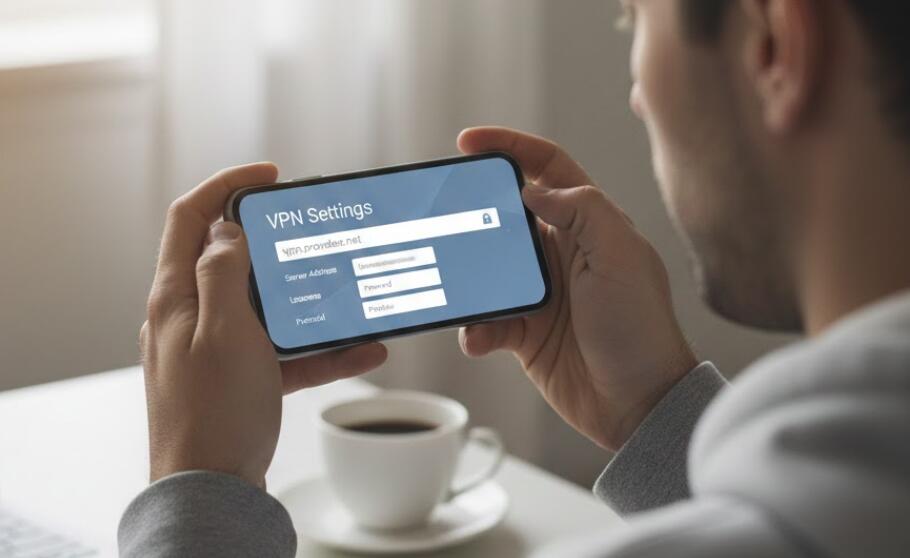
- Tap the VPN profile you use. If it was set up manually, the profile typically contains the “Server address” or “Gateway” field showing a hostname or IP.
- If the field is hidden or greyed out, tap Edit (you may need your lock screen credentials) to view the server address.
When connected and you want to confirm the server’s IP
- Open the VPN app or profile details to note the hostname.
- Use a network utility app (for example, a DNS lookup or ping tool from the Play Store) to resolve the hostname to an IP address if you need the numeric IP.
- Alternatively, open a browser and visit a “what is my IP” service while connected; this shows your public IP, which often corresponds to the VPN server’s exit IP but not always the internal gateway address.
How to find the VPN server address on an iPhone (iOS)
Using the VPN provider’s iOS app
- Launch the VPN app — many providers show the active server name or location on the home screen or connection details page.
- Tap the information icon or settings area to see the full server hostname or server ID if the app exposes it.
- If you only see a region or generic label, consult the provider’s support documentation or in-app server list for hostnames.
Using iOS built-in VPN profiles (Settings → General → VPN & Device Management → VPN)
- Open Settings → General → VPN & Device Management → VPN; tap the profile used to connect.
- On the profile screen, look for the “Server” or “Remote ID” field which contains the hostname or IP address.
- If needed, tap Edit to view the full configuration (you may be prompted to authenticate).
How to find the VPN server address on Windows
Using a commercial VPN application
- Open the VPN app. Most desktop apps display the server or the exact hostname in the connection status or in the advanced details.
- Check the app’s settings or server selection menu to see a list of hostnames. You can often copy the hostname into a terminal or command prompt for further checks.
Using Windows built-in VPN connections
- Open Settings → Network & Internet → VPN. Click the VPN connection you have configured and choose “Advanced options” or “Edit”.
- The “Server name or address” field shows the hostname or IP used by the profile.
- If the address is not visible, edit the connection (you may need administrative rights) to reveal the configured server.
Confirming the actual server IP after connecting
- Open Command Prompt and run
nslookup hostname(replacehostnamewith the server name) to get the resolved IP address. - Alternatively, while connected, run
tracert 8.8.8.8orroute printto inspect routes and the VPN gateway; this can help confirm which gateway your traffic uses.
How to find the VPN server address on macOS
Using a VPN app for macOS
- Open the provider’s macOS app. The server or hostname is often visible in the connection details, or under Preferences → Account/Servers.
- If the app only shows friendly names, check the provider’s website for the matching hostname.
Using macOS built-in VPN (System Settings → Network)
- Open System Settings → Network (or System Preferences → Network on older macOS versions). Select the VPN service in the list.
- The “Server Address” field contains the hostname or IP configured for the connection.
- Click Advanced if you need to view additional identifiers (Remote ID or Local ID) for IKEv2 or IPsec profiles.
Extra tips and troubleshooting
If the server address is a hostname but you need an IP: use DNS lookup tools (nslookup/dig on desktop or apps on mobile) to resolve the hostname. If the hostname resolves to multiple IPs, the provider may be balancing traffic across several servers in that region.
If you cannot find the address in the app or settings: check the email or documentation you were given when you signed up, look at the provider’s website for server lists, or contact your IT/VPN provider directly. For corporate VPNs, the server name is often embedded in a configuration file (.mobileconfig on iOS/macOS or .pbk on Windows) — opening that file with a text editor can reveal the server hostname.
Security and privacy reminders
Only use server addresses from trusted sources. If you copy a server address from an email or a web page, make sure the source is legitimate to avoid connecting to a malicious or misconfigured gateway. Never share your VPN credentials or private keys publicly.
When troubleshooting, avoid pasting sensitive configuration lines into public forums. Use screenshots that redact usernames, passwords, and private keys. If you must give a technician access, prefer secure channels and temporary access tokens where possible.
Conclusion
This guide covered how to locate VPN server addresses across Android, iOS, Windows, and macOS — both for apps and manually configured profiles. The key places to look are the VPN app’s connection details, the system’s VPN profile fields, and provider documentation. Use DNS tools if you need numeric IPs, and always follow your organization’s security policies when handling VPN settings.
If you still can’t find the server address after following these steps, gather screenshots (with sensitive fields redacted) and the name of your VPN app or profile, then contact the VPN provider or your IT help desk. They can provide the exact hostname, the type of VPN (IKEv2, L2TP/IPsec, OpenVPN, WireGuard), and any additional settings required for a successful connection.