(1)-20251204034946188.jpg)


































Welcome to OSCAL (Well-known China brand of rugged smartphone, tablet, and portable power station) blog. Hope this guide has been helpful.
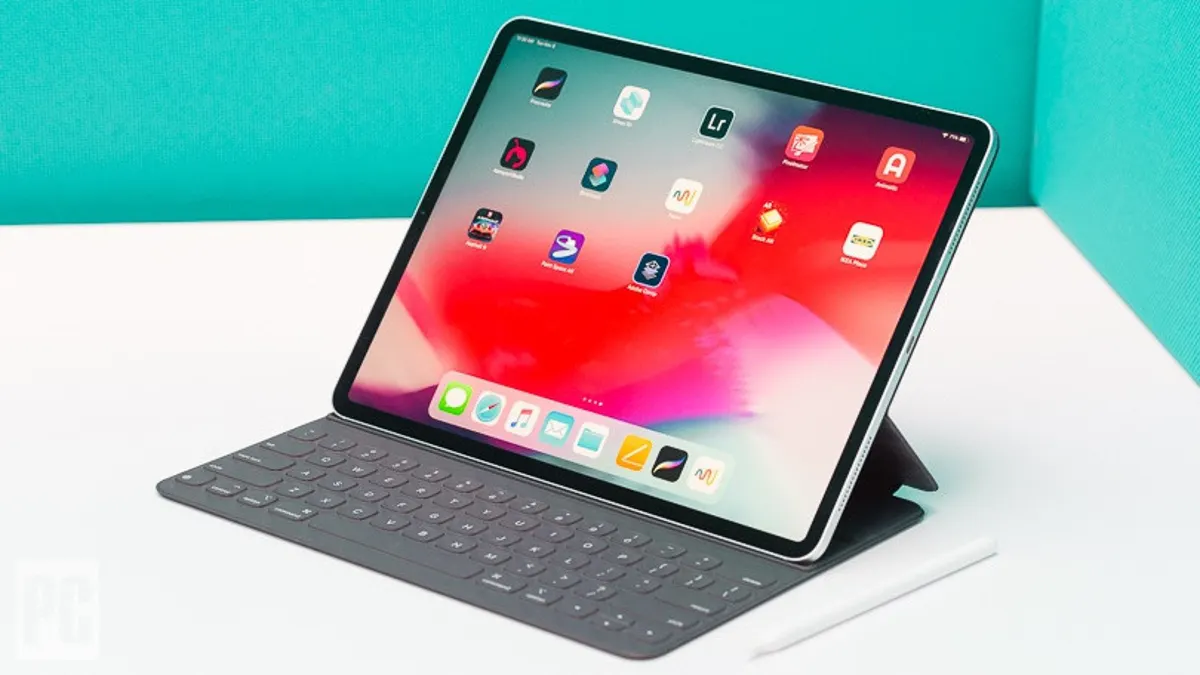
Keeping your tablet clean is about more than appearances — it protects the screen, preserves performance, and reduces germs that collect from frequent handling. Whether you use your tablet for work, study, or streaming, regular, safe cleaning extends its lifespan and keeps touch sensitivity and cameras working as intended. A calm, careful approach and the right materials are all you need to make the process fast and effective.
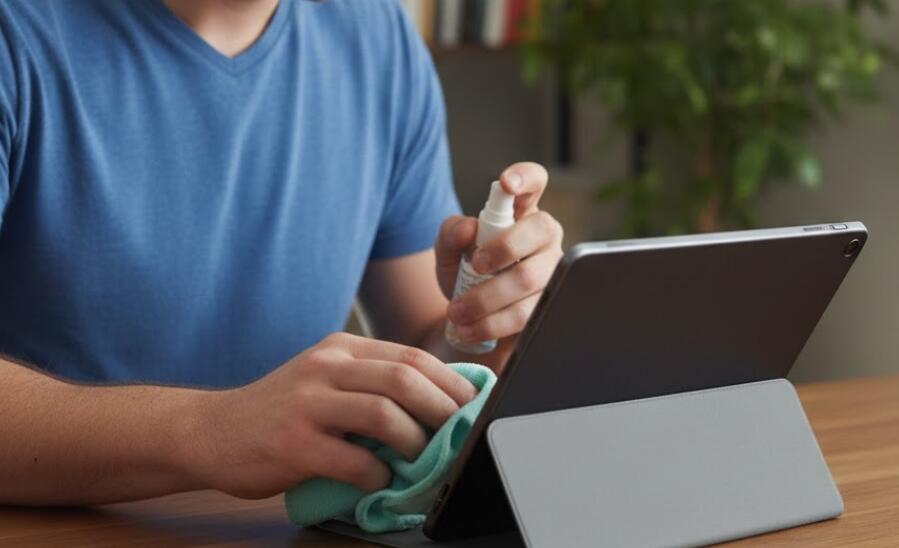
This guide walks you step-by-step through everything: what to use, what to avoid, how to disinfect without damaging coatings, how to clean ports and speakers, and simple routines to keep your device in top shape. Follow the advice here and you’ll be able to refresh your tablet safely — whether it’s an iPad, an Android slate, or a Windows tablet.
Why cleaning your tablet matters
Tablets are handled constantly: fingers, pens, laps, bags, and hands that have touched many surfaces. Over time oily residues, dust, food particles, and microbes build up. Grease and dirt reduce screen clarity and responsiveness, while debris in ports and speakers can cause overheating or muffled sound. Regular cleaning keeps your device hygienic, maintains its resale value, and prevents minor problems from becoming major ones.
Before you start: safety and precautions
Always power down and unplug your tablet before cleaning. Remove any cables, styluses, keyboards, and cases. Work in a well-lit, clutter-free area on a soft surface (a microfiber cloth laid on a table is ideal). Avoid spraying liquids directly onto the tablet — moisture in ports or seams can damage internal components. If your tablet has a manufacturer's warranty or special cleaning instructions, follow them first; some coatings (anti-reflective or Oleophobic) are sensitive and require gentle care.
What you’ll need
- Microfiber cloths (several, lint-free)
- Compressed air canister or a soft brush (for ports and speakers)
- Distilled water (tap water can leave mineral deposits)
- Isopropyl alcohol 70% or a vendor-recommended screen disinfectant (use sparingly)
- Cotton swabs or foam swabs
- Optional: gentle dish soap, soft toothbrush, or silicone tip cleaner for accessories
- Soft plastic tool or toothpick wrapped in a microfiber corner (for stubborn dirt near seams — use extremely gently)
General cleaning rules
Follow these simple rules each time you clean:
- Turn the tablet off and unplug all accessories.
- Never spray or pour liquid directly on the device.
- Use very light pressure when wiping screens to avoid scratching — the goal is to lift oil and dust, not to scour.
- Avoid household cleaners, window cleaners, or abrasive products — they can strip protective coatings.
- If using isopropyl alcohol, dilute to about 70% or use commercially available electronics wipes recommended by the manufacturer; do not exceed recommended concentrations.
Step-by-step cleaning: screen and body
1. Power down and remove any case or accessories. Place the tablet on a flat, soft surface.
2. Use a dry microfiber cloth to gently wipe the screen and body. Use circular motions and light pressure to remove loose dust and fingerprints.
3. For oily smudges, slightly dampen a microfiber cloth with distilled water. Wring it so it’s only barely damp; wipe the screen in a single, gentle pass. If the smudge remains, mix a 1:1 solution of distilled water and 70% isopropyl alcohol applied to the cloth (not the tablet) and gently wipe the affected area.
4. Immediately follow with a dry microfiber cloth to remove streaks. Inspect under good light to ensure no residue or streaks remain.
Cleaning ports and speakers
Ports and speaker grilles collect dust and lint that can affect charging and sound. Be careful — internal components are delicate.
- Use a can of compressed air in short bursts held upright to blow dust out of ports and speaker holes. Keep the can at least 10–15 cm away and pulse briefly to avoid moisture from the can getting into the device.
- If compressed air is not available, use a soft, dry brush (like a small paintbrush) to gently coax debris out. Avoid inserting hard objects directly into ports.
- For stubborn lint, a wooden toothpick or a soft plastic tool wrapped in microfiber can be used very gently along the port edges — do not press hard.
Disinfecting your tablet
Disinfecting is important if multiple people share the device or you’ve used it after being in public spaces. Some manufacturers (including the makers of popular tablets) have approved the use of 70% isopropyl alcohol wipes for external surfaces, but you should still avoid excessive moisture and avoid screens with delicate coatings whenever possible.
Lightly dampen a microfiber cloth or use an alcohol wipe approved for electronics and wipe the back and edges first. When cleaning the screen, use minimal dampness and test on a small area first. Do not let disinfectant pool around buttons, cameras, or ports. After disinfecting, wipe with a dry cloth to remove any residue.
Cleaning cases, covers, and accessories
Cases, covers, and detachable keyboards should be cleaned separately according to their materials.
- Silicone or rubber cases: Wash with mild dish soap and warm water, rinse, and air dry completely before reattaching.
- Leather cases: Use a damp cloth and a leather cleaner or conditioner recommended for the product; avoid soaking leather.
- Fabric covers: Spot clean with gentle soap and water; some are machine-washable — check the label.
- Keyboards: Remove detachable keyboards and clean key surfaces with a lightly damp cloth. Use compressed air to remove grit between keys.
- Styluses: Wipe down with a microfiber cloth and, if needed, a small amount of alcohol on the cloth; avoid getting moisture into any buttons or charging contacts.
Cleaning camera lenses and sensors
Camera lenses are easy to scratch, so treat them gently. Start with a dry microfiber cloth and wipe with light pressure. If fingerprints persist, breathe on the lens to create a light mist, then wipe with the cloth in a circular motion. For stubborn grit, use a lens-grade cleaning wipe or solution applied to the cloth, not directly to the lens. After cleaning, test the camera by taking a photo of a plain surface to check for streaks or smudges.
Dealing with sticky residue or dried spills
If you spilled something sticky (soda, food, lotion), act quickly if possible. Power off, gently remove the case, and use a dampened microfiber cloth (distilled water) to soften the residue. For tougher residue, a 1:1 mixture of distilled water and isopropyl alcohol on a cloth can help. Avoid aggressive scraping. If residue is inside button seams or ports and won’t come out with gentle brushing, consider professional service rather than forcing tools inside the device.
Drying and reassembly
After cleaning, ensure everything is completely dry before reconnecting cables or turning the tablet back on. Leave the tablet in a dry, ventilated spot for at least 10–15 minutes if any dampness was used. Reattach accessories only when they are fully dry. Replacing a damp case or keyboard prematurely can trap moisture and cause damage.
How often should you clean your tablet?
Frequency depends on usage. For personal, single-user devices, a light cleaning (wipe with a microfiber cloth) once a week and a more thorough cleaning (disinfecting surfaces and cleaning ports) once a month is a sensible schedule. If the tablet is shared, used in public places, or used during meals, disinfecting after each shared session or after messy use is recommended. Always clean cases and accessories more often — these pick up grime quickly.
What to avoid — common mistakes
- Do not spray cleaners or water directly onto the tablet — always apply to the cloth first.
- Avoid bleach, hydrogen peroxide, window cleaners, or products containing ammonia; they can damage coatings and plastics.
- Don’t use paper towels or clothing to clean the screen — they can scratch or leave fibers behind.
- Never submerge your tablet unless it is explicitly rated for submersion and you follow the manufacturer’s guidelines.
- Avoid excessive pressure when cleaning cameras, screens, and ports.
Troubleshooting after cleaning
If you notice touch sensitivity issues, ghost touches, or dryer-than-usual screen response after cleaning, power the device off and allow it to dry fully. Residual moisture in seams or around the screen can cause temporary problems. If a port no longer charges after cleaning, inspect for visible debris and try gentle compressed air. If problems persist, seek professional repair; do not open sealed devices yourself unless you are trained to do so.
Extra tips and eco considerations
Keep an extra microfiber cloth in your bag for quick daily wipes. Use reusable, washable cloths instead of disposable wipes to reduce waste. When possible, choose alcohol wipes or cleaners designed for electronics to balance effectiveness with safety for coatings. If you travel often, invest in a small electronics cleaning kit that contains microfiber cloths, a brush, and a small bottle of screen-safe cleaner.
Cleaning a tablet doesn't need to be a chore — it’s a short routine that protects your investment and keeps your device pleasant to use. With the right tools and gentle technique you can safely remove dirt, disinfect surfaces, and keep ports clear of debris while preserving screen coatings and internal components.
Remember: the key is gentle, consistent care. Power down before you start, use microfiber, avoid harsh chemicals, and make cleaning part of your regular device maintenance. Do this and your tablet will stay bright, responsive, and hygienic for years to come.