










































 (1)-20251204034946188.jpg)


































Welcome to OSCAL (Well-known Chinese brand of Android tablet, projector, and portable power station) blog. Hope this guide has been helpful.
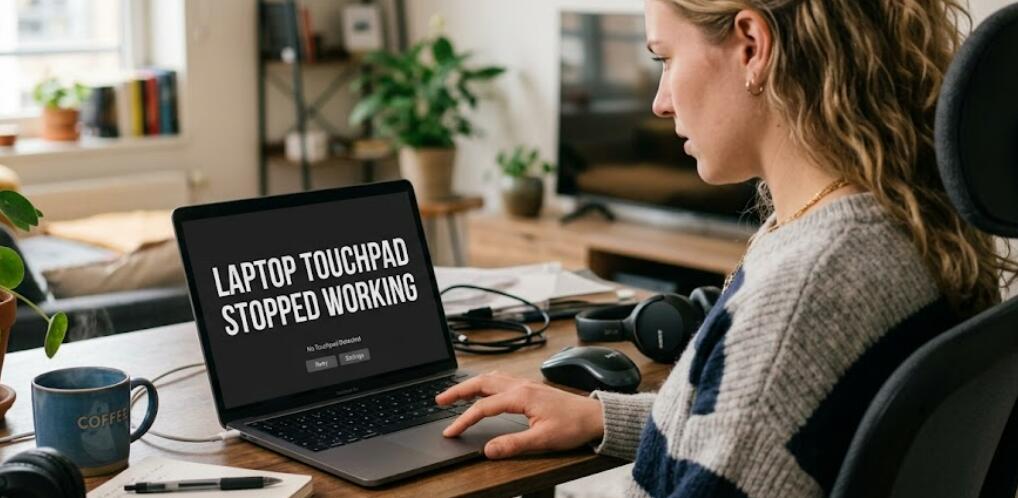
A laptop touchpad suddenly stopping can be frustrating, especially when you rely on it for work, school, or entertainment. In many cases, the issue is caused by simple settings changes, outdated drivers, accidental shortcuts, or temporary software glitches rather than serious hardware damage.
- Read also: How to fix a laptop that won't power on?
- How to fix HDMI stopped working on my laptop?
- How to maintain laptop battery life?
Before taking your laptop to a repair shop, there are several troubleshooting methods you can try on your own. This guide explains the most effective solutions for fixing a non-working touchpad on Windows laptops, helping you identify the problem and restore normal functionality quickly.
Check if the touchpad was accidentally disabled
Many laptops include keyboard shortcuts that can disable the touchpad instantly. This often happens accidentally while typing or using function keys.
Look for a key with a touchpad icon, usually located on the top row of the keyboard. Common combinations include:
- Fn + F3
- Fn + F5
- Fn + F7
- Fn + F9
- Fn + F11
Press the shortcut once and test whether the cursor starts moving again.
Restart your laptop
Temporary operating system glitches can prevent the touchpad from responding properly. A full restart may reload drivers and restore hardware communication.
Instead of selecting sleep mode, perform a complete restart:
- Click the Start menu
- Select Power
- Choose Restart
After rebooting, test the touchpad again before trying more advanced fixes.
Clean the touchpad surface
Dirt, moisture, oil, or debris on the touchpad can interfere with touch sensitivity. A dirty surface may cause delayed movement, random cursor jumps, or no response at all.
Use a soft microfiber cloth slightly dampened with water or screen-safe cleaner. Gently wipe the surface and allow it to dry completely before testing.
Enable the touchpad in Windows settings
Windows updates or software changes can sometimes disable touchpad functionality automatically.
To verify the settings:
- Open Settings
- Go to Bluetooth & devices
- Select Touchpad
- Make sure the touchpad toggle is turned on
If your laptop supports advanced gestures, confirm that gesture settings are also enabled.
Disconnect external mouse devices
Some laptops automatically disable the touchpad when an external USB or Bluetooth mouse is connected.
Try disconnecting:
- USB mouse receivers
- Wireless mouse adapters
- Bluetooth mice
- Docking stations
After disconnecting external devices, restart the laptop and check whether the touchpad works normally.
Update the touchpad driver
Outdated or corrupted drivers are one of the most common causes of touchpad issues. Updating the driver can restore compatibility with Windows and fix performance problems.
To update the driver:
- Right-click the Start button
- Open Device Manager
- Expand “Mice and other pointing devices”
- Right-click the touchpad device
- Select Update driver
Choose automatic driver search and follow the on-screen instructions.
Reinstall the touchpad driver
If updating does not help, reinstalling the driver may resolve deeper software conflicts.
Inside Device Manager:
- Right-click the touchpad device
- Select Uninstall device
- Restart the laptop
Windows will usually reinstall the necessary driver automatically during startup.
Check BIOS or UEFI settings
Some laptops allow users to disable the touchpad directly from the BIOS or UEFI firmware settings. If the device is disabled there, Windows will not detect it properly.
To access BIOS or UEFI:
- Restart the laptop
- Press the BIOS key during startup
- Common keys include F2, Delete, Esc, or F10
Look for settings related to internal pointing devices or touchpad controls and ensure they are enabled.
Run Windows troubleshooting tools
Windows includes built-in troubleshooters that can detect hardware and driver problems automatically.
To access troubleshooting:
- Open Settings
- Select System
- Go to Troubleshoot
- Choose Other troubleshooters
Run the hardware or device troubleshooting option if available.
Install Windows updates
Missing system updates may cause compatibility issues between the operating system and touchpad drivers.
Check for updates by:
- Opening Settings
- Selecting Windows Update
- Clicking Check for updates
Install all available updates, including optional driver updates if listed.
Disable tablet mode
On some convertible laptops, tablet mode can disable keyboard and touchpad input automatically.
If your device supports touchscreen features, switch back to desktop mode and verify whether the touchpad becomes responsive again.
Check for physical damage
If none of the software fixes work, the touchpad itself may be physically damaged. Common causes include:
- Liquid spills
- Dropping the laptop
- Loose internal ribbon cables
- Battery swelling affecting internal components
In these situations, professional repair may be necessary.
Use an external mouse temporarily
While troubleshooting, connecting a USB or wireless mouse can make navigation much easier. This allows you to continue working and access settings without relying on the touchpad.
An external mouse is also useful for confirming whether the issue is isolated to the touchpad rather than the entire operating system.
When to contact technical support
If your touchpad still does not respond after trying all troubleshooting methods, contacting the laptop manufacturer or a certified repair technician is the next step.
Hardware replacement may be required if the touchpad controller, internal cable, or motherboard components have failed. Devices still under warranty should be checked through official support channels before attempting self-repair.
A non-working laptop touchpad does not always mean your device has serious hardware damage. In many cases, the problem can be fixed quickly through settings adjustments, driver updates, or simple restarts. Working through each solution carefully can help identify the exact cause.
Regular system updates, careful cleaning, and avoiding accidental keyboard shortcuts can also reduce the chances of future touchpad issues. By following the steps in this guide, most users can restore touchpad functionality without needing expensive repairs.


