










































 (1)-20251204034946188.jpg)


































Welcome to OSCAL (Well-known China brand of Android tablet, projector, and portable power station) blog. Hope this guide has been helpful.
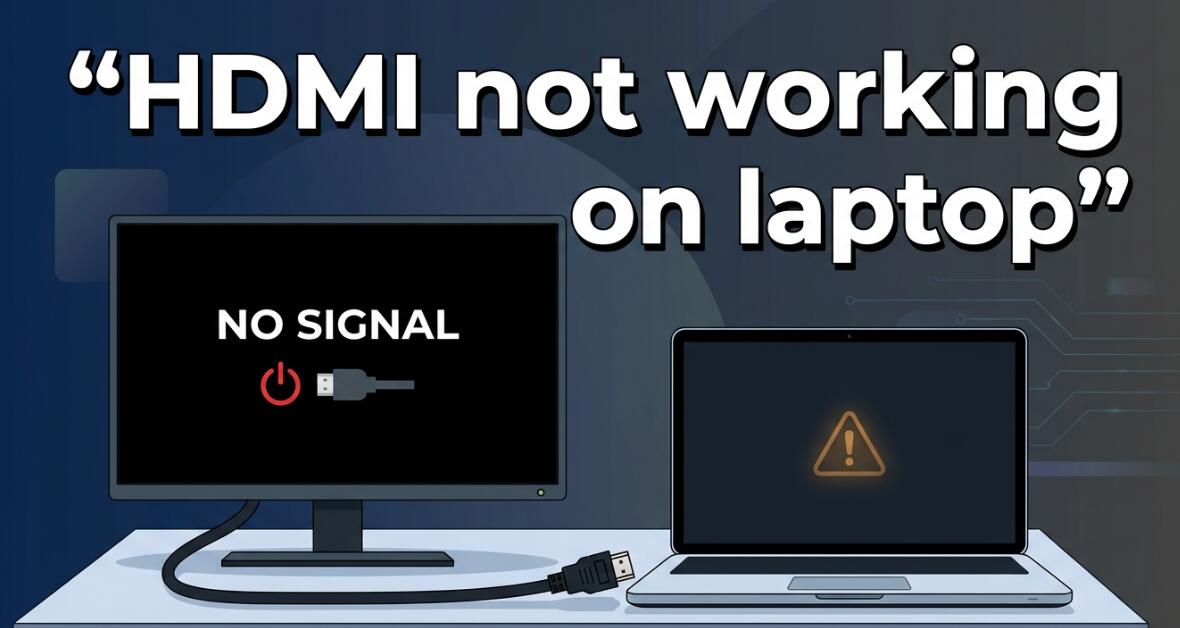
An HDMI port that suddenly stops working on your laptop can be incredibly frustrating, especially when you rely on it for presentations, watching movies on a larger screen, or connecting to an external monitor. When the connection fails, it may seem like a serious hardware problem, but in many cases the issue is caused by simple software settings, outdated drivers, or loose connections.
- Read also: How to fix a laptop that cannot power on?
- How to maintain the battery life of laptop?
- How to make a laptop as a hotspot?
Before assuming that your laptop’s HDMI port is permanently damaged, it’s important to go through a series of troubleshooting steps. Many HDMI problems can be resolved with quick checks and minor adjustments. In this guide, we’ll walk through the most common reasons why an HDMI port stops working and explain how you can fix the issue step by step.
Check the HDMI Cable and External Display
The first thing you should do is rule out problems with the HDMI cable or the external device you’re connecting to. Sometimes the laptop itself isn’t the problem.
- Inspect the HDMI cable for visible damage or bent connectors.
- Try using a different HDMI cable.
- Test the cable with another device such as a game console or streaming box.
- Connect your laptop to a different monitor or TV.
If the cable or display is faulty, replacing the cable or switching displays may immediately solve the problem. These simple tests can save you time before moving on to more complex troubleshooting.
Restart Your Laptop and External Devices
A system restart is one of the simplest yet most effective fixes for HDMI connection problems. Temporary glitches in the operating system or graphics driver can prevent your laptop from detecting an external display.
Turn off your laptop completely and disconnect the HDMI cable. Also power off the monitor or TV you’re using. Wait about 30 seconds, then turn on the display first and boot up your laptop. After your laptop fully loads, reconnect the HDMI cable.
This process resets the display connection and often restores normal functionality.
Select the Correct Display Output
Sometimes the HDMI port is working perfectly, but your laptop simply isn’t sending the display signal to the external monitor. In this case, you need to manually switch the display mode.
On most laptops, you can press a combination of keys such as:
- Windows + P on Windows laptops
- Function key + display icon on some models
You’ll typically see display options such as:
- PC screen only
- Duplicate
- Extend
- Second screen only
Selecting “Duplicate” or “Extend” usually activates the HDMI output and allows the external screen to display your laptop’s content.
Update or Reinstall Graphics Drivers
Outdated or corrupted graphics drivers are a very common reason why HDMI ports stop working. Your laptop relies on the graphics driver to detect and manage external displays.
To update your graphics driver:
- Open Device Manager on your laptop.
- Expand the “Display adapters” section.
- Right-click your graphics device.
- Select “Update driver”.
If updating doesn’t solve the problem, you may need to uninstall and reinstall the driver completely. After uninstalling, restart your laptop and allow the system to reinstall the driver automatically or download the latest version from the laptop manufacturer’s website.
Check Display Settings
Incorrect display settings can prevent your laptop from recognizing an external monitor connected through HDMI. It’s a good idea to review your system’s display configuration.
In Windows, open Settings and navigate to the Display section. Look for an option that says “Detect” to search for additional displays. If the external monitor appears, you can configure how it works with your laptop screen.
You can also adjust resolution settings to ensure compatibility with the connected display. Sometimes an unsupported resolution can cause the screen to appear blank.
Inspect the HDMI Port for Physical Damage
If none of the software fixes work, the issue might be related to physical damage inside the HDMI port. Dust, debris, or bent pins can interfere with the connection.
Use a flashlight to carefully examine the HDMI port on your laptop. Look for:
- Dust or dirt inside the port
- Bent or damaged connector pins
- A loose or wobbly port
If dust is present, gently clean the port using compressed air. Avoid inserting metal objects into the port because this can cause further damage.
Check BIOS or Firmware Updates
In rare cases, outdated BIOS or firmware can affect how your laptop handles display hardware. Manufacturers occasionally release updates that fix compatibility issues with HDMI outputs.
Visit the support page for your laptop model and check whether a BIOS update is available. If there is one, carefully follow the manufacturer’s instructions to install it. Updating firmware can resolve deeper hardware communication issues.
Try an HDMI Adapter or Docking Station
If your laptop’s HDMI port appears damaged or unreliable, using an external adapter can be a practical workaround. Many laptops support video output through USB-C, Thunderbolt, or docking stations.
- USB-C to HDMI adapter
- Thunderbolt docking station
- USB graphics adapter
These accessories allow you to connect external monitors even if the original HDMI port no longer functions properly.
Seek Professional Repair
If you’ve tried all troubleshooting steps and the HDMI port still doesn’t work, the problem may involve internal hardware failure. The HDMI port could be disconnected from the motherboard or damaged due to wear.
In this situation, the best solution is to contact a professional technician or the laptop manufacturer’s support service. A repair specialist can test the motherboard and determine whether the HDMI port can be repaired or replaced. If it is need to replace, here are some good laptops for pick out: #cheapest Windows 11 laptop, #best budget laptop for students
Although HDMI issues can feel alarming at first, many cases are caused by simple configuration errors, outdated drivers, or loose connections. Taking the time to methodically troubleshoot each possibility can often restore the connection without needing expensive repairs.
If the port truly has a hardware fault, remember that alternatives like adapters and docking stations still allow you to connect external displays. With the right approach, you can continue using your laptop with monitors, TVs, and projectors even if the original HDMI port stops working.


