










































 (1)-20251204034946188.jpg)


































Welcome to OSCAL (A China brand of TWS earbuds, rugged phone, tablet, and portable power station) blog. Hope this guide has been helpful.
Connecting two wireless earbuds to a single phone can feel confusing at first, especially because different brands and operating systems handle Bluetooth audio in slightly different ways. Whether you want to share music with a friend, watch a movie together, or simply use a pair of true wireless earbuds as intended, understanding the basics will save you time and frustration.
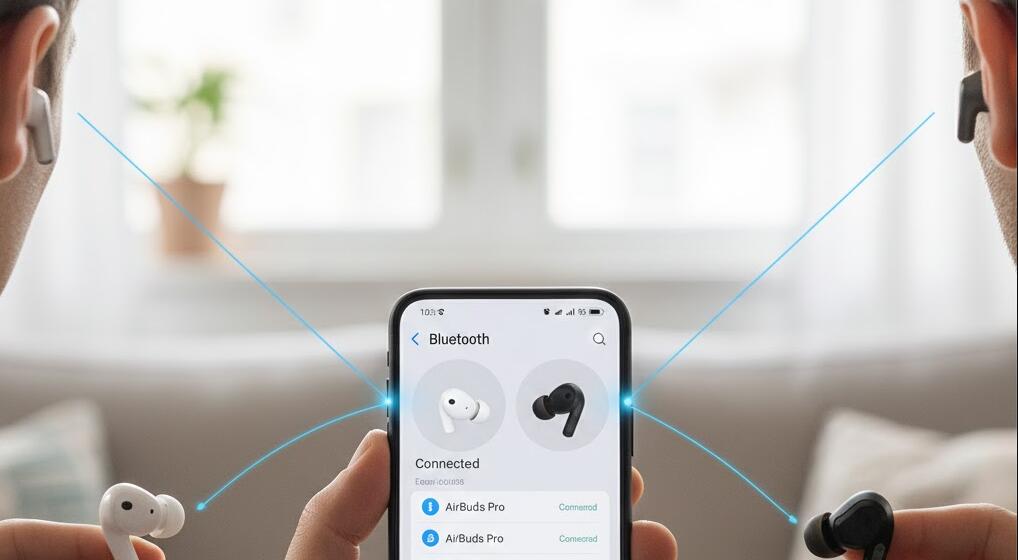
This guide walks you through the most common and reliable methods to connect two wireless earbuds to one phone. We will cover standard pairing, brand-specific features, and practical troubleshooting tips, so you can enjoy seamless audio without constantly reconnecting or adjusting settings.
Understanding how wireless earbuds connect
Most modern wireless earbuds use Bluetooth and are designed to work as a synchronized pair. Typically, one earbud acts as the “primary” unit, connecting directly to your phone, while the second earbud connects to the first. Because of this setup, you usually do not need to pair each earbud separately.
Some phones and earbuds also support special audio-sharing features, allowing two separate sets of earbuds to connect to one phone at the same time. This is different from using a single pair of earbuds and depends heavily on your phone’s software and Bluetooth version. Check if your phone supports it.
Connecting a standard pair of true wireless earbuds
To connect a normal pair of true wireless earbuds to one phone (e.g., rugged phone), follow these general steps. The exact wording in menus may vary slightly depending on your device.
- Fully charge both earbuds and place them in their charging case.
- Remove both earbuds from the case at the same time.
- Enable Bluetooth on your phone.
- Look for the earbuds’ name in the available devices list.
- Select the earbuds and wait for the confirmation message.
Once connected, audio should automatically play through both earbuds. If only one earbud works, place both back in the case, reset them if possible, and try again.
Sharing audio with two sets of earbuds
If your goal is to connect two different sets of wireless earbuds to one phone, you will need a phone that supports dual audio or audio sharing. Many newer smartphones include this feature, but it is not universal.
Common examples include Bluetooth audio sharing on certain Android phones and similar features on some other ecosystems. In these cases, you first connect one pair of earbuds normally, then add the second pair through the phone’s Bluetooth or audio settings.
- Connect the first pair of earbuds via Bluetooth.
- Put the second pair into pairing mode.
- Open your phone’s Bluetooth or audio sharing menu.
- Select the second pair and confirm the connection.
When successful, both listeners will hear the same audio stream, with independent volume control in some cases.
Troubleshooting common problems
If you experience connection issues, audio dropouts, or syncing problems, a few simple checks can help. Bluetooth performance can be affected by battery level, interference, and outdated software.
- Restart your phone and earbuds.
- Update your phone’s operating system.
- Forget and re-pair the earbuds in Bluetooth settings.
- Keep the earbuds close to the phone.
Resetting the earbuds to factory settings often resolves stubborn issues, especially if they were previously paired with another device.
Final thoughts
Connecting two wireless earbuds to one phone is usually straightforward once you understand whether you are pairing a single set or sharing audio between two sets. Most problems come from pairing order, low battery, or unsupported phone features, rather than faulty hardware.
By following the steps in this guide and checking your phone’s specific capabilities, you can enjoy shared listening or perfectly synced earbuds with minimal effort. With the right setup, wireless audio becomes a smooth and enjoyable experience for everyday use.


