










































 (1)-20251204034946188.jpg)


































Welcome to OSCAL (Well-known China brand of portable power stations, projectors, rugged smartphones, and tablets) blog. Hope this guide has been helpful.
Watching movies, TV shows, or personal videos at home no longer requires a bulky TV or complicated cable setup. With modern wireless technologies, you can easily connect your smartphone to a projector and transform any wall into a big screen. This guide will walk you through the most practical and reliable ways to connect your phone to a projector wirelessly, whether you use an Android device or an iPhone.
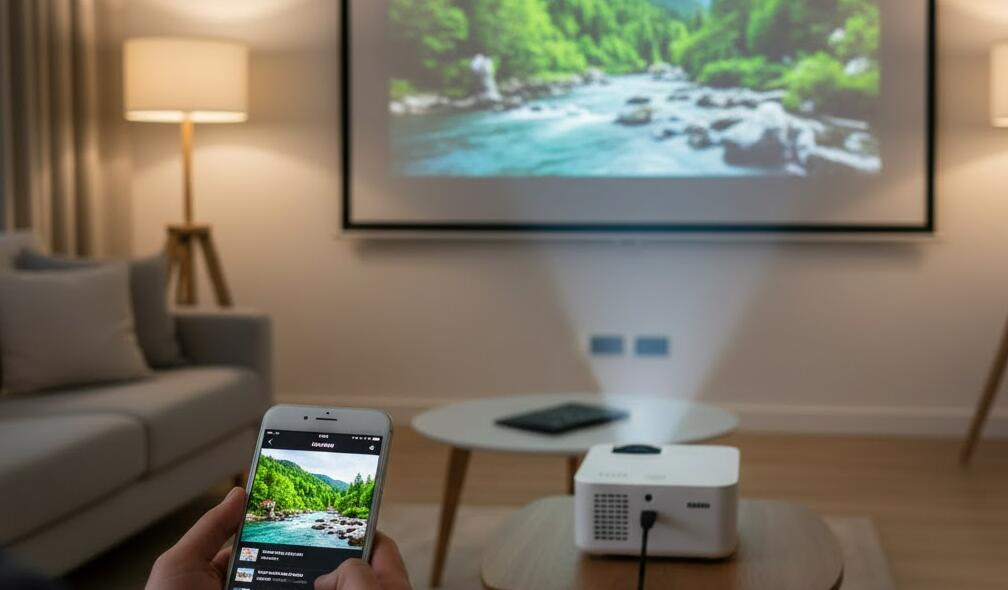
Wireless projection is especially appealing for home entertainment because it offers flexibility and convenience. You can place your projector anywhere in the room, avoid tangled cables, and control playback directly from your phone. From built-in casting features to dedicated adapters and apps, there are several methods available, and choosing the right one depends on your phone and projector model. As an aside, if you don't want to use the projector and phone combination, you can also choose a tablet or phone with a built-in projector, so you only need one device to complete the projection operation.
Understanding wireless projection basics
Before connecting your phone to a projector, it’s important to understand how wireless projection works. Most wireless connections rely on Wi-Fi rather than Bluetooth, as video streaming requires higher bandwidth. Both your phone and projector usually need to be connected to the same Wi-Fi network, or the projector may create its own wireless hotspot for direct connection.
Some projectors come with built-in smart systems that support screen mirroring or casting protocols. Others may require an external streaming device, such as a dongle or adapter. Knowing your projector’s capabilities will help you choose the most efficient setup.
Connecting an Android phone to a projector wirelessly
Android devices typically offer flexible wireless display options. Many Android phones support screen mirroring features under names like “Cast,” “Smart View,” or “Wireless Display,” depending on the brand.
To connect an Android phone to a compatible projector, make sure both devices are connected to the same Wi-Fi network. Open your phone’s settings, find the screen casting option, and select your projector from the list of available devices. Within seconds, your phone screen should appear on the projected image.
If your projector does not support native Android casting, you can use a wireless streaming device that connects to the projector’s HDMI port. Once set up, you can cast videos from supported apps or mirror your entire screen using third-party apps designed for wireless display.
Connecting an iPhone to a projector wirelessly
For iPhone users, wireless projection is usually done through AirPlay. Many modern projectors support AirPlay directly, allowing seamless screen mirroring without additional hardware.
To use AirPlay, connect your iPhone and projector to the same Wi-Fi network. Open the Control Center on your iPhone, tap “Screen Mirroring,” and select your projector. Your iPhone screen will be displayed instantly, making it easy to watch videos, browse photos, or stream content.
If your projector does not support AirPlay, you can use a wireless streaming adapter that is compatible with iOS devices. After connecting the adapter to the projector and configuring it, AirPlay will recognize it as an available display.
Using smart projectors and built-in apps
Smart projectors with built-in operating systems offer one of the simplest wireless solutions. These projectors often include popular streaming apps, allowing you to watch videos directly without mirroring your phone at all.
In this case, your phone acts as a remote control rather than a video source. You can use companion apps to search for content, adjust settings, and control playback. This approach reduces lag and avoids interruptions from notifications appearing on the screen.
Troubleshooting common wireless connection issues
Wireless connections can occasionally be unstable, especially in environments with crowded Wi-Fi networks. If you experience lag, disconnections, or poor video quality, try moving your router closer to the projector or reducing the number of connected devices.
Make sure your phone’s operating system and projector firmware are up to date. Restarting both devices can also resolve many temporary issues. For smoother playback, consider using a dedicated Wi-Fi network or the projector’s direct wireless connection mode if available.
Tips for the best home viewing experience
- Place the projector at the recommended distance for a sharp and well-sized image.
- Use a stable Wi-Fi connection to reduce lag and buffering.
- Enable “Do Not Disturb” on your phone to avoid notifications during playback.
- Adjust the projector’s brightness and focus for your room lighting.
These small adjustments can significantly improve your wireless viewing experience and make movie nights more enjoyable.
Connecting your phone to a projector wirelessly is a practical way to enjoy videos at home without the hassle of cables. Whether you rely on built-in casting features, AirPlay, or smart projectors with integrated apps, there is a solution that fits almost every setup and budget.
By understanding your devices and following the steps outlined in this guide, you can create a comfortable home theater experience in minutes. With wireless projection, entertainment becomes more flexible, immersive, and easy to share with family and friends.


