










































 (1)-20251204034946188.jpg)


































Welcome to OSCAL (Well-known China brand of Android smartwatch, rugged phone, tablet, and portable power station) blog. Hope this guide has been helpful.
When your smart watch suddenly refuses to connect to Bluetooth, it can feel surprisingly frustrating. Features you rely on every day—notifications, fitness tracking, calls, and music control—suddenly stop working. The good news is that most Bluetooth connection issues are caused by simple settings conflicts or temporary glitches rather than serious hardware problems.
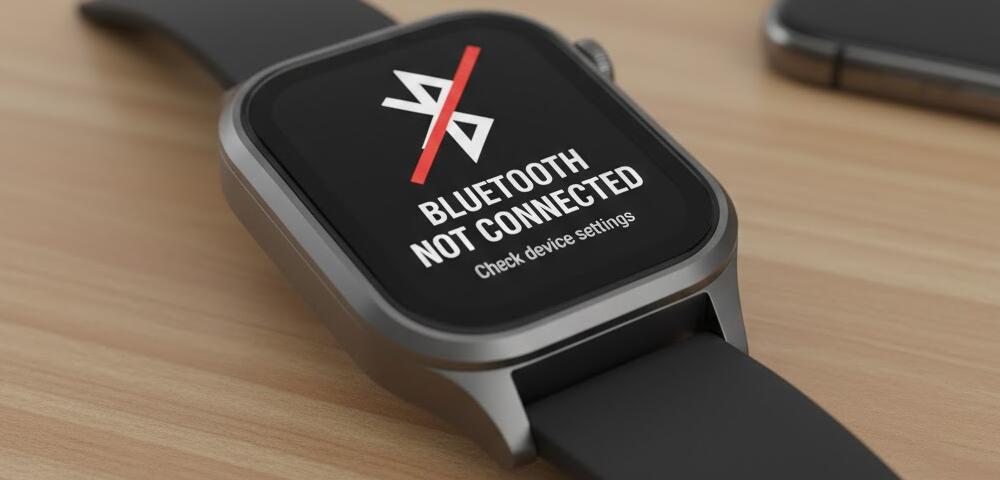
This guide walks you through clear, practical steps to diagnose and fix a smart watch that won’t connect to Bluetooth. Whether you’re using an Android phone or an iPhone, these methods apply to most major brands and models, and you can try them in order until the connection is restored.
Check basic Bluetooth requirements
Before diving into deeper fixes, confirm that the basics are covered. Bluetooth issues often come from overlooked details that are easy to correct in seconds.
- Make sure Bluetooth is turned on both on your phone and your smart watch.
- Keep the devices close together, ideally within one meter during pairing.
- Ensure Airplane Mode is turned off on both devices.
- Check that your watch is compatible with your phone’s operating system version.
Restart both devices
A simple restart can clear temporary software conflicts that block Bluetooth connections. Turn off your smart watch completely, then power it back on after a few seconds. Do the same with your phone. Once both devices are fully restarted, try connecting again through the Bluetooth or companion app. Related: How to restart phone without power button?
Forget and re-pair the Bluetooth connection
If the devices were previously connected but no longer sync, the saved Bluetooth profile may be corrupted. On your phone, go to Bluetooth settings, find your smart watch in the list of paired devices, and select “Forget” or “Unpair.” Then restart both devices and begin the pairing process again as if it were the first time.
Update software and apps
Outdated software is a common cause of connectivity issues. Check for system updates on your phone and firmware updates on your smart watch. Also make sure the official companion app for your watch is updated to the latest version. Updates often include Bluetooth stability improvements and bug fixes.
Check app permissions and background settings
Smart watches rely heavily on their companion apps. If permissions are restricted, Bluetooth communication may fail. Confirm that the app has permission to use Bluetooth, location services, and background activity. On some phones, aggressive battery-saving modes can limit background connections, so consider disabling battery optimization for the watch app.
Reset network or Bluetooth settings
If Bluetooth continues to fail, resetting network settings on your phone can help. This clears Bluetooth, Wi-Fi, and mobile network configurations, giving you a clean slate. Be aware that you will need to reconnect to Wi-Fi networks afterward. Once reset, try pairing your smart watch again.
Factory reset the smart watch
As a last resort, performing a factory reset on the smart watch can resolve deep software issues. This will erase data stored on the watch, so back up any important information first. After the reset, set up the watch from scratch and attempt Bluetooth pairing again.
Rule out interference and hardware issues
Bluetooth signals can be disrupted by other wireless devices, metal surfaces, or crowded signal environments. Try pairing in a different location and turn off nearby Bluetooth devices temporarily. If the watch still won’t connect, test it with another compatible phone to determine whether the issue lies with the watch or the original phone.
Bluetooth problems can feel overwhelming, but most smart watch connection issues are solvable with patience and a step-by-step approach. By starting with simple checks and gradually moving to advanced solutions, you greatly increase your chances of restoring a stable connection without professional repair.
If none of these methods work, it may be time to contact the manufacturer’s support team or visit an authorized service center. Persistent Bluetooth failure could indicate a hardware defect, and getting expert help ensures your smart watch stays reliable and functional for the long term.


