(1)-20251204034946188.jpg)


































Welcome to OSCAL (Well-known Chinese brand of Android tablets, rugged outdoor smartphones, and portable power stations) blog. Hope this guide has been helpful.
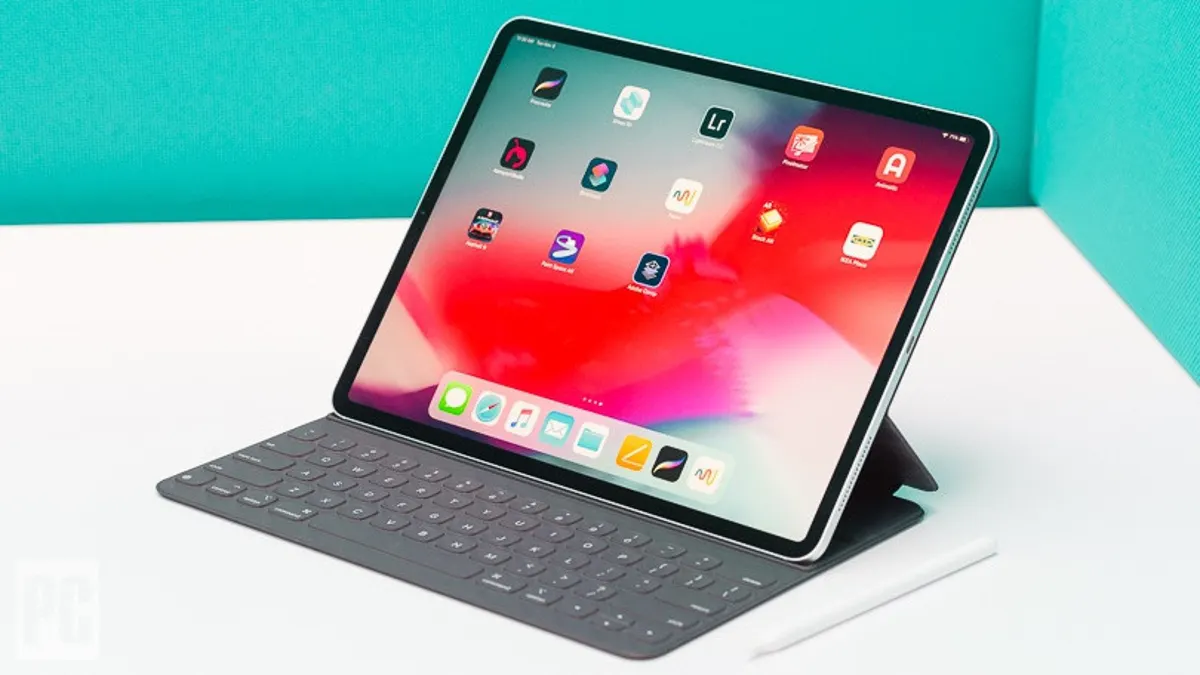
A tablet that suddenly stops responding to touch can be frustrating, especially when you rely on it for work, entertainment, or communication. Touchscreen issues may happen because of software glitches, screen protectors, low memory, overheating, or even physical damage. The good news is that many of these problems can be solved at home without professional repair.

- Read also: 10 Ways to turn on a tablet without power button
- How to fix a tablet that won't connect to WiFi?
- How to fix a tablet that is not charging?
Before assuming the device is permanently damaged, it is important to try a few troubleshooting methods. Simple actions such as restarting the tablet, cleaning the screen, or updating the operating system can often restore normal touch functionality. This guide explains practical steps you can follow to identify and fix the issue quickly.
1. Restart the tablet
A temporary software error is one of the most common reasons a touchscreen becomes unresponsive. Restarting the tablet can refresh the system and remove minor glitches.
- Press and hold the power button for several seconds.
- Select the restart option if it appears.
- If the screen is frozen, force restart the device by holding the power button and volume button together for 10–20 seconds.
- Wait for the tablet to reboot completely and test the touchscreen again.
2. Clean the touchscreen
Dirt, grease, moisture, or dust on the display may interfere with touch sensitivity. Cleaning the screen carefully can improve responsiveness.
- Turn off the tablet before cleaning.
- Use a soft microfiber cloth to wipe the screen gently.
- Avoid using excessive water or harsh cleaning chemicals.
- Remove any moisture from your hands before using the device.
3. Remove the screen protector or case
Some low-quality or damaged screen protectors can block touch input. Protective cases may also press against the screen edges and affect performance.
- Carefully remove the screen protector.
- Take the tablet out of its protective case.
- Test whether the touchscreen responds normally afterward.
- Replace the old screen protector with a high-quality one if needed.
4. Charge the battery
A very low battery level may cause the tablet to behave unpredictably, including touchscreen lag or freezing.
- Connect the tablet to its original charger.
- Allow it to charge for at least 20–30 minutes.
- Turn the device back on and test the touchscreen.
- Check for charging port damage if the battery does not charge properly.
5. Update the operating system
Outdated software can contain bugs that affect touchscreen performance. Installing the latest updates may fix compatibility or system problems.
- Open the settings menu.
- Go to the software update section.
- Download and install available updates.
- Restart the tablet after the installation is complete.
6. Free up storage space
When a tablet has insufficient storage, apps and system functions may slow down or freeze. Clearing unnecessary files can help the device operate smoothly.
- Delete unused apps and games.
- Remove duplicate photos or videos.
- Clear app cache files.
- Transfer important files to cloud storage or an external device.
7. Start the tablet in safe mode
Some third-party applications may conflict with the operating system and cause touchscreen problems. Safe mode helps determine whether an app is responsible.
- Press and hold the power button.
- Tap and hold the power off option until safe mode appears.
- Restart the tablet in safe mode.
- Check whether the touchscreen works correctly.
- Uninstall recently downloaded apps if the issue disappears.
8. Calibrate the touchscreen
Touch calibration can improve accuracy if the screen responds incorrectly or registers taps in the wrong area.
- Open the tablet settings.
- Search for touchscreen calibration options.
- Follow the instructions displayed on the screen.
- Restart the device after calibration.
9. Perform a factory reset
If none of the previous methods work, a factory reset may solve deeper software issues. This process erases all data, so backing up important files is essential.
- Back up photos, documents, and important data.
- Open settings and find the reset menu.
- Select factory data reset.
- Wait for the tablet to restore default settings.
- Set up the device again and test the touchscreen.
10. Check for physical damage
Physical damage can prevent the touchscreen from functioning correctly. Cracks, water exposure, or internal hardware problems may require professional repair.
- Inspect the screen for visible cracks.
- Look for signs of water damage or overheating.
- Test whether certain screen areas respond while others do not.
- Visit an authorized repair center if hardware damage is suspected.
Touchscreen problems do not always mean a tablet is beyond repair. In many cases, the issue is caused by temporary software errors, dirt on the display, or overloaded storage. Trying simple troubleshooting methods first can save both time and money.
If the touchscreen still does not respond after completing all the steps above, professional assistance may be necessary. A technician can diagnose hardware issues such as a damaged digitizer or faulty internal components. Regular software updates, proper handling, and careful maintenance can also help prevent touchscreen problems in the future.