










































 (1)-20251204034946188.jpg)


































Welcome to OSCAL (Well-known Chinese brand of Android tablet, rugged outdoor smartphone, and portable power station) blog. Hope this guide has been helpful.
Android devices, including smartphones and tablets, make it easy to install and use apps for entertainment, productivity, communication, and gaming. However, many users eventually discover that unused applications can consume storage space, slow down performance, drain battery life, and even continue running in the background. Simply removing an app from the home screen is not enough because the application files, cache, and leftover data may still remain on the device.
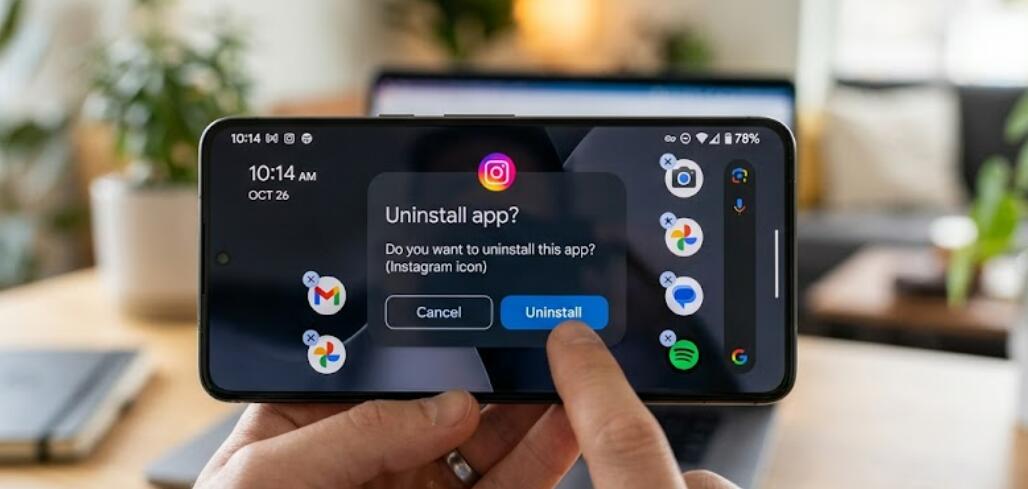
Completely deleting an app on Android devices involves more than tapping the uninstall button. Depending on the manufacturer and Android version, some apps may leave residual files or hidden data behind. Learning the proper way to remove apps can help keep your smartphone or tablet running smoothly, improve storage management, and reduce unnecessary background activity. This guide explains how to fully remove applications from Android devices step by step.
Why You Should Completely Delete Unused Apps
Unused apps can create several problems over time. Even if an app is rarely opened, it may still store temporary files, track activity, or download updates in the background. Fully deleting unnecessary applications offers multiple benefits for Android users.
- Free up internal storage space
- Improve device speed and performance
- Reduce battery consumption
- Minimize background data usage
- Enhance privacy and security
- Keep the app drawer organized
Check Which Apps You Want to Remove
Before uninstalling applications, it is a good idea to review which apps are no longer useful. Some apps may contain important files, saved settings, or login information. Back up any essential data before deletion if necessary.
You can usually identify unused apps by checking storage usage or screen time reports in the device settings. Many Android smartphones and tablets also show the last time an app was opened.
How to Completely Delete an App Through Settings
The Settings app provides the most reliable way to fully remove applications from Android devices. This method works on most Android smartphones and tablets, although menu names may vary slightly depending on the manufacturer.
- Open the Settings app on your Android device
- Tap Apps, Applications, or App Management
- Scroll through the list and select the app you want to remove
- Tap Storage inside the app settings
- Choose Clear Cache to remove temporary files
- Tap Clear Data or Clear Storage to erase saved app information
- Return to the previous screen
- Tap Uninstall
- Confirm the deletion when prompted
Clearing the cache and stored data before uninstalling helps ensure fewer leftover files remain on the device.
How to Delete Apps Directly From the Home Screen
Many Android devices allow users to uninstall apps directly from the home screen or app drawer. This is a faster method for removing ordinary applications.
- Locate the app icon on the home screen or in the app drawer
- Press and hold the app icon
- Select Uninstall from the pop-up menu
- Tap OK or Confirm
While this method removes the app quickly, some residual cache files may still remain unless the app data is cleared beforehand through Settings.
How to Remove Preinstalled Apps on Android Devices
Many Android smartphones and tablets come with preinstalled applications from the manufacturer or mobile carrier. Some of these apps cannot be completely uninstalled because they are considered system apps. However, users can often disable them to prevent background activity.
- Open Settings
- Tap Apps or Application Manager
- Select the preinstalled app
- Tap Disable
- Confirm the action if prompted
Disabling an app prevents it from running, updating, or appearing in the app drawer. On certain Android devices, some manufacturer apps may also offer a full uninstall option.
Delete Leftover Files After Uninstalling
Even after uninstalling an application, some leftover folders or files may remain in storage. These files are usually small, but over time they can accumulate and waste space.
You can manually remove leftover files using a file manager app.
- Open the device’s file manager
- Go to Internal Storage
- Check folders such as Android, Data, or Obb
- Look for folders related to the deleted app
- Delete any remaining files carefully
Be cautious not to remove important system folders or files unrelated to the deleted application.
Use Google Play Store to Remove Apps
The Google Play Store also allows users to uninstall applications from Android smartphones and tablets. This method is useful when managing multiple apps.
- Open the Google Play Store
- Tap your profile picture in the top-right corner
- Select Manage Apps & Device
- Choose Manage
- Select the apps you want to delete
- Tap the trash icon
- Confirm the uninstall process
This method is especially convenient for identifying apps that occupy large amounts of storage.
Restart Your Android Device After Uninstalling
Restarting the smartphone or tablet after deleting apps can help refresh system processes and remove temporary memory files. Although this step is optional, it may improve device performance after uninstalling large or multiple applications.
- Press and hold the power button
- Tap Restart or Reboot
- Wait for the device to power back on
Tips to Keep Android Devices Clean and Organized
Regular maintenance can help prevent storage issues and keep Android devices functioning efficiently. Managing apps periodically is one of the easiest ways to maintain good device performance.
- Delete apps you no longer use
- Clear cache files regularly
- Avoid installing unnecessary applications
- Use cloud storage for photos and videos
- Check storage settings every few weeks
- Keep Android software updated
Conclusion
Completely deleting an app on Android devices involves more than simply removing the icon from the screen. To fully eliminate unnecessary apps from smartphones and tablets, users should clear app data, uninstall the application properly, and remove leftover files when needed. These steps help improve storage management, battery life, and overall device performance.
By regularly reviewing installed apps and removing those that are no longer needed, Android users can keep their devices organized and efficient. Whether using the Settings menu, Google Play Store, or file manager, following the correct uninstall process ensures a cleaner and smoother Android experience.


