










































 (1)-20251204034946188.jpg)



































Welcome to OSCAL (Well-known Chinese brand of Android tablet, rugged outdoor smartphone, projector, and portable power station) blog. Hope this guide has been helpful.
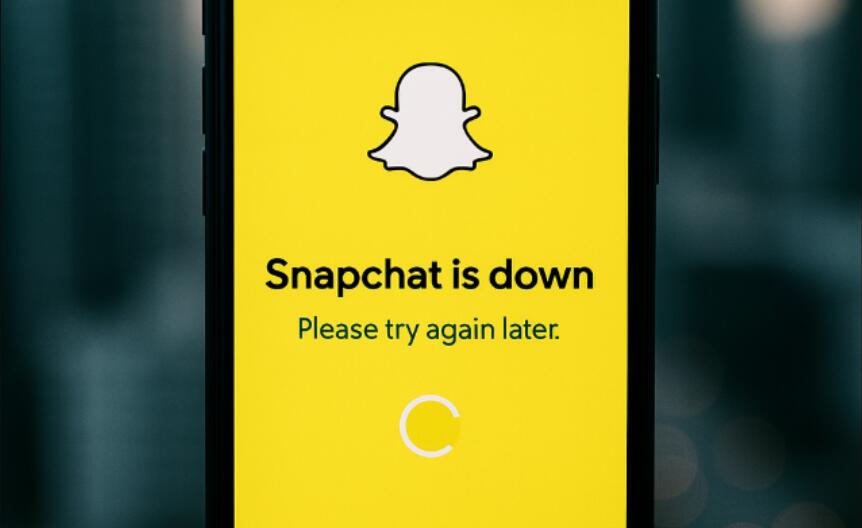
When Snapchat suddenly stops responding on your phone, the app may freeze, become unusually slow, or refuse to react when you tap the screen. This can be frustrating, especially when you are trying to send a Snap, view Stories, or chat with friends. Fortunately, the problem is often caused by temporary software issues rather than a serious problem with your phone.
Before trying random fixes, it helps to identify what is causing Snapchat to stop responding. Common causes include a temporary app glitch, corrupted cache files, an outdated version of Snapchat, insufficient storage, unstable internet connectivity, or problems with the phone's operating system. Once the likely cause is identified, you can work through the solutions below.
- Read also: How to know if someone muted you on Snapchat?
- How can I see friends location on Snapchat?
- How to make Snapchat Story longer than 10 seconds?
- How to make Snapchat music longer on a picture?
- How to know if someone logged into your Snapchat account?
- How to completely turn off background apps on my phone?
Possible Reasons Snapchat Has Stopped Responding
Several different issues can cause Snapchat to freeze or become unresponsive. Understanding the possible cause can help you choose the most appropriate solution.
- Temporary Snapchat glitch: A background process may have failed, causing the app to freeze.
- Corrupted cache: Snapchat stores temporary files to improve performance, but damaged cache data can sometimes cause crashes or freezes.
- Outdated app: An older Snapchat version may have compatibility problems with newer phone software.
- Insufficient storage: If your phone is almost full, apps may not have enough space to operate normally.
- Weak internet connection: Snapchat depends heavily on network access, so an unstable Wi-Fi or mobile connection can make it appear unresponsive.
- Too many background processes: Limited available memory can affect Snapchat's ability to run smoothly.
- Operating system problems: A pending system update or temporary system error may interfere with app performance.
- Snapchat service issues: Occasionally, problems on Snapchat's side can affect users even when their phones are working normally.
Quick Fixes to Try First
Start with the simplest solutions before changing app settings or reinstalling Snapchat. These methods can resolve temporary problems without removing your account or personal information.
- Force close Snapchat: Open your phone's recent apps screen and swipe Snapchat away. Then open it again.
- Restart your phone: A restart can clear temporary system errors and free up resources used by background processes.
- Check your connection: Switch between Wi-Fi and mobile data to determine whether the network is causing the problem.
- Check available storage: Remove unnecessary videos, photos, downloads, or apps if your phone is nearly full.
- Update Snapchat: Open your device's app store, search for Snapchat, and install an available update.
- Update your phone: Check the system settings for an available Android or iOS software update.
Clear Snapchat's Cache
Cached data can accumulate over time, and damaged temporary files may cause Snapchat to freeze. Clearing the cache is therefore a useful troubleshooting step. Snapchat also provides an option to clear its cache from within the app when the application remains responsive long enough to open its settings.
- Open Snapchat if possible.
- Tap your profile icon.
- Open Settings.
- Find the Clear Cache option.
- Confirm that you want to clear the cached data.
- Close and reopen Snapchat.
If Snapchat freezes before you can reach its settings, you can use your phone's app settings instead. On many Android phones, go to Settings > Apps > Snapchat > Storage, then choose Clear Cache. Menu names can vary between manufacturers and operating system versions.
Check Snapchat Permissions
Snapchat needs access to certain phone features, including the camera and microphone, to provide its main functions. If permissions have been changed or restricted, some features may not work correctly.
- Open your phone's Settings.
- Find Apps or App Permissions.
- Select Snapchat.
- Review permissions for the camera, microphone, photos or media, and other relevant features.
- Allow the permissions Snapchat needs.
- Open Snapchat again and test the app.
Reinstall Snapchat
If Snapchat continues to stop responding after clearing its cache and updating the app, reinstalling it can replace damaged application files with a fresh installation. Before doing this, make sure you know your Snapchat login details and that important account information is available.
- Uninstall Snapchat from your phone.
- Restart the phone.
- Open the official app store.
- Search for Snapchat.
- Install Snapchat again.
- Sign in and check whether the problem has been resolved.
Reinstalling the app should not be confused with deleting your Snapchat account. Removing the app from your phone does not itself delete the account.
Check Whether the Problem Is Limited to Snapchat
If other apps are also freezing, the issue may not be specific to Snapchat. Check whether your phone has sufficient free storage and whether other applications respond normally. If several apps repeatedly become unresponsive, restarting the device and installing pending system updates may help.
Try Snapchat on a Different Network
A network problem can sometimes look like an app problem. If Snapchat opens but repeatedly hangs while loading Stories, sending messages, or uploading Snaps, test the app on another reliable connection. If it works normally on another network, investigate your Wi-Fi router, mobile data connection, or network restrictions rather than repeatedly reinstalling Snapchat.
When to Contact Snapchat Support
If Snapchat remains unresponsive after restarting the phone, updating the app, clearing temporary data, checking permissions, and reinstalling the application, the problem may require further investigation. Record what happens before the freeze, such as whether it occurs when opening the camera, viewing Stories, sending a Snap, or logging in.
Providing those details to Snapchat Support can make troubleshooting easier. Also check whether the issue affects only your phone or continues after signing in on another compatible device. Avoid repeatedly changing account settings when the problem appears to be a technical app issue.
Final Troubleshooting Tips
In most cases, Snapchat stopping responding is related to a temporary glitch, outdated software, corrupted temporary files, limited storage, or network problems. Working through the fixes from simplest to more advanced is usually more efficient than immediately deleting the app.
Keep Snapchat and your phone software updated, maintain enough free storage, and periodically clear unnecessary temporary data. If the problem continues despite these steps, checking for a wider Snapchat service problem or contacting official support can help determine whether the issue is outside your phone.


