







































 (1)-20251204034946188.jpg)
































Welcome to OSCAL (Well-known China brand of rugged outdoor smartphone, tablet, projector, and portable power station) blog. Hope this guide has been helpful.
Smart light bulbs make it easy to control lighting with your smartphone, letting you adjust brightness, change colors, or schedule lights to turn on and off automatically. However, when your smartphone suddenly fails to connect to a smart bulb, the convenience can quickly turn into frustration. The problem may appear complicated, but in many cases it can be solved with a few simple checks and adjustments.
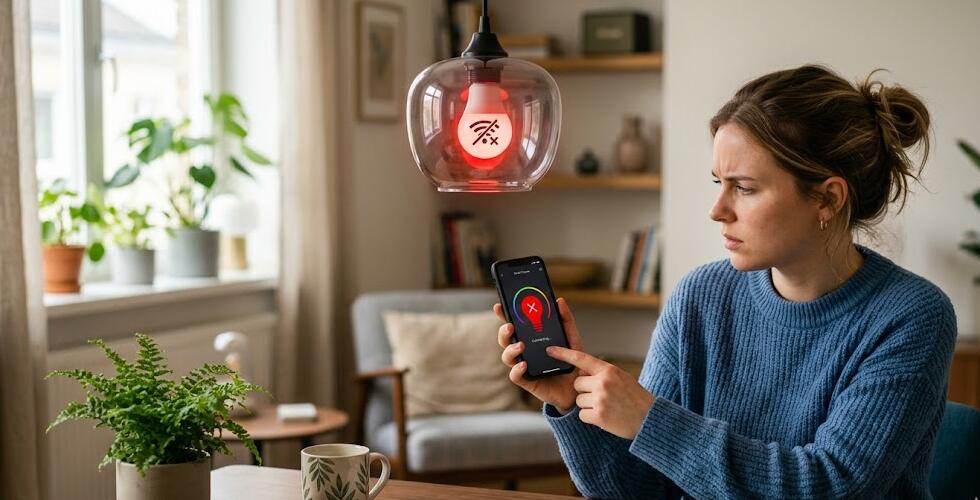
Connection problems between a smartphone and a smart light bulb are usually caused by common issues such as network settings, app configuration, or device compatibility. By following a step-by-step troubleshooting process, you can quickly identify the source of the problem and restore control of your smart lighting system.
1. Check Your Wi-Fi Network
Most smart bulbs rely on a stable Wi-Fi connection to communicate with your smartphone. If the network is unstable or configured incorrectly, the bulb may not respond or appear in the app.
- Make sure your smartphone is connected to the same Wi-Fi network as the smart bulb.
- Verify that your router is working properly and the internet connection is active.
- If your router supports both 2.4 GHz and 5 GHz networks, ensure the bulb is connected to the compatible band (many bulbs only support 2.4 GHz).
- Restart your router to refresh the network connection.
2. Confirm the Bulb Is Powered On
This may sound obvious, but it is an important step. If the bulb is not receiving power, it cannot communicate with your smartphone.
- Check that the wall switch controlling the bulb is turned on.
- Make sure the bulb is screwed in securely.
- If possible, test the bulb in another lamp socket to ensure it is functioning.
3. Restart Your Smartphone and the Smart Bulb
Temporary software glitches can sometimes prevent devices from connecting properly. Restarting both devices often resolves these small issues.
- Turn off the smart bulb for about 10 seconds and then turn it back on.
- Restart your smartphone to refresh its wireless connections.
- Open the smart lighting app again and try reconnecting.
4. Check the Smart Home App
The mobile application used to control the smart bulb plays a critical role in the connection process. Incorrect settings or outdated software can cause communication errors.
- Make sure you are logged into the correct account.
- Update the app to the latest version from the app store.
- Grant the necessary permissions such as Bluetooth, Wi-Fi, or location access if required.
- Close and reopen the app to refresh its connection to the device.
5. Reset the Smart Bulb
If the bulb still does not connect, performing a reset may solve the problem. Resetting removes old configuration settings and allows you to set up the bulb again from scratch.
- Turn the bulb on and off several times in quick succession (check the manufacturer's instructions for the exact sequence).
- Wait until the bulb flashes or changes color to indicate it has entered pairing mode.
- Open the app and add the device again as a new smart bulb.
6. Verify Device Compatibility
Not all smart bulbs are compatible with every smartphone or operating system. Compatibility issues can cause pairing failures or unstable connections.
- Check that your smartphone’s operating system version meets the app's requirements.
- Ensure your bulb supports the control method you are using, such as Wi-Fi, Bluetooth, or a hub.
- If a hub or bridge is required, confirm it is properly connected to your network.
7. Move Closer to the Router
Distance and obstacles can weaken the wireless signal. Thick walls, metal surfaces, or interference from other electronics may disrupt communication.
- Try connecting while standing closer to the router or the bulb.
- Avoid placing routers inside cabinets or behind large objects.
- If your home is large, consider using a Wi-Fi extender or mesh system.
8. Check for Firmware Updates
Smart bulbs often receive firmware updates that improve stability and compatibility. Outdated firmware may cause connection problems.
- Open the device settings in the smart home app.
- Look for available firmware updates.
- Install updates and restart the bulb after the process finishes.
In many situations, connection problems between a smartphone and a smart light bulb are temporary and easy to fix. By checking your network, verifying power, and updating the necessary apps or firmware, you can quickly restore the functionality of your smart lighting system.
If the issue persists after trying all troubleshooting steps, contacting the manufacturer’s customer support may be the best option. They can provide device-specific guidance and help determine whether the bulb or another component needs repair or replacement.


