










































 (1)-20251204034946188.jpg)


































Welcome to OSCAL (Well-known Chinese brand of portable power station, projector, rugged smartphone, and Android tablet) blog. Hope this guide has been helpful.
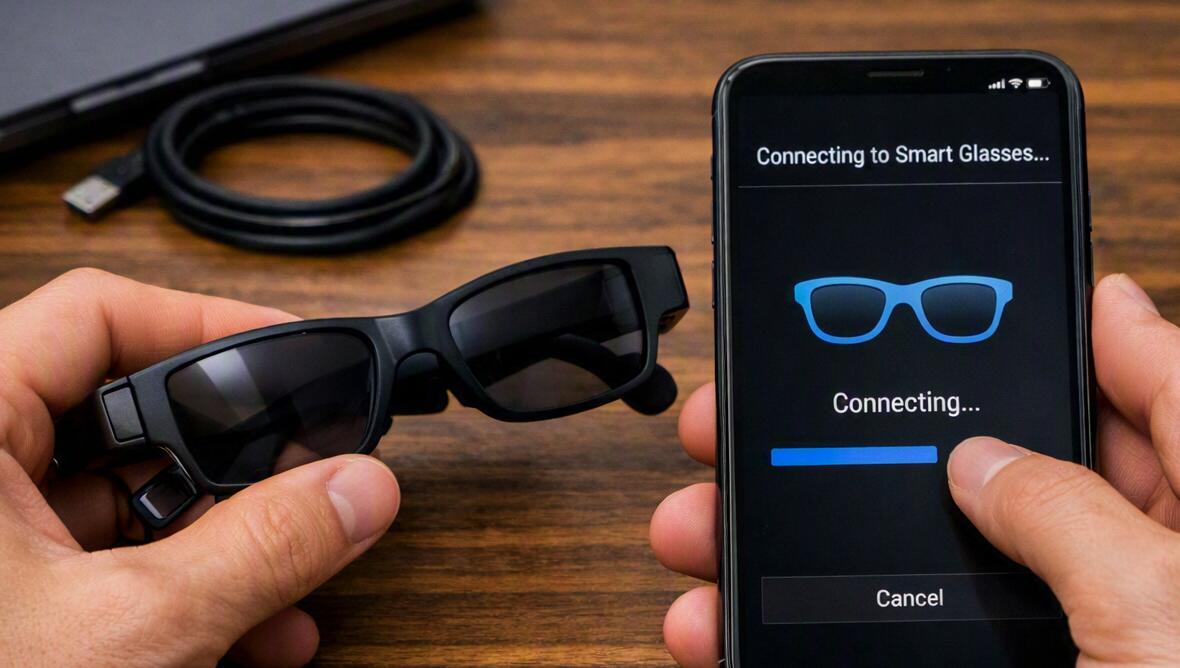
Smart glasses are becoming a convenient way to access calls, music, notifications, photos, voice assistants, and other smartphone features without constantly reaching for your phone. Most modern smart glasses connect to a smartphone through Bluetooth, while some models also use Wi-Fi and a dedicated companion app to provide advanced functions.
- Read also: How to connect a drone to a phone?
- Which is the best smart glasses with camera?
- Which is the best smart glasses under $100?
Connecting smart glasses to an Android or iOS smartphone is usually straightforward, but the exact process depends on the glasses and their companion application. Before starting, make sure your glasses are compatible with your phone, sufficiently charged, and within Bluetooth range. The following guide explains how to pair smart glasses with both Android and iPhone devices and how to troubleshoot common connection problems.
Check Your Smart Glasses and Smartphone First
Before pairing the devices, check the basic requirements. Your smart glasses should have enough battery power to complete the setup, and your smartphone should have Bluetooth enabled. If your glasses require a companion app, install the official application from the appropriate app store before beginning the connection process.
- Charge the smart glasses and their charging case, if applicable.
- Turn on your Android smartphone or iPhone.
- Make sure Bluetooth is enabled on the smartphone.
- Check that the smartphone uses a supported Android or iOS version.
- Install the manufacturer's companion app if one is required.
- Keep the glasses close to the smartphone during setup.
How to Connect Smart Glasses to an Android Smartphone
Most Android phones can connect to smart glasses using Bluetooth. Some advanced glasses require the companion app to complete the setup and manage additional features such as camera controls, firmware updates, voice commands, or notifications.
- Turn on your smart glasses by following the manufacturer's instructions.
- Open Settings on your Android smartphone.
- Tap Connected devices, Bluetooth, or a similarly named option.
- Turn on Bluetooth if it is currently disabled.
- Put the smart glasses into pairing mode. This may require pressing and holding a physical button.
- Wait for the glasses to appear under available Bluetooth devices.
- Tap the name of your smart glasses.
- Confirm the pairing request if a code or confirmation message appears.
- Open the glasses' companion app and follow its setup instructions.
- Allow requested permissions if you want features such as calls, contacts, notifications, location, or media controls to work.
Once pairing is complete, the glasses should appear as a connected Bluetooth device. Depending on the model, audio may automatically switch to the glasses when they are connected.
How to Connect Smart Glasses to an iPhone
The process is similar on an iPhone, although the menus and permissions are different. If your glasses use a dedicated app, it is generally best to install and open the app during the initial setup.
- Charge and turn on the smart glasses.
- Open Settings on your iPhone.
- Tap Bluetooth.
- Turn Bluetooth on.
- Put the smart glasses into pairing mode.
- Find the glasses in the list under Other Devices.
- Tap the glasses' name.
- Accept the pairing request if one appears.
- Launch the manufacturer's companion app.
- Follow the on-screen instructions to finish registration and device setup.
After successful pairing, the glasses should appear under My Devices in the iPhone's Bluetooth settings. Some models may require additional permissions before features such as notifications, calls, or voice controls become available.
Connect Through the Companion App
Bluetooth pairing alone may provide basic audio functionality, but many smart glasses rely on a companion app for their full feature set. The app can often display battery status, configure controls, update firmware, manage connected accounts, and adjust privacy settings.
Open the official companion app and sign in or create an account if required. Select the option to add or set up a new device, then follow the instructions displayed on the screen. If the app asks you to connect the glasses again, keep Bluetooth enabled and allow the app to access the permissions it needs.
Pairing Smart Glasses With More Than One Phone
Some smart glasses support multiple devices, while others are designed to maintain one primary connection at a time. If you want to switch between an Android phone and an iPhone, disconnect the glasses from the first phone before attempting to pair them with the second.
- Disconnect or forget the glasses on the currently connected phone.
- Put the glasses back into Bluetooth pairing mode.
- Open Bluetooth settings on the second smartphone.
- Select the glasses from the available devices.
- Open the companion app and complete any additional setup.
If the glasses do not appear, they may still be connected to the original smartphone. Turning Bluetooth off on the first phone can help make the glasses discoverable again.
What to Do If Smart Glasses Will Not Connect
Connection problems are often caused by low battery, Bluetooth conflicts, outdated software, or an incomplete pairing process. Start with simple solutions before resetting the glasses.
- Make sure the glasses and smartphone have sufficient battery power.
- Move the glasses closer to the smartphone.
- Turn Bluetooth off and on again.
- Restart the smartphone.
- Restart the smart glasses if the manufacturer provides a restart procedure.
- Close and reopen the companion app.
- Check whether the glasses are already connected to another phone.
- Forget the glasses in Bluetooth settings and pair them again.
- Update the companion app and smartphone software.
- Check for available firmware updates for the glasses.
Check Permissions and Audio Settings
If the glasses connect successfully but certain features do not work, review the permissions granted to the companion app. On Android and iOS, restrictions on Bluetooth, notifications, microphones, contacts, cameras, or other functions can prevent individual features from operating correctly.
For audio problems, check the smartphone's Bluetooth settings and make sure the glasses are enabled for media audio or calls when those options are available. Also check the volume on both the phone and glasses.
Keep Your Smart Glasses Connected
After completing the setup, keep the companion app and glasses firmware updated. Avoid repeatedly pairing and unpairing the glasses unless necessary, as this can create additional Bluetooth connection issues. When traveling, keeping the glasses within normal Bluetooth range of the smartphone can also help maintain a stable connection.
Conclusion
Connecting smart glasses to an Android smartphone or iPhone generally requires only Bluetooth pairing and, for many models, a companion app. Starting with a charged device, enabling Bluetooth, entering pairing mode, and following the manufacturer's setup instructions can make the process quick and reliable.
If the connection fails, restarting both devices, removing an old Bluetooth pairing, checking app permissions, and installing available updates will often resolve the problem. Once properly connected, smart glasses can provide convenient access to smartphone audio, calls, notifications, voice features, and other functions while keeping your phone in your pocket.


