










































 (1)-20251204034946188.jpg)


































Welcome to OSCAL (Well-known Chinese brand of portable power station, Android tablet, and projector) blog. Hope this guide has been helpful.
Mini PCs are compact, energy-efficient computers that deliver impressive performance for work, entertainment, and everyday computing. However, because their components are packed into a much smaller enclosure than traditional desktop computers, heat can build up quickly. If a mini PC regularly runs at high temperatures, you may notice loud fan noise, reduced performance, unexpected shutdowns, or system instability.
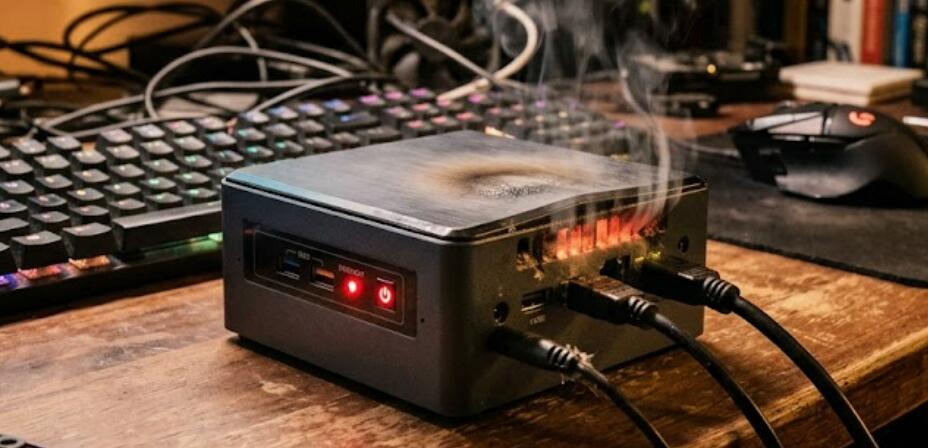
Fortunately, overheating is often caused by issues that can be resolved without replacing the computer. Dust accumulation, blocked air vents, excessive workloads, or outdated software are among the most common reasons. This guide explains practical steps you can take to cool down your mini PC, improve airflow, and maintain reliable long-term performance.
Common Causes of Mini PC Overheating
Understanding why your mini PC overheats makes it easier to choose the right solution. Several factors can contribute to rising temperatures.
- Dust blocking air vents or cooling fans
- Poor ventilation around the computer
- High CPU or GPU usage
- Too many background applications
- Old or dried thermal paste
- Faulty or slow cooling fan
- High room temperature
- Outdated BIOS or system drivers
Signs Your Mini PC Is Overheating
Recognizing the warning signs early can help prevent hardware damage. An overheating system usually displays one or more noticeable symptoms.
- The fan runs constantly at high speed.
- The computer feels unusually hot to the touch.
- Programs respond slowly or freeze.
- The system randomly restarts or shuts down.
- Games or demanding software experience performance drops.
- Error messages appear during heavy workloads.
Steps to Fix an Overheating Mini PC
Follow these troubleshooting steps to reduce temperatures and improve cooling performance.
- Turn off the mini PC and disconnect the power supply.
- Move the device to a well-ventilated location with several inches of open space on every side.
- Check that no air vents are blocked by walls, books, or other objects.
- Use compressed air to remove dust from the ventilation openings and cooling fan.
- Clean the surrounding desk or shelf to reduce dust buildup.
- Restart the computer and close unnecessary background applications.
- Install the latest operating system updates, drivers, and BIOS firmware if available.
- Monitor CPU and GPU temperatures using a reliable hardware monitoring utility.
- Reduce processor-intensive tasks if temperatures remain unusually high.
- Inspect the cooling fan for unusual noise or slow operation and replace it if necessary.
- Replace the thermal paste if the system is several years old and temperatures remain excessive.
- Restart the computer after completing maintenance and verify that temperatures have improved.
Improve Airflow Around the Mini PC
Proper airflow plays a major role in keeping internal temperatures under control. Avoid placing the mini PC inside a closed cabinet or directly against a wall where ventilation is restricted.
If possible, position the computer on a hard, flat surface instead of fabric or carpeting. Raising the device slightly with a stand can also improve airflow beneath the enclosure on certain models.
Reduce System Workload
Running multiple demanding applications simultaneously increases heat production. Video editing, gaming, virtual machines, and large software compilations can push the processor to its limits.
- Close programs that are not currently needed.
- Disable unnecessary startup applications.
- Pause background downloads during intensive tasks.
- Reduce graphics settings when playing games.
- Limit the number of browser tabs running simultaneously.
Maintain the Cooling System
Dust is one of the biggest enemies of compact computers. Even a thin layer of dust on the heatsink or fan blades can significantly reduce cooling efficiency.
Cleaning the mini PC every few months helps maintain consistent airflow. If the fan becomes noisy, stops spinning properly, or vibrates excessively, replacing it can restore effective cooling.
Consider Replacing Thermal Paste
Thermal paste transfers heat from the processor to the heatsink. After several years of continuous use, the paste may dry out and lose effectiveness.
If you are comfortable opening the system, replacing old thermal paste with a high-quality product can noticeably improve cooling performance. If not, consider having the maintenance performed by a qualified technician.
Prevent Future Overheating
Regular maintenance helps keep temperatures stable and extends the lifespan of your mini PC.
- Clean dust from vents every few months.
- Keep the computer in a cool environment.
- Avoid blocking ventilation openings.
- Install software and firmware updates regularly.
- Monitor system temperatures during demanding workloads.
- Replace worn cooling components when needed.
Conclusion
An overheating mini PC is usually the result of restricted airflow, dust buildup, excessive workloads, or aging cooling components. By cleaning the system, improving ventilation, reducing unnecessary background activity, and keeping software updated, most temperature problems can be resolved without major repairs.
Regular maintenance is the best way to prevent overheating from returning. Keeping your mini PC clean, monitoring temperatures, and addressing cooling issues early will help ensure stable performance, quieter operation, and a longer lifespan for your computer.


