










































 (1)-20251204034946188.jpg)



































Welcome to OSCAL (Well-known Chinese brand of rugged outdoor smartphone, Android tablet, projector, and portable power station) blog. Hope this guide has been helpful.
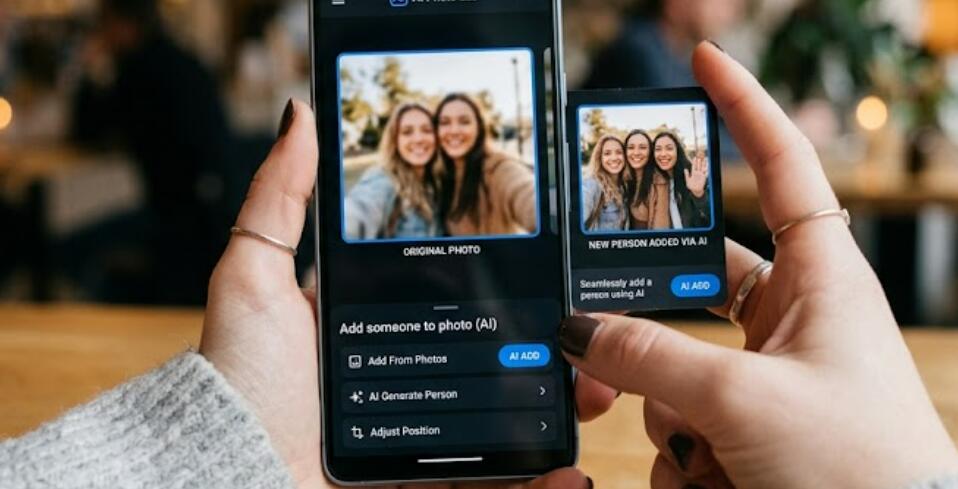
Artificial intelligence has changed the way people edit photos on their phones. In the past, adding a person who was missing from a picture required professional editing software and advanced skills. Today, AI-powered photo editing tools can help smartphone users insert someone into an image quickly and create realistic-looking results without complicated techniques.
- Read also: How to remove wrinkles from clothes in a photo for free?
- How to use the Goth filter to give your photos a Gothic look?
- How to remove someone from a photo with AI?
Whether you want to add a family member who could not attend an event, create a group photo, or design a creative image for social media, AI photo editors make the process simple. Most modern smartphones can use AI apps that automatically analyze backgrounds, lighting, shadows, and image details to blend a new person naturally into a photo.
What You Need Before Adding Someone With AI
Before starting the editing process, prepare the photos you want to use. A good-quality original image will help AI tools create a more realistic result. You should have a main photo where you want to add someone and another photo containing the person you want to insert.
- A smartphone with a stable internet connection
- An AI photo editing app that supports object or person insertion
- A clear photo of the person you want to add
- A background photo with enough space for the new person
For better results, choose photos with similar lighting conditions and camera angles. If the two images look completely different, the AI may have more difficulty creating a natural combination.
Choose an AI Photo Editing App
The first step is selecting a suitable AI-powered editing application. Many photo editing apps now include AI features that can remove objects, expand images, replace backgrounds, and add new elements. Some tools allow users to describe what they want with text instructions, while others use selection tools to guide the editing process.
When choosing an app, check whether it includes features such as AI image generation, smart object placement, background matching, and realistic face or body blending. A reliable AI editor should maintain the quality of the original photo while creating smooth transitions between different image areas.
How to Add Someone Into a Photo With AI
The exact buttons may be different depending on the app you use, but most AI photo editors follow a similar process. The following steps explain the general method for adding a person into a photo on a smartphone.
- Open your AI photo editing app on your phone
- Select the photo where you want to add another person
- Choose an AI editing feature such as “Add,” “Insert,” “Generative Fill,” or a similar option
- Upload the second photo that contains the person you want to add
- Use the selection tool to highlight the person if required
- Type a description or instruction explaining where you want the person placed
- Let the AI process the image and create a new version
- Review the generated results and choose the most realistic option
- Adjust the position, size, or appearance if the app provides manual controls
- Save the final image to your phone
Improve the Realism of AI-Edited Photos
Although AI tools are powerful, the first generated result may not always look perfect. Small adjustments can make the edited photo appear more natural and professional.
- Match the person’s size with the people already in the photo
- Check whether the lighting direction looks consistent
- Adjust shadows if the app provides editing options
- Make sure the person’s position fits the environment
- Avoid placing people in unrealistic locations
For example, if you add someone to a beach photo, the AI should consider sunlight, shadows, and perspective. A person standing in the wrong position or with incorrect lighting may make the image appear artificial.
Use AI Prompts for Better Results
Many advanced AI photo editors allow users to enter text instructions. These instructions, often called prompts, help the AI understand the desired result. A detailed prompt can improve accuracy and produce a more realistic image.
Instead of writing a simple request like “add a person,” provide more information. You can describe the person’s position, clothing style, and relationship with the scene.
- “Add this person standing beside the group on the left side”
- “Place this person naturally in the background with matching lighting”
- “Add this person sitting next to the family members”
Check Privacy and Image Quality
When using AI editing tools, it is important to consider privacy. Only edit and share photos when you have permission from the people included. Some AI applications upload images to cloud servers for processing, so review the app’s privacy settings before using it.
You should also export the final image in a high-quality format. Avoid repeatedly saving and compressing the image because this can reduce sharpness and make the result look less professional.
Common Problems When Adding People With AI
AI photo editing can sometimes produce mistakes. The added person may have unusual details, incorrect facial features, or unnatural body positions. Understanding common issues can help you improve your results.
- The AI changes the person’s face slightly
- The background does not blend correctly
- The lighting does not match the original image
- The person appears too large or too small
- The final photo looks unrealistic
If these problems occur, try using a clearer source image, changing the AI prompt, or generating multiple versions until you find a better result.
Conclusion
Adding someone into a photo with AI on your phone is now easier than ever. With the right app, clear images, and detailed instructions, anyone can create realistic photo edits without professional editing experience. AI technology automatically handles many complicated tasks, including blending backgrounds, adjusting lighting, and matching image details.
By following the steps in this guide, you can create creative and meaningful photos directly from your smartphone. Whether you are restoring memories, making family pictures, or designing unique images for sharing, AI photo editing provides a convenient way to bring your ideas to life.


