










































 (1)-20251204034946188.jpg)


































Welcome to OSCAL (Well-known Chinese brand of Android tablets, rugged smartphones, and portable power stations) blog. Hope this guide has been helpful.
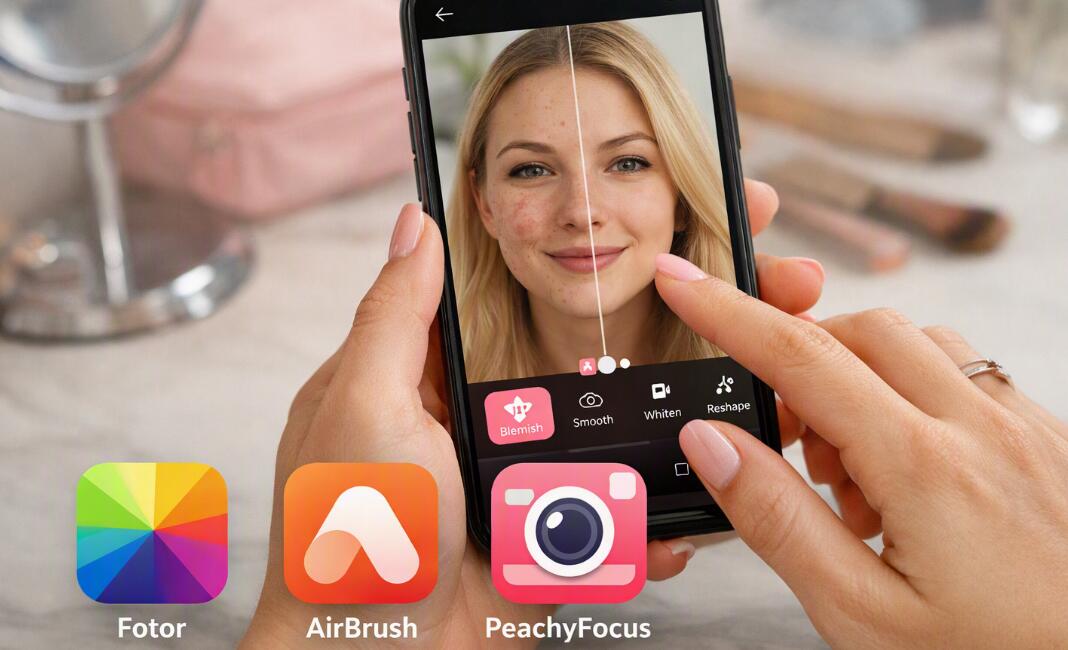
Acne, pimples, redness, and other small blemishes can easily stand out in selfies and portrait photos, even when the rest of the picture looks great. Fortunately, AI-powered photo editing apps can now identify facial skin areas and make targeted adjustments without requiring advanced editing skills. Instead of spending time manually cloning every spot, you can use an AI acne remover to create a cleaner-looking portrait in just a few taps.
- Read also: Male Version Filter AI Apps for seeing what you would look like as a man
- 8 free body photo editor apps to make body slim in a photo
- The 5 best AI apps for whitening yellow teeth in photos
- The 5 best free palm reading apps for discovering palmistry
For Android and iOS users, there are many face-retouching apps available, but they differ in how they handle blemish removal, skin smoothing, facial details, and natural-looking results. The five apps below are useful choices for removing acne from photos while keeping the editing process simple. The selection focuses on apps that offer dedicated blemish or skin-retouching tools and are available on Android, iPhone, or both platforms.
5 Best Apps for Removing Acne From Photos
- Fotor
- AirBrush
- Facetune
- BeautyPlus
- Peachy
Fotor
Fotor is an AI-powered photo editing app available for Android and iOS that provides a range of portrait and image retouching tools. It can be used to improve selfies and portraits by reducing visible skin imperfections, smoothing uneven areas, and enhancing the overall appearance of a face. Its AI-assisted editing features make it suitable for users who want quick results without needing advanced photo-editing skills.
Fotor is particularly useful when you want to combine blemish correction with other photo improvements. After reducing the appearance of acne, you can adjust lighting, contrast, sharpness, and other aspects of the portrait. This makes it possible to create a more polished image without switching between several different editing applications.
To remove acne, import your portrait into Fotor and open its retouching or beauty-related tools. Apply the skin or blemish correction to the affected areas and adjust the intensity gradually. Avoid excessive smoothing because retaining some natural skin texture can make the finished portrait look more realistic.
AirBrush
AirBrush is designed around quick selfie and portrait enhancement and is available on both Android and iOS. Its retouching features include acne and blemish removal, skin smoothing, skin-tone correction, teeth whitening, and facial adjustments. It is a practical choice for users who want a straightforward editing workflow rather than a complicated professional photo editor.
The app can be useful when a photograph contains several small blemishes. Instead of manually editing the entire image, you can concentrate on the skin area and apply targeted corrections. AirBrush also provides additional beauty tools, so you can make subtle changes to lighting and facial appearance after removing spots.
A good approach is to start with the lowest effective retouching intensity. If the acne disappears while pores and natural facial details remain visible, the result will generally look more convincing than an aggressively smoothed face.
Facetune
Facetune is a well-known mobile portrait editor available for iOS and Android. It provides dedicated tools for retouching skin and removing blemishes, along with smoothing, facial adjustments, teeth enhancement, and other portrait-editing features. Its broad editing toolkit makes it useful when acne removal is only one part of the photo-editing process.
Facetune is especially useful when you want more control over the final appearance. Rather than applying exactly the same correction to every part of a face, you can work selectively on problem areas and then use additional retouching tools where necessary.
For natural-looking acne removal, avoid combining maximum skin smoothing with aggressive facial reshaping. Start by correcting visible blemishes, review the image at its normal viewing size, and only then make additional adjustments. This helps preserve recognizable facial characteristics.
BeautyPlus
BeautyPlus combines selfie editing, beauty effects, skin retouching, and AI-powered photo tools in one mobile application. It is available on both Android and iOS and includes blemish-removal and skin-enhancement functions. BeautyPlus is particularly suitable for users who want to remove acne while also applying makeup, filters, or other selfie effects.
The app can be useful for quick social-media photos because its editing workflow is aimed at making multiple improvements without requiring a separate application for each task. After correcting acne, you can adjust skin appearance, add makeup, or modify other aspects of the portrait.
When using BeautyPlus, keep the strength of skin smoothing under control. A small amount of texture can make the final photograph appear more realistic, while excessive smoothing can make the face look artificial.
Peachy
Peachy is an AI-focused face and body editor that offers tools for portrait retouching, including acne and wrinkle removal, skin smoothing, dark-circle reduction, and other face enhancements. It is available on iPhone and iPad, and its broader mobile availability makes it another option for users looking for dedicated selfie-retouching tools.
One advantage of Peachy is that acne correction can be combined with other portrait adjustments in the same editing workflow. The app also offers AI Touch and AI Enhance features, along with tools for lighting, makeup, facial adjustments, and other edits.
If your primary goal is acne removal, focus on the retouching controls first rather than applying every available beauty effect. This makes it easier to determine whether the blemish correction itself is producing the appearance you want.
How AI Acne Removal Works in Photo Editing Apps
AI acne-removal tools generally analyze the photograph to identify facial features and skin regions. Once the app recognizes a likely blemish, it can modify the selected area using nearby skin information, smoothing, color correction, or other image-processing techniques. Some apps also combine automatic detection with manual controls so users can decide which areas should be edited.
The main benefit is speed. Traditional retouching may require repeated selections, cloning, or brush adjustments, while an AI-assisted tool can identify common facial imperfections automatically. However, AI does not always interpret every spot correctly. Freckles, moles, beauty marks, scars, or natural skin texture can sometimes be affected, so checking the edited image is important.
How to Remove Acne From a Photo Naturally
The goal of acne removal does not have to be completely flawless skin. A more convincing portrait usually retains some natural texture while reducing temporary blemishes. Start by importing a high-resolution image and zooming in only enough to see the problem areas clearly.
- Choose a photo with sufficient lighting and facial detail.
- Use the blemish-removal function before applying heavy skin smoothing.
- Adjust the correction strength gradually.
- Check the area around each edited spot for unwanted blur.
- Keep permanent facial characteristics such as freckles or beauty marks when appropriate.
- Zoom back out and review the entire portrait before saving.
Small corrections are usually easier to make look natural than one large, aggressive adjustment. If the edited face looks noticeably different from the original, reduce the retouching intensity.
AI Acne Remover vs. Manual Retouching
AI editing is convenient because it can automate repetitive tasks, but manual retouching still has an important role. Automatic tools are useful when a portrait contains many small blemishes or when you need to edit a photo quickly. Manual tools can provide more control when an app incorrectly identifies a natural feature as an imperfection.
A combined workflow can therefore be effective. Use AI to handle common blemishes first, then inspect the result and make small manual corrections where necessary. This approach can reduce editing time while giving you greater control over the final image.
How to Choose the Right App for Your Photos
The best app for acne removal depends on what you want to do after removing the blemishes. Fotor might be useful for users who want acne correction alongside makeup, skin analysis, and broader beauty tools. AirBrush focuses strongly on straightforward selfie retouching. Facetune offers a broad portrait-editing toolkit for users who want more detailed control. BeautyPlus combines blemish correction with a wide range of selfie effects, while Peachy focuses heavily on face and body retouching.
Before choosing an app, check whether the specific acne-removal feature is included in the free version or requires a subscription. App features, pricing, and availability can change with updates, so it is worth checking the current App Store or Google Play listing before subscribing.
Tips for Getting Better AI Retouching Results
Good source photos generally produce better editing results. A clear, well-lit portrait gives an AI tool more visual information to work with than a heavily compressed or extremely dark image. Avoid increasing every beauty setting at the same time, because multiple strong effects can remove too much facial detail.
- Use original-resolution photos whenever possible.
- Work with natural or evenly distributed lighting.
- Apply acne removal before strong filters.
- Use moderate skin smoothing.
- Compare the edited image with the original before exporting.
- Save a copy of the original photo for future editing.
It is also worth remembering that photo acne removal changes the appearance of an image rather than treating acne itself. These tools are designed for visual editing and should not be confused with medical skincare treatments.
Final Thoughts
AI-powered photo editors have made it much easier to remove acne, pimples, redness, and other temporary blemishes from portraits on Android and iOS devices. Fotor, AirBrush, Facetune, BeautyPlus, and Peachy all provide tools that can help create cleaner-looking selfies without requiring advanced desktop editing software. Their broader feature sets also allow users to adjust skin, lighting, makeup, and other portrait elements in the same app.
For the most natural result, focus on targeted corrections instead of trying to create perfectly smooth skin. Use AI as a starting point, review the edited areas carefully, and reduce the effect whenever natural facial texture begins to disappear. With the right balance, these apps can help you polish a portrait while keeping the person in the photo recognizable and realistic.


