










































 (1)-20251204034946188.jpg)


































Welcome to OSCAL (Well-known Chinese brand of rugged outdoor smartphone, tablet, projector, and portable power station) blog. Hope this guide has been helpful.
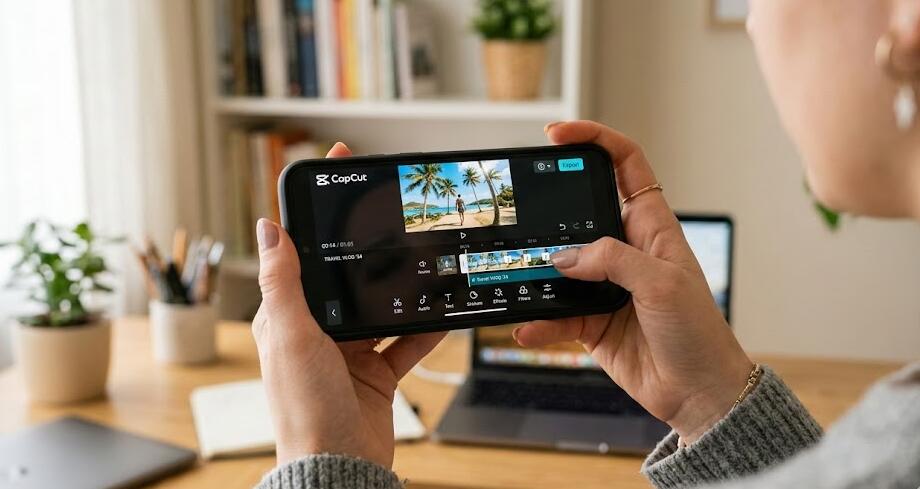
Short-form video is everywhere, and CapCut has become one of the most popular editing tools for creators who want fast transitions, auto captions, and ready-made templates. But it’s not the only option. Whether you want more advanced controls, fewer watermarks, or simply a different editing style, there are plenty of powerful apps that deliver a similar experience on mobile.
- Read also: How to create a photo video with music on your iPhone?
- 6 Best free body editing video apps for Android/iOS
- 5 Best palm reading apps (free) for Android/iOS
This guide explores six apps like CapCut that work on Android and iOS. Each one offers timeline editing, effects, music tools, and export options for platforms like TikTok, Instagram, and YouTube. Some focus on simplicity and speed, while others give you pro-level features such as multi-layer editing, chroma key, or AI auto-editing. By the end, you’ll know which alternative fits your workflow best.
1. InShot – best for quick social media edits
InShot is one of the closest CapCut alternatives for beginners. Its interface is clean, simple, and designed for fast editing on a phone. You can trim clips, add music, insert text, apply filters, and export in vertical formats for Reels or Shorts.
- Very easy to learn
- Large filter and effect library
- Voice-over and music tools
- Optimized for social media aspect ratios
InShot is ideal if you mainly create short videos and want something fast and intuitive. The free version includes most tools, but some effects and watermark removal require a paid plan. Compared with CapCut, it has fewer advanced transitions and multi-layer options, but it’s perfect for quick edits.
2. KineMaster – best for advanced mobile editing
KineMaster is often recommended for creators who want more control. It supports multi-layer timelines, chroma key (green screen), precise frame trimming, and 4K export. You can also record voice-overs directly inside the app.
- Multi-layer video and audio editing
- Chroma key and blending modes
- Frame-by-frame trimming
- 4K export at high frame rates
This app feels closer to desktop editing software than most mobile tools. It’s more powerful than CapCut in some areas, but the interface can be overwhelming for beginners and the free version adds a watermark.
3. VN Video Editor – best free pro-style editor
VN Video Editor is a favorite among creators who want CapCut-level features without paying. It offers multi-layer timelines, keyframe animation, curve speed control, and smooth transitions.
- No watermark in the free version
- Keyframe and curve speed controls
- Clean, minimal interface
- Available on mobile and desktop
Many users consider VN the closest free replacement because it combines ease of use with advanced tools. It’s especially good for TikTok edits, cinematic montages, and velocity effects.
4. FilmoraGo – best balance of simple and powerful
FilmoraGo brings some of the desktop Filmora experience to mobile. It offers transitions, text animations, royalty-free music, AI denoising, and background removal.
- AI tools for audio cleanup
- Built-in music and stickers
- Picture-in-picture support
- Direct social media export
It’s more beginner-friendly than KineMaster but more feature-rich than InShot. The downside is that some features are locked behind a subscription.
5. LightCut – best AI auto-editing experience
LightCut focuses on speed. You import clips, choose a style, and the app automatically syncs cuts, transitions, and music. It also supports 4K export and basic manual editing if you want to tweak the result.
- One-tap AI editing
- Auto music sync
- Simple timeline for manual tweaks
- No watermark in many cases
This is the closest experience to CapCut templates if you prefer automation. It’s perfect for travel videos, drone clips, and quick highlight reels.
6. Edits – best for Instagram creators
Edits is a newer mobile video editor developed by Meta and designed as a direct competitor to CapCut. It includes AI animations, green screen tools, subject cutouts, and project management features for creators.
- AI animation from photos
- Green screen and cutout tools
- Performance analytics for posts
- Direct Instagram integration
Because it connects with Instagram, you can track video performance and manage projects in one place. It’s especially useful for creators who publish primarily on Instagram and Facebook.
How to choose the right CapCut alternative
Not every editor fits every creator. When choosing an alternative, think about your workflow and content style:
- If you want fast, simple edits → choose InShot
- If you want pro tools on mobile → choose KineMaster or VN
- If you want AI automation → choose LightCut
- If you post mostly on Instagram → choose Edits
- If you want a balanced tool → choose FilmoraGo
Also consider watermark policies, export quality, music libraries, and whether you need multi-layer editing. CapCut is strong in templates and effects, but some alternatives are better for precision editing or watermark-free exports.
Tips for switching from CapCut
Moving to a new editor can feel slow at first. These tips will help you adapt quickly:
- Start with a small project to learn the interface
- Import the same clips you used in CapCut to compare results
- Save your favorite transitions as presets if the app allows it
- Learn keyboard shortcuts if you use a tablet or desktop version
Most modern mobile editors use a similar timeline structure, so once you learn one, the others become easier to master.
Final thoughts
CapCut is popular for a reason, but it’s not the only powerful mobile editor available. Apps like InShot and LightCut focus on speed and simplicity, while VN and KineMaster offer deeper creative control. FilmoraGo provides a balanced workflow, and Edits is a strong choice for Instagram-focused creators.
The best option depends on your goals. If you want viral short-form videos, choose an app with templates and auto captions. If you want cinematic edits, choose one with multi-layer timelines and keyframes. Try two or three from this list and see which one matches your style and editing speed.


