










































 (1)-20251204034946188.jpg)


































Welcome to OSCAL (Well-known China brand of Android tablet, rugged smartphone, and portable power station) blog. Hope this guide has been helpful.
Sharing your location with friends and family has become an essential feature of modern messaging apps, especially when you are trying to meet up, stay safe, or simply let someone know where you are. Facebook Messenger offers built-in tools that make sending your location quick and convenient directly from your phone, without the need for extra apps or complicated steps.
- Read also: How to share location with others on Google Maps?
- How to send location to others on WhatsApp?
Whether you are using an Android phone or an iPhone, Messenger allows you to send both real-time live location and static location pins. Many users are not fully aware of all the available options or the differences between them. This guide will walk you step by step through the process, explain common issues, and share practical tips to ensure your location is sent accurately and securely.
Understanding location sharing in Messenger
Before sending your location, it helps to understand how Messenger handles location data. Messenger uses your phone’s GPS, Wi-Fi, and mobile network information to determine where you are. Depending on the option you choose, your friend may see your live movement or just a fixed point on the map.
Messenger currently supports two main types of location sharing:
- Live Location: Shares your real-time location for a limited period, usually up to 60 minutes.
- Static Location (Pinned Location): Sends a single location pin that does not update as you move.
Knowing which one to use can save confusion. Live location is ideal for meeting someone or tracking a journey, while a pinned location works well for sharing an address or landmark.
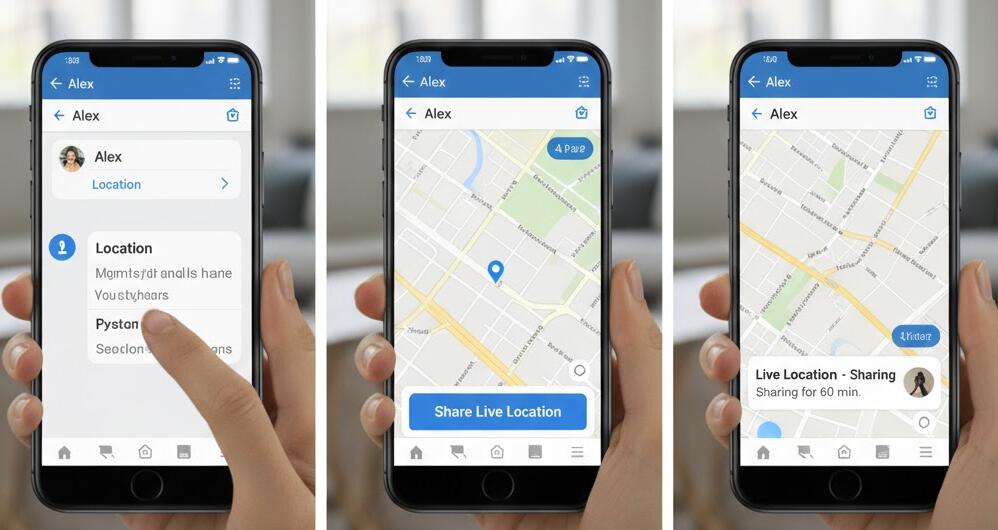
How to send live location on Messenger (step by step)
Sending your live location is one of the most useful features in Messenger, especially if you are on the move. Follow these steps carefully:
Step 1: Open the Messenger app on your phone and tap on the conversation with the friend you want to share your location with.
Step 2: Look for the four-dot icon or the “+” icon near the message input field. Tap it to open more options.
Step 3: Select the Location option. If this is your first time, Messenger may ask for permission to access your location.
Step 4: Choose Start Sharing Live Location. Messenger will display a map showing your current position.
Step 5: Confirm your choice. Your friend will now be able to see your live location for the selected duration.
You can stop sharing at any time by tapping Stop Sharing within the chat.
How to send a static location pin
If you only need to share a single spot, such as a café, home address, or meeting point, sending a static location pin is often the better choice.
Here is how to do it:
- Open the Messenger conversation with your friend.
- Tap the four-dot or “+” icon next to the text box.
- Select Location.
- Move the map if needed to choose the exact spot.
- Tap Send This Location.
Your friend will receive a map preview and can tap it to open directions in their own map app.
Location permissions and settings you should check
If Messenger cannot find your location or the option does not appear, the issue is often related to permissions. Both Android and iOS require explicit approval for apps to access location data.
Make sure the following settings are enabled:
- Location services are turned on in your phone’s system settings.
- Messenger has permission to access location while the app is in use.
- GPS accuracy is set to high or precise mode.
On iPhone, go to Settings > Privacy & Security > Location Services > Messenger. On Android, check Settings > Apps > Messenger > Permissions.
Tips for accurate location sharing
Sometimes the location sent through Messenger may appear slightly off. This can happen due to weak GPS signals or indoor environments. To improve accuracy, consider the following tips:
- Move near a window or outdoors before sharing your location.
- Turn on Wi-Fi, even if you are not connected to a network.
- Disable battery-saving modes that limit background GPS usage.
Waiting a few seconds for the map to stabilize before sending can also help ensure your location is correct.
Privacy and safety considerations
Location sharing is powerful, but it should be used responsibly. Messenger limits live location sharing to a specific time period to protect user privacy, but you should still be cautious about who you share your location with.
Best practices include:
- Only share live location with people you trust.
- Stop sharing as soon as it is no longer needed.
- Review your app permissions regularly.
Remember that your friend can take screenshots of shared locations, so always be mindful of your personal safety.
Troubleshooting common problems
If you encounter issues while sending your location, try these solutions:
- Restart the Messenger app.
- Update Messenger to the latest version.
- Restart your phone to refresh system services.
- Check for system updates that may affect location services.
In many cases, a simple app update or permission reset resolves the problem quickly.
When to use Messenger location sharing vs other apps
Messenger is convenient because it does not require switching apps, but it may not always be the best option. For long trips or continuous tracking, dedicated navigation apps may offer more detailed features.
However, Messenger works perfectly when:
- You are coordinating a meetup.
- You want quick, temporary location sharing.
- Both users already use Messenger actively.
Choosing the right tool depends on your specific situation and privacy preferences.
Final thoughts
Sending your location to a friend in Messenger on your phone is a simple yet powerful feature that can make everyday communication easier. Once you understand the difference between live location and static pins, you can choose the option that best fits your needs and avoid unnecessary confusion.
By following the steps and tips outlined in this guide, you can share your location confidently, accurately, and safely. As messaging apps continue to evolve, mastering these small but useful features can greatly improve how you stay connected with the people who matter most.


