










































 (1)-20251204034946188.jpg)


































Welcome to OSCAL (Well-known China brand of rugged smartphone, tablet, projector, and portable power station) blog. Hope this guide has been helpful.
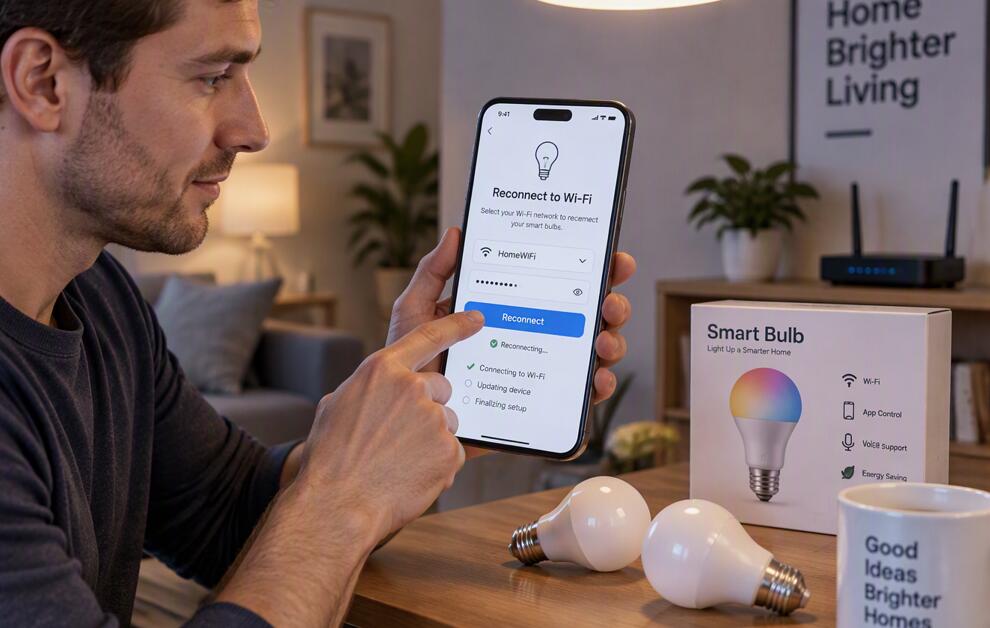
Smart bulbs make it easy to control home lighting through mobile apps, voice assistants, and automated schedules. However, these convenient devices may occasionally disconnect from WiFi because of router changes, power interruptions, weak wireless signals, or app configuration problems. When a smart bulb goes offline, you may lose the ability to adjust brightness, change colors, or control the lights remotely.
- Read also: How to control smart lights with phone?
- What should I do if the smart lights cannot connect to my phone?
- How to use a thermal camera phone to check if the smart lights are overheating?
- TOP 10 Best smart home gadgets you shouldn't miss
Fortunately, reconnecting smart bulbs to WiFi is usually straightforward and does not require professional assistance. Although the exact process varies by brand and model, most smart bulbs follow similar setup procedures. This guide explains how to reconnect your smart bulbs, troubleshoot common connection problems, and keep your smart lighting system working reliably.
How to Reconnect Smart Bulbs to WiFi Step by Step
Before starting, make sure your smartphone is connected to your home WiFi network and that your smart bulb is compatible with your router. Many smart bulbs require a 2.4 GHz WiFi network rather than a 5 GHz network. Keep the bulb powered on throughout the setup process unless the manufacturer's instructions specify otherwise.
- Check your WiFi connection: Confirm that your router is working correctly and that your smartphone has internet access.
- Open the smart home app: Launch the manufacturer's app, such as the app used to configure your particular bulb.
- Check the bulb's status: Select the disconnected bulb and look for options such as Reconnect, Change Network, or WiFi Setup.
- Enable pairing mode: Follow the manufacturer's instructions to put the bulb into pairing mode. Some models use a power-cycle sequence, while others have a dedicated reset procedure.
- Choose the correct network: Select your home WiFi network and enter the password carefully when prompted.
- Complete the setup: Wait for the app to finish connecting the bulb. Keep your phone and bulb close to the router during setup if possible.
- Test the connection: Turn the bulb off and on using the app, adjust its brightness, or change its color to confirm that it responds correctly.
If the bulb does not reconnect, avoid repeating the reset procedure immediately. First, check the network settings and identify whether the problem affects one bulb or multiple smart devices.
Why Do Smart Bulbs Disconnect From WiFi?
Understanding the cause of a disconnection can help you choose the right solution. Common reasons include router restarts, changed WiFi passwords, weak signals, power outages, and incompatible wireless settings. A bulb may also lose its connection after you replace your router or rename your network.
Some smart bulbs disconnect when the wireless signal is blocked by thick walls, metal objects, or long distances. If several bulbs go offline simultaneously, the router or internet connection may be responsible rather than the bulbs themselves.
Check Your Router and WiFi Settings
Smart bulbs often depend on specific network settings. Many models support 2.4 GHz WiFi only, so a phone connected to a 5 GHz network may encounter difficulties during setup, depending on the bulb and app.
- Verify that the 2.4 GHz network is enabled if your bulb requires it.
- Check that the WiFi password has not changed.
- Restart your router and wait for the connection to stabilize.
- Move the bulb or router closer together to improve signal strength.
- Check the manufacturer's requirements for network security and supported router configurations.
If your router combines 2.4 GHz and 5 GHz bands under one network name, consult the manufacturer's setup guidance before changing any router settings. Read more: How to check who is connected to your WiFi?
Reset Smart Bulbs When Reconnection Fails
A factory reset may help when a smart bulb cannot reconnect through its app. However, resetting usually removes its existing configuration, meaning you will need to add it again and recreate any necessary settings.
Check the manufacturer's instructions for the exact reset sequence. Some bulbs require switching the power off and on several times, while others use an in-app reset option. After resetting, open the app, add the bulb as a new device, and follow the pairing instructions.
Do not assume that every bulb uses the same reset sequence. An incorrect sequence may simply switch the light on and off without activating pairing mode.
Fix Common Smart Bulb Connection Problems
If your smart bulb remains offline, try these additional troubleshooting methods before replacing it.
- Update the app: Install the latest available version of the manufacturer's smart home app.
- Check permissions: Allow any required Bluetooth, nearby-device, or local-network permissions during setup.
- Disable VPN temporarily: A VPN or restrictive network configuration may interfere with device discovery in some setups.
- Check device limits: Some routers restrict the number of connected devices.
- Reconnect one bulb at a time: This helps identify whether a particular bulb is causing the problem.
If these steps do not work, consult the manufacturer's support resources to check for firmware issues or model-specific compatibility requirements.
Keep Your Smart Bulbs Connected
Preventing future disconnections is easier than repeatedly setting up your lighting system. Keep your router firmware and smart home apps updated, maintain a stable power supply, and avoid placing bulbs in locations with consistently weak WiFi signals.
Whenever you change your router, WiFi name, or password, check whether your smart bulbs need to be configured with the new network information. If your system includes many connected devices, maintaining a reliable router and adequate wireless coverage can also improve performance.
Conclusion
Reconnecting smart bulbs to WiFi generally involves checking your network, opening the manufacturer's app, activating pairing mode, and completing the connection process. If these steps fail, examining router settings, improving signal strength, and resetting the bulb when necessary can help restore connectivity.
By following the correct setup instructions for your particular model and maintaining a stable home network, you can reduce connection problems and enjoy convenient smart lighting. If a bulb still cannot connect after troubleshooting, contact the manufacturer for device-specific assistance.


