










































 (1)-20251204034946188.jpg)


































Welcome to OSCAL (Well-known China brand of rugged smartphone, tablet, projector, and portable power station) blog. Hope this guide has been helpful.
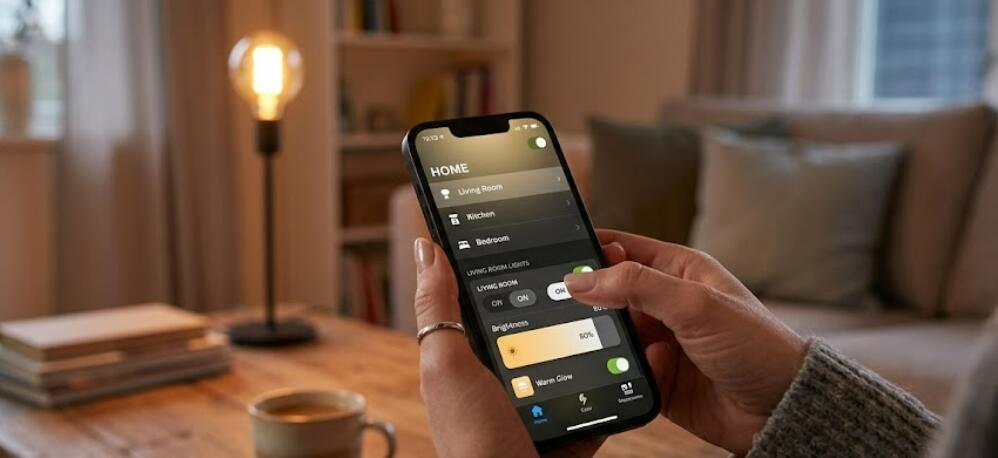
Smart lighting has become one of the most popular features in modern smart homes. Whether you want to dim the lights for movie night, change colors for a party, or simply turn the lights off without getting up, controlling smart lights with your phone makes everyday life more convenient. Most smart lighting systems are compatible with Android and iPhone devices, allowing users to manage their lights from virtually anywhere.
- Read also: How to connect a phone to a projector wirelessly?
- What are the benefits of using smart lights?
Setting up and controlling smart lights with your smartphone is usually a straightforward process. Once the lights are connected to your home network and paired with the correct mobile app, you can adjust brightness, create schedules, group multiple lights, and even control them remotely. This guide explains the basic steps to connect and manage smart lights using your phone.
What You Need Before You Begin
Before setting up your smart lights, make sure you have everything required for a smooth installation.
- A compatible smart light bulb, light strip, or smart lamp
- A smartphone with Android or iOS
- A stable Wi-Fi connection
- The manufacturer's official mobile app
- A user account for the smart lighting platform if required
Install the Smart Light
The first step is to install your smart light correctly. Replace your existing light bulb with the smart bulb or connect the smart lighting device according to the manufacturer's instructions. Turn on the power switch so the light enters pairing mode. Many smart lights blink several times to indicate they are ready for setup.
Download the Mobile App
Every smart lighting brand provides a dedicated mobile application for setup and control. Download the correct app from the Google Play Store or Apple App Store, then sign in or create a new account if prompted.
Connect the Smart Light to Wi-Fi
Most smart lights connect through your home's Wi-Fi network. During the setup process, your phone communicates with the light and transfers your wireless network information.
- Open the smart lighting app
- Select the option to add a new device
- Choose your smart light model
- Confirm the light is in pairing mode
- Select your home Wi-Fi network
- Enter the Wi-Fi password if requested
- Wait for the app to complete the connection
- Name the light for easier identification
Once connected, the light should appear in the app and be ready for remote control.
Control the Light with Your Phone
After pairing is complete, you can manage nearly every lighting function directly from your smartphone.
- Turn the light on or off
- Adjust brightness levels
- Change light colors if supported
- Select preset lighting scenes
- Switch between warm and cool white tones
- Control multiple lights at once
Most apps respond instantly as long as both the phone and smart lights have internet or local network access.
Create Lighting Schedules
Scheduling allows your smart lights to operate automatically without manual control. This feature is useful for improving convenience, saving energy, or increasing home security while you are away.
- Open the scheduling section in the app
- Create a new schedule
- Select the light or group of lights
- Choose the desired action
- Set the time and repeat days
- Save the schedule
Your lights will now operate automatically according to the schedule you created.
Create Groups for Multiple Lights
If you have several smart lights in different rooms, grouping them makes control much easier. Instead of adjusting each light individually, you can manage an entire room or area with a single tap.
- Open the device management section
- Select multiple compatible lights
- Create a new group
- Assign a group name such as Living Room or Bedroom
- Save the group settings
Once grouped, any command sent from your phone applies to every light in that group.
Control Smart Lights Away from Home
Many smart lighting systems support remote access through cloud services. As long as your lights remain connected to the internet, you can control them even when you are away from home.
This feature is useful for turning lights on before arriving home, checking whether lights were left on, or creating the appearance that someone is home while traveling.
Troubleshooting Connection Problems
If your smart lights are not responding, several simple checks can often resolve the issue.
- Confirm the light has power
- Verify your Wi-Fi connection is working
- Restart your phone
- Restart your Wi-Fi router
- Update the smart lighting app
- Reset and reconnect the smart light if necessary
Conclusion
Controlling smart lights with your phone is an easy way to make your home more comfortable, efficient, and flexible. After completing the initial setup, you can adjust lighting with a few taps, automate daily routines, and manage multiple rooms from a single app.
By following the correct setup steps and keeping your smart lighting app updated, you can enjoy reliable control whether you are at home or away. As smart home technology continues to improve, smartphone-based lighting control offers a simple and convenient solution for everyday living.


