










































 (1)-20251204034946188.jpg)












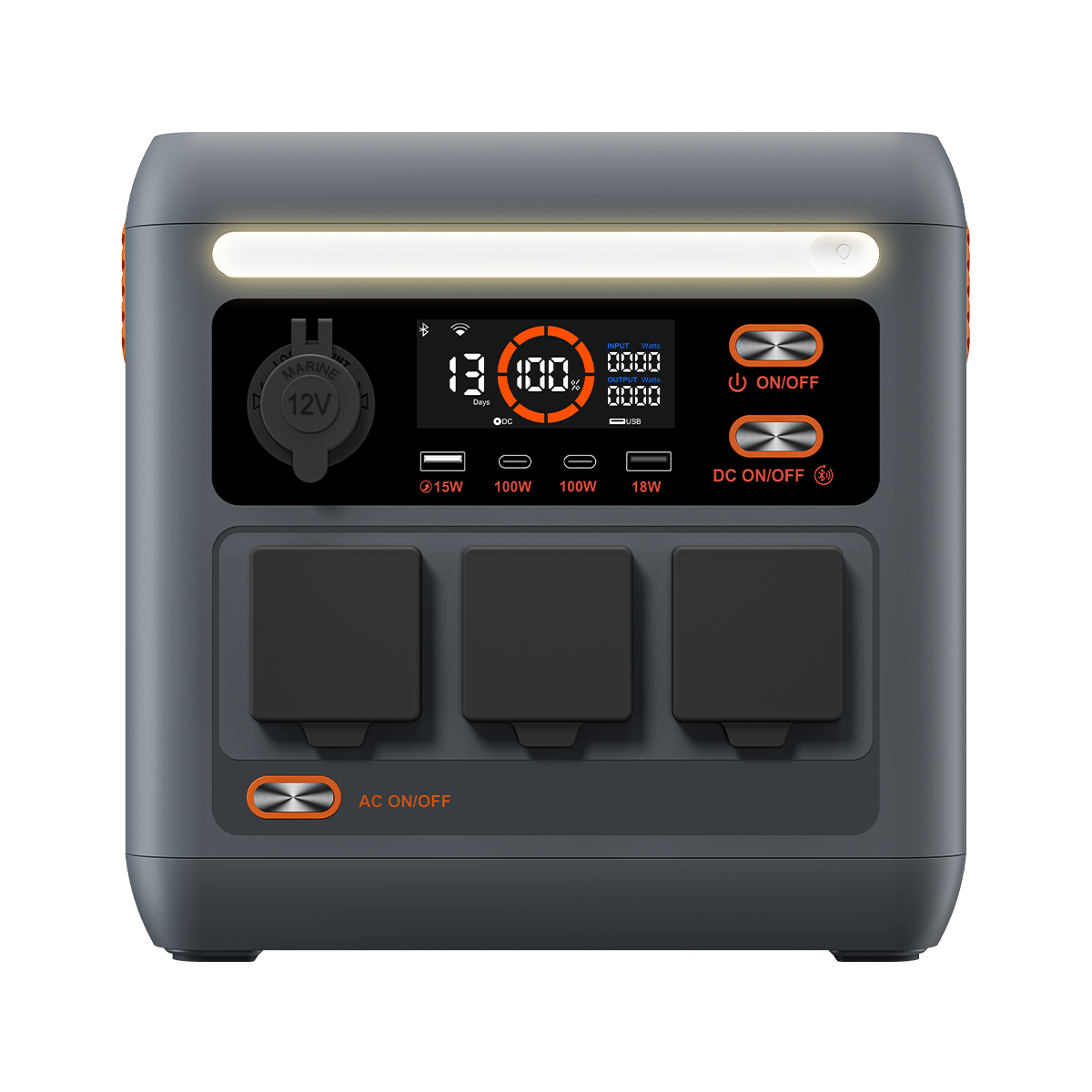























Welcome to OSCAL (Well-known Chinese brand of Android tablets, rugged smartphones, projectors, and portable power stations) blog. Hope this guide has been helpful.
Playing games on a PC does not always require downloading and installing large game files. With modern web technology and cloud gaming services, many games can be played directly through a browser or streaming platform. This can be especially useful when your computer has limited storage space, you want to try a game before installing it, or you are using a shared or temporary computer.
- Read more: How to play Steam games on my tablet without PC?
- 10 best competitive games for PC
- 8 best shooting games for phone
- 12 best multiplayer PC games for coop play
Browser-based games and cloud gaming make it possible to start playing with only an internet connection and a compatible browser. Although the exact experience depends on the game and service, the basic process is simple. The following guide explains how to play games without downloading them to your PC and what you should consider for a smoother experience.
How to Play Games Without Downloading on PC
The easiest approach is to find a game that supports browser play or cloud streaming. You can then access the game through a supported website without installing the full game on your computer.
- Open a modern web browser such as Chrome, Edge, Firefox, or another supported browser.
- Search for a reputable browser gaming or cloud gaming service.
- Find a game that supports instant browser play or cloud streaming.
- Open the game's page and sign in or create an account if required.
- Check whether the game requires a subscription, purchase, or free account.
- Click the available Play, Start, or similar button.
- Wait for the game to load in the browser or connect to the cloud gaming session.
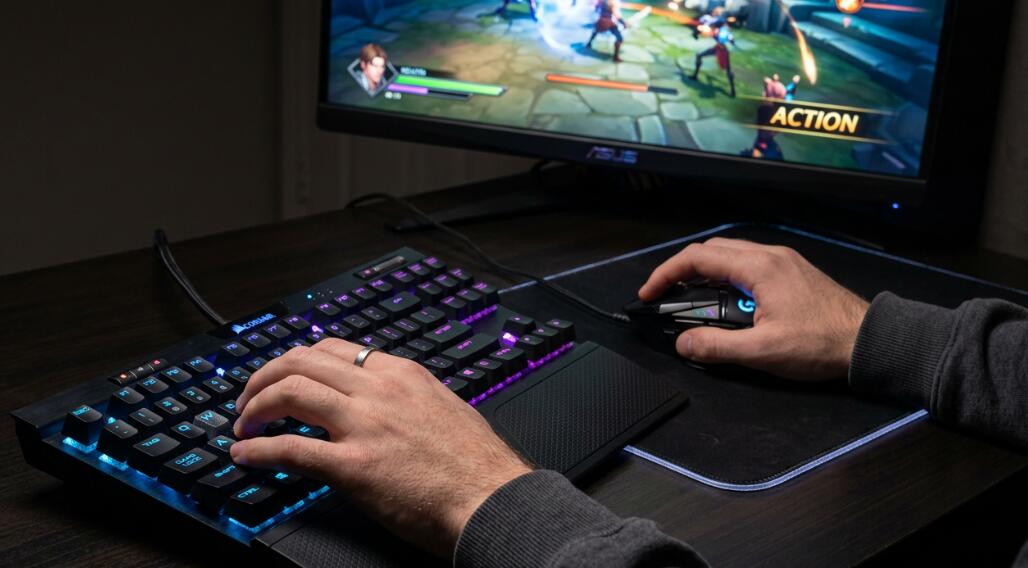
- Use your keyboard and mouse, or connect a compatible controller if supported.
- Adjust graphics, resolution, and control settings to improve the playing experience.
- Close the browser tab or sign out when you finish playing.
Play Browser Games Directly
Browser games are designed to run directly inside a web browser. They generally do not require the complete game package to be installed on your PC. Depending on the title, you may find puzzle games, card games, strategy games, arcade games, multiplayer games, and other genres.
To get started, visit a reputable gaming website and select a title that clearly supports browser-based play. Avoid downloading unknown files or browser extensions simply because a website claims they are required. A genuine browser game should normally provide clear information about its requirements before you start.
Use Cloud Gaming Services
Cloud gaming works differently from traditional browser games. Instead of running the entire game locally on your computer, a remote server handles much of the game processing and sends the gameplay to your screen through the internet.
This can allow you to play demanding games on a computer that does not have enough storage or hardware to run the game locally. However, cloud gaming usually depends heavily on internet quality. A stable connection with low latency can make controls feel more responsive, while an unstable connection may cause delays, stuttering, or reduced image quality.
Check Your Internet Connection
A reliable internet connection is important when playing games without downloading them. Browser games may have relatively modest requirements, while cloud gaming can use considerably more bandwidth because video and audio are continuously streamed to your computer.
For a better experience, connect your PC to a stable Wi-Fi network or use an Ethernet connection when possible. Closing unnecessary downloads, video streams, and other bandwidth-heavy activities can also help reduce interruptions during gameplay.
Choose the Right Browser and Settings
Your browser can affect how smoothly a web-based game runs. Before playing, update your browser to a current version and close unnecessary tabs or applications. If a game offers graphics settings, lowering visual quality can sometimes improve performance on older computers.
You should also check whether hardware acceleration is enabled when recommended by the game's platform. If a particular game does not work correctly, trying another supported browser may resolve compatibility issues.
Benefits and Limitations of Download-Free Gaming
Playing games without downloading them can save storage space and reduce installation time. It is also convenient when you only want to try a game temporarily. Cloud gaming can provide access to graphically demanding titles without requiring a high-end gaming PC.
However, this approach also has limitations. Some games are unavailable in browsers, while cloud gaming may require a paid subscription or supported region. Internet interruptions can also affect gameplay, and browser-based versions may offer fewer features than their full desktop counterparts.
Stay Safe When Playing Online
Not every website offering free games is trustworthy. Use established services and avoid suspicious websites that request unnecessary permissions, unknown software installations, or sensitive account information. Keep your browser and operating system updated, and use strong passwords for gaming accounts.
It is also important to distinguish between playing a game online and downloading an unofficial copy. If a website asks you to install unfamiliar executables before allowing access to a supposedly browser-based game, consider leaving the site and finding a more reputable source.
Conclusion
Playing games on a PC without downloading them is possible through browser-based games and cloud gaming services. The basic process is straightforward: choose a supported game, open it through a compatible service, check your connection, and start playing directly through the browser or streaming platform.
The best method depends on the type of game, your internet connection, and your computer's capabilities. By choosing reputable services and keeping your browser updated, you can enjoy convenient gaming while saving local storage space and avoiding lengthy installations.


