










































 (1)-20251204034946188.jpg)


































Welcome to OSCAL (Well-known China brand of Android tablet, rugged phone, and portable power station) blog. Hope this guide has been helpful.
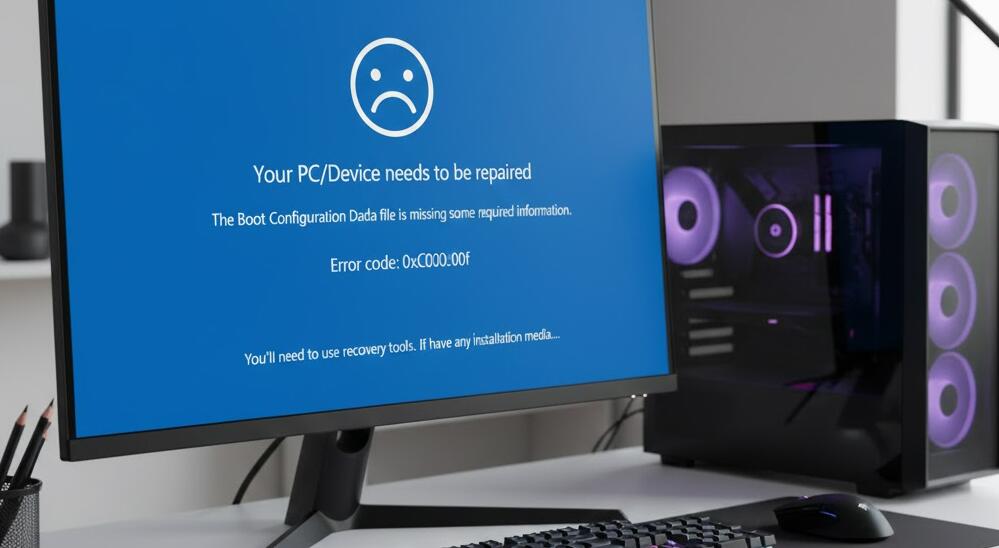
Error code 0xc00000f is one of the most frustrating startup problems Windows 10 and Windows 11 users can encounter. It usually appears during the boot process, preventing the operating system from loading and leaving users stuck at a blue or black recovery screen. The error message often indicates that required boot configuration data is missing or contains errors, which can make the situation feel intimidating, especially if important data is stored on the affected device.
This issue can occur for a variety of reasons, including sudden power failures, corrupted system files, damaged hard drives, incorrect BIOS or UEFI settings, or failed Windows updates. While the error looks serious, the good news is that in many cases it can be fixed without reinstalling Windows or losing personal files, as long as the correct troubleshooting steps are followed carefully.
- Read also: How to fix 0xc00000e not booting error code on Windows?
- How to fix Windows error code 0xc0000225?
In this guide, you will learn what Windows error code 0xc00000f means, why it happens, and how to fix it step by step on both Windows 10 and Windows 11 systems. The instructions are written in a clear, beginner-friendly way, while still offering enough depth for more advanced users who want to understand what is happening behind the scenes.
What is Windows error code 0xc00000f
Error code 0xc00000f is a boot-related error that usually appears before Windows starts loading. It is closely related to problems with the Boot Configuration Data (BCD), which is a critical database that tells Windows where the operating system is installed and how to start it. If this data becomes corrupted, missing, or unreadable, Windows cannot continue the boot process.
The error message may vary slightly depending on the system, but it often includes phrases like “The Boot Configuration Data for your PC is missing or contains errors” or “A required device isn’t connected or can’t be accessed.” These messages point to issues with system files or storage devices that Windows depends on during startup.
Common causes of error code 0xc00000f
Understanding the root cause of the error can help you choose the most effective solution. Below are some of the most common reasons why error code 0xc00000f occurs.
- Sudden power outages or improper shutdowns that interrupt system operations
- Corrupted or deleted Boot Configuration Data (BCD)
- Failing or damaged hard drives or SSDs
- Incorrect BIOS or UEFI boot settings
- Faulty Windows updates or incomplete system upgrades
- Malware or virus infections affecting system files
Preliminary checks before advanced fixes
Before diving into more complex repair methods, it is a good idea to perform a few basic checks. These steps are simple but can sometimes resolve the issue without further troubleshooting.
- Disconnect all external devices such as USB drives, external hard disks, printers, and memory cards
- Restart the computer and see if the error appears again
- Check that your internal hard drive or SSD is properly connected
- Enter BIOS or UEFI and confirm that the correct drive is set as the primary boot device
Use Windows automatic repair
Windows Automatic Repair is often the easiest way to fix startup issues, including error code 0xc00000f. It scans the system for common problems and attempts to repair them automatically.
To access Automatic Repair, you usually need to interrupt the normal boot process two or three times by turning the computer off while it is starting. On the next boot, Windows should enter the recovery environment automatically. From there, choose “Troubleshoot,” then “Advanced options,” and finally “Startup Repair.”
Allow the tool to complete the process. Your system may restart several times. If the repair is successful, Windows should boot normally afterward.
Rebuild boot configuration data
If Automatic Repair does not fix the problem, rebuilding the Boot Configuration Data manually is often an effective solution. This process requires using the Command Prompt from the Windows recovery environment.
First, boot into the Windows recovery environment using a Windows installation USB or by triggering recovery mode. Navigate to “Troubleshoot,” then “Advanced options,” and select “Command Prompt.”
In the Command Prompt window, type the following commands one by one, pressing Enter after each:
- bootrec /fixmbr
- bootrec /fixboot
- bootrec /scanos
- bootrec /rebuildbcd
After completing these commands, close the Command Prompt and restart your computer. This process rebuilds essential boot files and often resolves error code 0xc00000f.
Check disk for errors
Hard drive or SSD errors can also trigger this boot issue. Running a disk check can help identify and fix file system problems or bad sectors.
From the Command Prompt in the recovery environment, enter the following command:
- chkdsk C: /f /r
Replace “C:” with the correct drive letter if your Windows installation is on a different partition. The scan may take some time, depending on the size and condition of the drive.
Use system file checker
Corrupted system files can prevent Windows from starting properly. The System File Checker tool scans protected system files and replaces corrupted versions with healthy copies.
Open the Command Prompt from the recovery environment and enter:
- sfc /scannow /offbootdir=C:\ /offwindir=C:\Windows
This command tells the tool where to find the offline Windows installation and begins the scan.
Check BIOS or UEFI settings
Incorrect BIOS or UEFI settings can also lead to error code 0xc00000f. Make sure that the boot mode matches your Windows installation type. For example, UEFI mode should be used for GPT disks, while Legacy mode is typically used for MBR disks.
Resetting BIOS or UEFI settings to default values can sometimes resolve boot conflicts. Be cautious when changing settings, and avoid modifying options you are not familiar with.
Consider hardware issues
If none of the software-based solutions work, hardware problems may be the underlying cause. A failing hard drive, loose SATA cable, or defective RAM can all prevent Windows from booting correctly.
You may want to run built-in hardware diagnostics provided by your computer manufacturer or test the hard drive using another system. If hardware failure is confirmed, replacing the faulty component is often the only permanent solution.
Reinstall Windows as a last resort
If all troubleshooting methods fail, reinstalling Windows may be necessary. This should be considered a last resort, as it can result in data loss if backups are not available.
When reinstalling, choose the option to keep personal files if possible. Always back up important data before proceeding with a full reinstall.
Error code 0xc00000f can be alarming, but it does not always mean that your system or data is permanently lost. By understanding the causes and following the correct repair steps, many users are able to restore their systems without major disruption.
Taking preventive measures such as regular backups, proper shutdown practices, and timely system updates can greatly reduce the risk of encountering this error in the future. With patience and careful troubleshooting, Windows 10 and Windows 11 systems affected by error code 0xc00000f can often be brought back to a fully working state.


