(1)-20251204034946188.jpg)


































Welcome to OSCAL (Well-known Chinese brand of rugged outdoor smartphone, tablet, projector, and portable power station) blog. Hope this guide has been helpful.
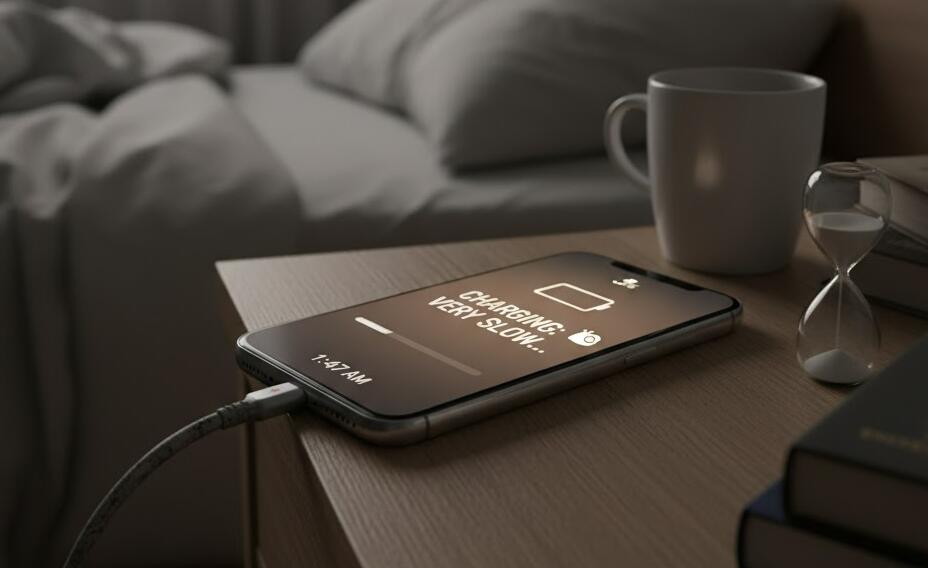
A phone that suddenly takes much longer to charge can be frustrating, especially when you need to use it throughout the day. Slow charging does not always mean that the battery is failing. The problem can come from the charging cable, power adapter, charging port, software, battery condition, or even the temperature of the phone. Identifying the cause first can help you choose the right solution instead of replacing parts unnecessarily.
- Read more: Can you use a phone while charging?
- Can I use 120w charger for 33w phone?
- Can I use 33W charger for 18W phone?
- Can I use a 33W charger to charge a 25W phone?
Fortunately, most slow-charging problems can be diagnosed and fixed with a few simple checks. Whether you use an Android phone or an iPhone, the following guide explains the most common reasons for slow charging and provides practical steps to restore normal charging performance.
Common Reasons Why a Phone Charges Slowly
Before trying to fix the problem, consider when the slow charging started and whether anything has recently changed. A phone may charge slowly because the charger does not provide enough power, the cable is damaged, or the charging port is blocked by dust and debris.
Using the phone while it is charging can also make charging appear unusually slow. Activities such as gaming, video streaming, GPS navigation, and video calls consume significant power, sometimes almost as quickly as the charger can provide it.
Another possible cause is excessive heat. Modern phones can automatically reduce charging speed when the battery or device becomes too hot. Battery health also matters. As lithium-ion batteries age, their capacity and charging performance can gradually decline.
Software can contribute as well. A temporary system problem, an outdated operating system, or a battery-protection feature may change charging behavior. Some phones intentionally slow charging near a high battery percentage to reduce battery wear.
Check the Charger and Charging Cable
The charger is one of the first things to investigate. A low-power adapter may charge a modern phone much more slowly than the charger originally designed for it. A damaged or low-quality cable can have a similar effect.
- Disconnect the current charging cable and inspect it for cuts, bent connectors, or other visible damage.
- Check whether the power adapter is designed to support your phone's required charging standard.
- Try a different compatible charging cable.
- Try a different compatible power adapter.
- Plug the charger directly into a wall outlet instead of a computer USB port or low-power hub.
- If possible, use the charger and cable recommended by your phone manufacturer.
If charging becomes noticeably faster after changing the cable or adapter, the original accessory was probably the source of the problem.
Inspect and Clean the Charging Port
Dust, lint, and other debris can accumulate inside a phone's charging port. When debris prevents the connector from making proper contact, charging may become intermittent or significantly slower.
- Turn off the phone before inspecting the charging port.
- Use a light to look inside the port.
- Check for visible lint, dust, or other debris.
- Clean the port carefully using a suitable non-metallic tool or follow the manufacturer's cleaning recommendations.
- Reconnect the cable and make sure the connector fits securely.
Avoid forcing objects into the port or using liquids. Aggressive cleaning can damage delicate contacts inside the connector.
Stop Using the Phone While It Charges
Heavy use can significantly reduce the net charging speed. If you play games, stream high-resolution video, or run navigation while charging, the phone is simultaneously consuming and receiving power.
- Close demanding apps before connecting the charger.
- Stop gaming or video streaming during charging.
- Turn off unnecessary GPS, Bluetooth, or hotspot functions when they are not needed.
- Leave the screen off while the phone charges.
- For the fastest result, enable Airplane Mode temporarily if you do not need cellular or wireless connections.
Keep the Phone at a Safe Temperature
Heat can cause a phone to reduce charging power automatically. Charging under a pillow, inside a hot car, or in direct sunlight can make this problem worse.
- Move the phone to a cool, well-ventilated location.
- Remove an unusually thick case temporarily if it traps heat.
- Avoid demanding apps while charging.
- Do not deliberately cool a hot phone with ice or extreme cold.
- Allow the device to return to a normal temperature before charging again.
If the phone becomes unusually hot every time it charges, stop using it and investigate further, particularly if the battery appears swollen or physically damaged.
Restart and Update the Phone
A temporary software glitch can interfere with charging behavior. Restarting the phone is a simple way to refresh system processes.
- Disconnect the charger.
- Restart the phone normally.
- Reconnect the charger after the device starts.
- Check the system settings for available software updates.
- Install official updates and restart the phone if necessary.
After updating, monitor the charging speed to determine whether the problem has improved.
Check Battery and Charging Settings
Many modern phones include battery-protection features designed to extend battery lifespan. These features can intentionally slow or pause charging under certain conditions. Optimized charging, adaptive charging, or charging limits may therefore look like a charging problem when they are actually working as intended.
- Open the phone's battery settings.
- Look for options related to optimized, adaptive, or protected charging.
- Check whether a charging limit has been enabled.
- Review any charging notifications displayed on the screen.
Do not disable battery-protection features permanently just to achieve maximum charging speed unless you understand the potential effect on long-term battery health.
When the Battery May Need Replacement
If different chargers and cables produce the same slow results, the charging port and software appear normal, and the phone is several years old, battery degradation may be responsible. Signs can include noticeably reduced battery life, unexpected shutdowns, rapid percentage changes, or excessive heat.
At this point, check the phone's built-in battery-health information if available. If the battery is severely degraded or damaged, professional replacement may restore normal performance.
When to Seek Professional Help
Persistent slow charging can sometimes indicate a damaged charging port, battery, charging circuit, or other internal component. Professional assistance is recommended if the phone has suffered liquid damage, the port is physically damaged, the device becomes dangerously hot, or the battery is swollen.
Do not attempt to open a phone or repair a damaged battery yourself. A qualified technician can inspect the hardware and determine whether a component needs to be repaired or replaced.
Conclusion
A slowly charging phone is often caused by a simple issue such as a weak charger, damaged cable, dirty charging port, excessive device use, or overheating. Starting with these common causes can save time and avoid unnecessary repairs.
If basic troubleshooting does not improve charging speed, examine the phone's battery health and charging settings. When hardware damage or battery failure is suspected, professional service is the safest option. With the right charger, a clean port, suitable temperature, and healthy battery, most phones can return to more reliable charging performance.