










































 (1)-20251204034946188.jpg)


































Welcome to OSCAL (Well-known China brand of Android smartwatch, rugged smartphone, tablet, and portable power station) blog. Hope this guide has been helpful.
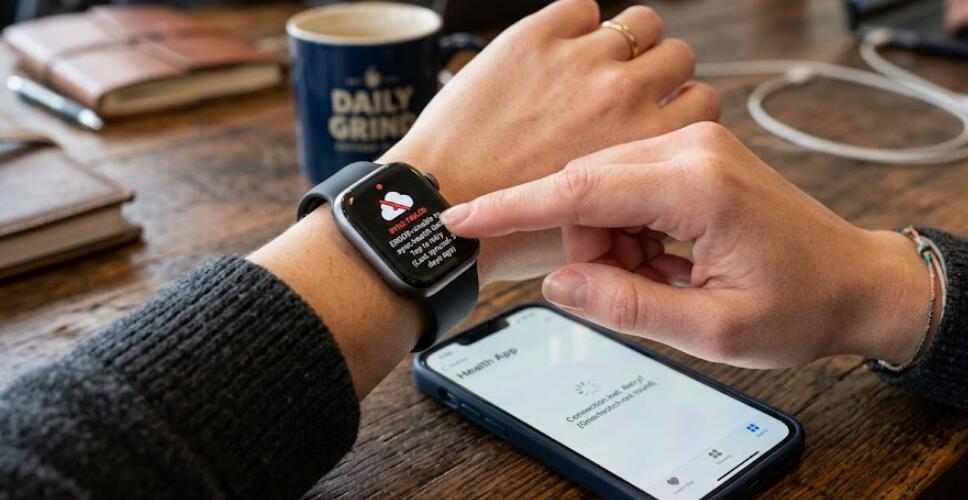
Smartwatches are designed to keep important information, such as steps, heart rate, workouts, notifications, and sleep records, synchronized with a connected smartphone. When smartwatch data stops syncing, the problem can be frustrating because recent activities may not appear in the companion app. Fortunately, most syncing problems are caused by connection, permission, battery, or software settings and can usually be fixed without resetting the watch.
- Read also: How to fix a smart watch that is not connecting to Bluetooth?
- How to fix a smart watch that is not turning on?
- Reason and solution for a smart watch touch screen not working
Before trying advanced solutions, make sure both the smartwatch and smartphone have enough battery power and are within Bluetooth range. It is also useful to check whether the companion app is working normally. Follow the steps below in order, testing synchronization after each solution to identify the cause.
Check the Bluetooth Connection
A smartwatch normally relies on Bluetooth to exchange data with the phone. A weak or interrupted connection can prevent new activity records from being transferred.
- Keep the smartwatch and smartphone close together.
- Open the phone's Bluetooth settings and make sure Bluetooth is enabled.
- Check whether the smartwatch appears as a connected device.
- Turn Bluetooth off, wait a few seconds, and turn it back on.
- Open the smartwatch companion app and check the connection status.
If the watch reconnects successfully, open the app and allow a few minutes for recent data to synchronize.
Restart Both Devices
A temporary software problem can interfere with communication between the watch and smartphone. Restarting both devices clears temporary processes and often restores synchronization.
- Turn off the smartwatch and wait several seconds.
- Restart the smartphone.
- Turn the smartwatch back on.
- Open the companion app after both devices are ready.
- Wait for the watch to reconnect and synchronize.
Check App Permissions
Synchronization may fail when the companion app does not have permission to access Bluetooth, nearby devices, location, notifications, or background activity. Permission names vary between Android and iOS devices.
- Open the smartphone's Settings.
- Find the smartwatch companion app.
- Review its available permissions.
- Allow the permissions required for Bluetooth and nearby-device communication.
- Make sure background activity is not unnecessarily restricted.
After changing permissions, reopen the companion app and manually refresh the watch data.
Check Battery and Power-Saving Settings
Battery-saving features can restrict background synchronization. This is particularly common when the smartphone or smartwatch is using an aggressive power-saving mode.
- Check the battery level of both devices.
- Disable extreme power-saving mode temporarily.
- Check whether battery optimization is restricting the companion app.
- Keep the phone connected to the internet when synchronization requires cloud services.
Once the data has synchronized, you can restore your preferred battery settings and check whether normal syncing continues.
Update the Companion App and Watch Software
Outdated software can cause compatibility problems between a smartwatch and its smartphone application. Updates may also include fixes for Bluetooth and synchronization issues.
- Open the smartphone's app store.
- Check for an update for the smartwatch companion app.
- Install any available update.
- Open the watch's settings and check for a system or firmware update.
- Install updates while both devices have sufficient battery.
Force a Manual Synchronization
Some companion apps provide a manual sync or refresh option. Use it after confirming that the watch is connected to the phone.
- Open the companion app.
- Confirm that the smartwatch is connected.
- Pull down on the main dashboard if the app supports manual refresh.
- Look for a Sync, Refresh, or similar option.
- Keep the app open until synchronization finishes.
Reconnect or Pair the Smartwatch Again
If normal troubleshooting does not work, reconnecting the devices can repair a corrupted Bluetooth connection. Before removing the existing connection, make sure important health and activity information has already been backed up or synchronized to the relevant account.
- Open the companion app and check its device settings.
- Choose the option to disconnect or remove the smartwatch.
- Restart both devices.
- Pair the smartwatch with the smartphone again through the official companion app.
- Check whether recent data begins syncing normally.
Check Available Storage
Insufficient storage on the smartphone or smartwatch can sometimes interfere with app operation and data processing. Delete unnecessary files or apps if either device is nearly full. Then restart the companion app and try synchronization again.
When to Reset the Smartwatch
A factory reset should be considered a last resort because it can erase settings and locally stored information. Before resetting the watch, verify that important data has been synchronized to your account and follow the manufacturer's backup instructions. If synchronization still fails after a reset and fresh pairing, the issue may involve the app, account, firmware, or hardware.
Conclusion
When smartwatch data is not syncing, start with simple solutions such as checking Bluetooth, restarting both devices, reviewing permissions, and disabling restrictive battery settings. Updating the companion app and watch software can also resolve compatibility problems.
If these steps do not restore synchronization, reconnecting the smartwatch or checking storage may help. A factory reset should only be used after other troubleshooting methods have failed and important data has been backed up. With a stable connection, appropriate permissions, updated software, and sufficient storage, most smartwatch syncing problems can be resolved quickly.


