










































 (1)-20251204034946188.jpg)


































Welcome to OSCAL (Well-known Chinese brand of outdoor smartphone, Android tablet, and portable power station) blog. Hope this guide has been helpful.
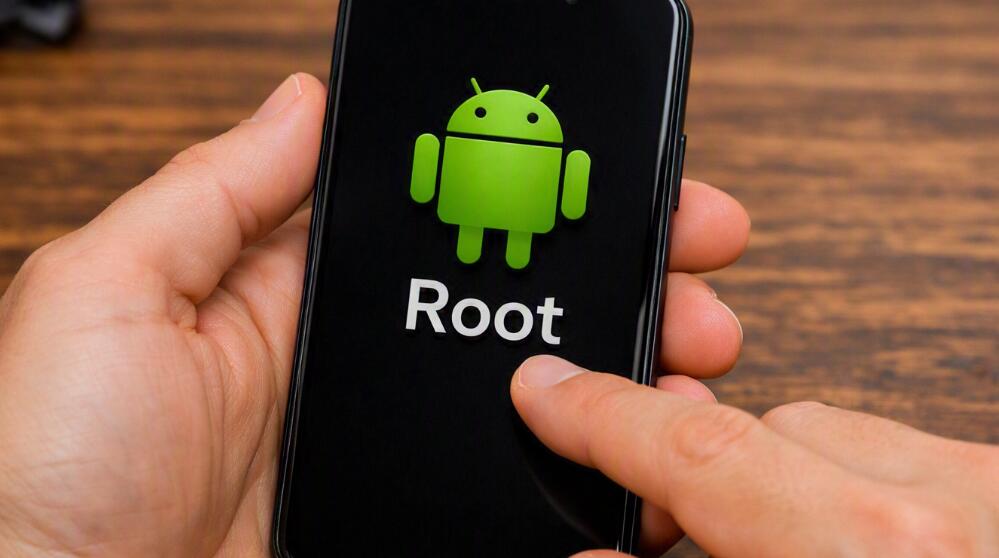
Rooting an Android device means obtaining privileged access to the Android operating system, allowing users to make changes that are normally restricted by the manufacturer or operating system. Root access can provide greater control over system files, customization, and advanced applications, but it can also affect security, updates, and device stability. If you are buying a used smartphone or tablet, troubleshooting an application, or checking your device's security status, it can be useful to determine whether the device has been rooted.
- Read also: Can Android 15 be rooted & How to root?
- Can Android 16 be rooted & How to root?
- Android 15 vs Android 16: A deep compare
- What is systemless root in Android?
Fortunately, you do not always need technical expertise to check for root access. There are several ways to identify signs of rooting, ranging from checking installed applications to using a reputable root-checking utility. Because Android interfaces differ between manufacturers and software versions, it is best to use more than one method before reaching a conclusion. The following guide explains practical ways to determine whether an Android smartphone or tablet is rooted.
1. Check for Root Management Apps
One of the easiest methods is to look for applications commonly associated with managing root permissions. When a device has been rooted, a root-management application may be installed to control which apps can obtain elevated privileges.
- Open the app drawer on the Android device.
- Look for applications associated with root or superuser management.
- Open Settings and check the complete list of installed applications.
- Search for unfamiliar applications that request or manage elevated system permissions.
- Research any unfamiliar root-management app before drawing a conclusion.
The presence of a root-management application can be a strong indication that the device has been modified. However, its absence does not necessarily mean the device is unrooted because some rooting methods may not leave an obvious management app.
2. Use a Trusted Root Checker
A dedicated root-checking application can provide a convenient way to verify whether an Android device has root access. If you choose this method, use a reputable application from a trusted source and review its permissions before installing it.
- Open the official app marketplace available on the device.
- Search for a reputable root-checking application.
- Review the application's developer information, ratings, and permissions.
- Install the root checker.
- Open the application and follow its instructions.
- Run the root-status check.
- Read the result carefully to determine whether root access is detected.
A root checker generally tests whether the operating system can provide superuser privileges. Keep in mind that the result is an indicator rather than a complete security audit. A sophisticated modification may conceal some signs of rooting.
3. Check for Superuser Access
Rooted Android devices may contain components that provide superuser privileges. Advanced users can investigate the device for signs of these components, although the exact files and locations vary according to the rooting method and Android version.
- Open a trusted file-management or system-information utility.
- Check whether the device exposes directories or system components that normally require elevated privileges.
- Look for evidence of a superuser framework or root-management system.
- Do not delete or modify system files merely to test whether the device is rooted.
This approach is more technical than using a root checker and should be used primarily as supporting evidence. Modern rooting methods can modify the system in ways that are difficult to identify through a simple file search.
4. Look for Signs of an Unlocked or Modified System
Rooting is not exactly the same as unlocking the bootloader, but the two are often associated with system modification. A device that has undergone extensive modification may display warning messages during startup or have software components that differ from the manufacturer's standard configuration.
- Restart the Android device.
- Watch for unusual boot warnings or messages about modified software.
- Check the device's software information in Settings.
- Compare the installed Android version and security patch information with the manufacturer's expected configuration.
- Investigate unusual system behavior or software that you did not install.
A bootloader warning alone does not prove that the device is currently rooted. It may simply indicate that the bootloader was unlocked at some point. Treat this evidence as a clue rather than definitive proof.
5. Check Whether Security-Sensitive Apps Work Normally
Some banking, payment, streaming, enterprise, and security applications may detect rooted or modified devices and restrict certain functions. Therefore, unexpected compatibility problems can sometimes provide another clue.
- Open an application that normally performs an integrity or security check.
- Read any warning about device security or system modification.
- Check whether features are unavailable because the device does not meet security requirements.
- Do not assume that an app failure automatically means the device is rooted.
What Root Access Means
Root access gives applications or users elevated privileges beyond those normally available to standard Android apps. This can allow deeper customization, removal of certain restrictions, and installation of specialized software. At the same time, granting unrestricted privileges to an application can increase the consequences of malware or accidental system changes.
Rooting methods also differ significantly. Some modify system partitions, while others use techniques designed to minimize visible changes. As a result, there is no single visual sign that proves every Android device is rooted.
Rooted vs. Bootloader-Unlocked
It is important to distinguish rooting from bootloader unlocking. An unlocked bootloader can make it easier to install modified software, but an unlocked bootloader does not necessarily mean the device currently has root access.
Conversely, a device can potentially have elevated privileges without presenting the exact signs associated with older rooting methods. If you need to establish the device's status for security, resale, or workplace compliance, use several checks instead of relying on one indicator.
Why Root Status Matters
Knowing whether a smartphone or tablet is rooted can be important for security and software compatibility. Root access can weaken some of Android's normal security boundaries if it is improperly configured. It may also affect automatic updates, digital payment applications, device-management policies, and warranty or support conditions, depending on the manufacturer and region.
If you discover that a device is rooted and you did not perform the modification yourself, avoid granting sensitive applications elevated privileges until you understand how the system was changed. A factory reset does not necessarily restore every type of modified boot or system configuration, so advanced cases may require manufacturer-specific restoration procedures.
What to Do If the Device Is Rooted
If a root checker or several independent signs indicate that the Android device is rooted, first determine whether the modification was intentional. If you purchased a used device, ask the previous owner about its history. If security is the priority, consider returning the device to official manufacturer software using an appropriate and trusted restoration procedure.
Before making major system changes, back up important personal data. Reinstalling official firmware can erase data or create other problems if the wrong software package is used, so users who are unfamiliar with firmware installation should consult the device manufacturer's official support resources.
Final Thoughts
Determining whether an Android device is rooted does not have to involve complicated technical procedures. Checking for root-management applications, using a reputable root checker, looking for system modifications, and observing security-related app behavior can provide useful evidence. No single sign should always be treated as conclusive because rooting techniques and Android security mechanisms change over time.
For the most reliable assessment, combine several methods and distinguish root access from related conditions such as an unlocked bootloader. Once you know the device's status, you can make a more informed decision about security, software compatibility, updates, and whether the system should be restored to its official configuration.


