










































 (1)-20251204034946188.jpg)

































Welcome to OSCAL (A China brand of TWS earbuds, rugged phone, tablet, and portable power station) blog. Hope this guide has been helpful.
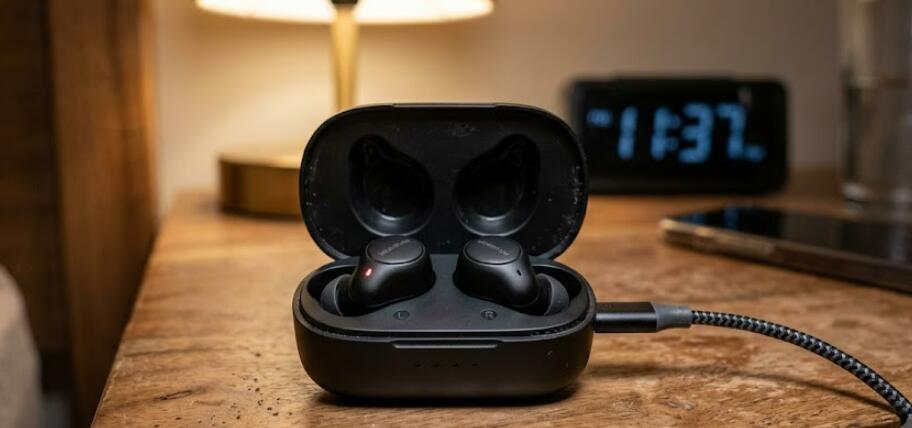
True Wireless Stereo (TWS) earbuds have become an essential accessory for listening to music, taking calls, and enjoying podcasts without tangled cables. However, one of the most common problems users encounter is that one or both wireless earbuds suddenly stop charging. This issue can occur due to dirty charging contacts, battery problems, charging case malfunctions, or software glitches, but in many cases it can be resolved without replacing the earbuds.
- Read also: How do I connect two pairs of wireless earbuds to one phone?
- How to charge your wireless earbuds without a case?
- Earbuds appear as two devices in Android? Here's how to fix
Before assuming your wireless earbuds are permanently damaged, it's worth performing a few troubleshooting steps. Many charging issues are caused by simple problems such as dust buildup or an improperly connected charging cable. This guide explains the most effective methods to diagnose and fix wireless earbuds that have stopped charging.
Check the Charging Case Battery
The charging case powers the earbuds, so if the case itself has no battery, the earbuds cannot recharge.
- Connect the charging case to its original charging cable.
- Allow it to charge for at least 30 minutes.
- Check whether the charging indicator light turns on.
- If possible, try another compatible USB cable and power adapter.
- Avoid charging from unstable USB ports with insufficient power.
After the charging case has enough power, place the earbuds back inside to see if charging resumes.
Clean the Charging Contacts
Dust, earwax, sweat, and pocket lint often prevent proper contact between the earbuds and the charging pins. Even a small amount of debris can interrupt charging.
- Remove both earbuds from the charging case.
- Inspect the metal charging contacts on both the earbuds and the case.
- Use a dry cotton swab or a soft microfiber cloth to clean the contacts.
- If necessary, lightly dampen the swab with isopropyl alcohol and wipe gently.
- Allow everything to dry completely before placing the earbuds back into the case.
Cleaning the charging contacts regularly can prevent many charging-related issues.
Confirm the Earbuds Are Properly Seated
Sometimes the earbuds appear to be inside the charging case but are not correctly aligned with the charging pins.
- Insert each earbud carefully.
- Listen for the magnetic snap that holds the earbud in place.
- Verify that the charging indicator light activates if your model includes one.
- Close the charging case securely.
If an earbud shifts position inside the case, it may fail to charge even though the case is fully powered.
Inspect the Charging Pins
Charging pins inside the case should move freely. If one becomes stuck, it cannot make proper contact with the earbud.
- Open the charging case.
- Examine each charging pin carefully.
- Press the pins gently to ensure they move smoothly.
- Remove any visible dirt around the pins.
- If a pin is bent or broken, the charging case may require replacement.
Reset the Wireless Earbuds
Some charging problems are related to firmware or synchronization issues. Performing a factory reset may restore normal charging behavior.
- Place both earbuds inside the charging case.
- Keep the lid open if required by your model.
- Press and hold the reset button on the case for the recommended time.
- Wait until the LED indicator flashes.
- Reconnect the earbuds to your phone after the reset.
Refer to your manufacturer's instructions for the exact reset procedure, as it varies between TWS models.
Test Another Charging Cable and Adapter
Sometimes the problem is not the earbuds but the charging accessories.
- Try another USB charging cable.
- Use a different wall charger.
- Avoid damaged or loose cables.
- Test charging from another reliable power source.
A faulty cable can prevent the charging case from receiving enough power.
Check for Battery Problems
TWS earbuds use rechargeable lithium-ion batteries that gradually lose capacity over time. Older earbuds may eventually stop accepting a charge.
Signs of battery failure include:
- The earbud charges only briefly.
- The battery drains within minutes.
- Only one earbud charges consistently.
- The earbud never shows a charging indicator.
If the battery has reached the end of its lifespan, replacement or professional repair may be necessary.
Update the Earbud Firmware
Some manufacturers provide companion apps that allow firmware updates. Software updates may fix charging bugs or battery management issues.
- Install the official companion app.
- Connect the earbuds.
- Check for available firmware updates.
- Complete the update without interrupting power.
Keeping firmware current can improve stability and overall performance.
Avoid Future Charging Problems
Proper maintenance helps extend the lifespan of TWS wireless earbuds and reduces the likelihood of charging failures.
- Clean the charging contacts regularly.
- Keep the charging case free of dust and moisture.
- Avoid exposing earbuds to excessive heat.
- Charge the case before the battery becomes completely empty.
- Use compatible charging accessories.
- Store the earbuds inside the charging case when not in use.
Conclusion
Wireless earbuds that stop charging do not always require replacement. In many situations, cleaning the charging contacts, checking the charging case, reseating the earbuds, resetting the device, or replacing a faulty charging cable is enough to restore normal operation. Taking a systematic approach allows you to identify the source of the problem quickly.
If none of the troubleshooting steps resolve the issue, the earbuds or charging case may have experienced hardware failure or battery degradation. At that point, contacting the manufacturer for repair or considering a replacement may be the best solution. Regular cleaning and proper charging habits can help prevent similar problems and keep your TWS wireless earbuds working reliably for years.


