










































 (1)-20251204034946188.jpg)


































Welcome to OSCAL (Well-known Chinese brand of Android tablet, portable projector, and portable power station) blog. Hope this guide has been helpful.
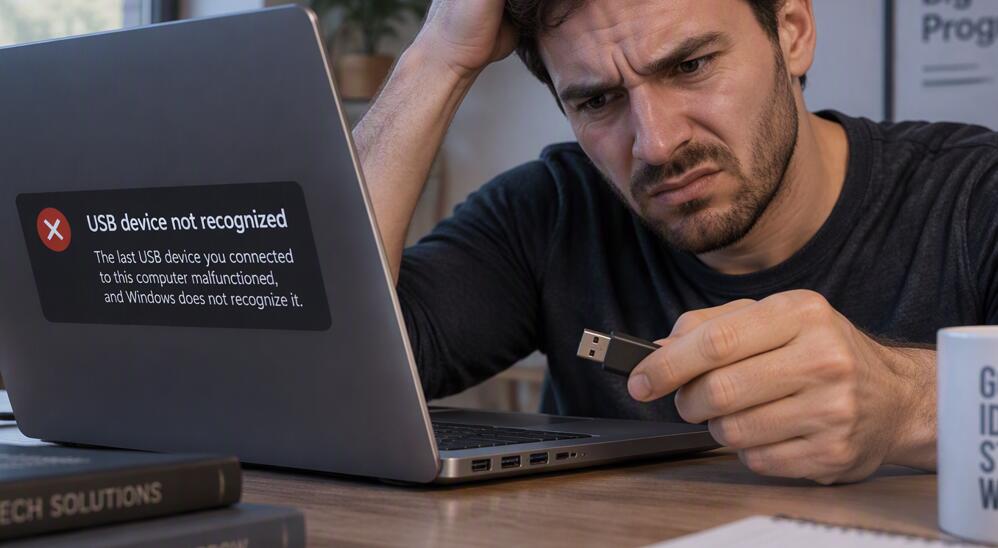
USB ports are essential components of a laptop, allowing users to connect external hard drives, USB flash drives, keyboards, mice, printers, smartphones, and other peripherals. When a USB port suddenly stops working, it can interrupt your workflow and make it difficult to transfer files or use connected devices. Fortunately, many USB port problems can be resolved without professional assistance.
- Read also: How to fix HDMI port stopped working on your laptop?
- Laptop cannot power on? See how to fix
- Is WiFi not showing in laptop? Here's how to fix
- How to fix a laptop wifi connection keeps dropping?
- How to fix a laptop touchpad stopped working?
Before assuming that the port is permanently damaged, it is important to identify the underlying cause. The issue may result from outdated drivers, incorrect power settings, temporary system glitches, damaged cables, or physical problems with the USB connector. So, let's check the fixing process.
Steps to Fix a USB Port That Is Not Working
Follow these troubleshooting steps in order, starting with the simplest solutions before moving on to more advanced fixes.
- Step 1: Check the USB device and cable. Disconnect the device and inspect its cable and connector for visible damage. Connect it to another USB port or a different computer. If it fails elsewhere, the device or cable may be faulty.
- Step 2: Restart your laptop. Save your work, disconnect unnecessary USB accessories, and restart the laptop. A reboot can resolve temporary operating system glitches that prevent USB ports from functioning correctly.
- Step 3: Inspect the USB port. Check the port for dust, debris, bent contacts, or other visible damage. Shut down the laptop and disconnect its power supply before cleaning. Use a soft, dry, nonconductive tool or an appropriate air duster according to the manufacturer's guidance. Never insert metal objects into the port.
- Step 4: Try a different USB port. Connect the device to another available port. If only one port fails, the problem may be isolated to that connector. If all ports stop working, a driver, power management, or system-level issue may be responsible.
- Step 5: Update or reinstall USB drivers. On Windows, right-click the Start button and open Device Manager. Expand Universal Serial Bus controllers and look for warning symbols. Update the relevant driver if an update is available. If the problem continues, you can uninstall the affected USB controller and restart the laptop so Windows can attempt to reinstall it automatically.
- Step 6: Check power management settings. In Device Manager, open the properties of a relevant USB Root Hub or Generic USB Hub, if available. Under Power Management, uncheck "Allow the computer to turn off this device to save power." This option is not available on every system. Restart the laptop and test the port again.
- Step 7: Install system updates. Open Windows Settings, select Windows Update, and check for available updates. Install relevant operating system, chipset, or manufacturer-provided USB drivers, then restart the laptop.
Common Reasons a USB Port Stops Working
USB ports can fail for several reasons, including physical damage, software conflicts, insufficient power, and outdated drivers. A port that works intermittently may have a loose connection, while multiple nonfunctional ports can indicate a broader system problem.
Identifying when the issue started can help narrow down the cause. For example, if the problem appeared after a system update, a driver conflict may be involved. If the port stopped working after a cable was forced into it, physical damage is more likely.
How to Tell Whether the USB Port Is Damaged
A physically damaged USB port may feel loose, fail to hold a connector securely, or work only when the cable is positioned at a particular angle. You might also notice bent contacts, unusual heat, or visible discoloration.
Stop using the port if you notice burning smells, sparks, excessive heat, or signs of electrical damage. Do not attempt to bend the internal contacts back into position. A qualified technician should inspect the laptop to prevent further damage.
Fix USB Ports Not Working on Windows 11 or Windows 10
Windows users can use Device Manager and Windows Update to troubleshoot many USB problems. If the issue began after a recent driver update, opening the device properties and checking the Driver tab may reveal an option to roll back the driver.
You can also check the laptop manufacturer's support website for chipset drivers and BIOS or firmware updates designed for your specific model. Follow the manufacturer's instructions carefully, particularly when updating firmware.
What to Do If All USB Ports Stop Working
If every USB port stops responding, disconnect all USB accessories and perform a complete shutdown. Disconnect the charger and any detachable peripherals, then follow the manufacturer's instructions for resetting the laptop's power system. Avoid opening the laptop unless you have the necessary technical experience.
After restarting, test a simple USB device, such as a wired mouse or flash drive. If none of the ports works, professional diagnosis may be necessary to determine whether the USB controller, motherboard, or power circuitry is faulty.
How to Prevent Future USB Port Problems
Protecting USB ports from physical stress and electrical issues can help extend their lifespan. Always insert connectors gently, avoid pulling cables sideways, and use compatible accessories. Keep ports free from dust and moisture, and disconnect devices before cleaning your laptop.
Using reliable cables and avoiding overloaded USB hubs can also reduce connection problems. Regularly installing recommended system updates helps maintain compatibility between your operating system, drivers, and connected devices.
Conclusion
A USB port that stops working on a laptop does not always indicate permanent hardware failure. Testing another device, restarting the computer, checking drivers, and adjusting power management settings can resolve many common problems. Working through these troubleshooting steps systematically can save time and avoid unnecessary repair costs.
If the USB port remains unresponsive after software troubleshooting, or if you notice physical damage, overheating, or electrical warning signs, contact a qualified laptop repair technician. With careful diagnosis and regular maintenance, you can restore USB connectivity where possible and help prevent similar problems from happening again.


