(1)-20251204034946188.jpg)


































Welcome to OSCAL (Well-known Chinese brand of rugged smartphones, Android tablets, and portable power stations) blog. Hope this guide has been helpful.
NFC, short for Near Field Communication, is a wireless technology that allows smartphones to exchange information with nearby devices over a very short distance. It is commonly used for contactless payments, transit cards, access control, and quick connections with compatible accessories. Although NFC is convenient for everyday tasks, some users prefer to turn it off when it is not needed to manage connectivity settings or reduce unwanted interactions with nearby NFC tags and devices.
- Read also: How can I know if there is internal damage after dropping my phone?
- How to use NFC on your phone?
- How to stop ads on an Android phone?
Turning off NFC depends on the smartphone's operating system and model. Most Android smartphones provide a dedicated NFC switch, while iPhones handle NFC differently and generally do not offer a universal setting to disable the feature completely. This guide explains how to manage NFC on Android and iOS devices, check whether it is disabled, and understand the alternatives available when a direct off switch is not provided.
How to Turn Off NFC on Android Phones
Most Android smartphones allow users to disable NFC through Quick Settings or the Settings app. The exact menu names may differ between Samsung Galaxy, Google Pixel, Xiaomi, OnePlus, and other Android devices.
Method A: Turn Off NFC Through Quick Settings
- Unlock your Android smartphone.
- Swipe down from the top of the screen to open the notification panel. On some devices, swipe down twice to display all Quick Settings tiles.
- Look for the NFC tile. It may appear on the second page of the available tiles.
- Tap the NFC tile to turn the feature off. If the tile is highlighted when enabled, its appearance should change when disabled.
- Check the tile again to confirm that NFC is no longer active.
If the NFC tile is not visible, your phone may place the option in Settings, or the tile may need to be added using the Quick Settings editing menu.
Method B: Turn Off NFC Through Settings
- Open the Settings app on your Android smartphone.
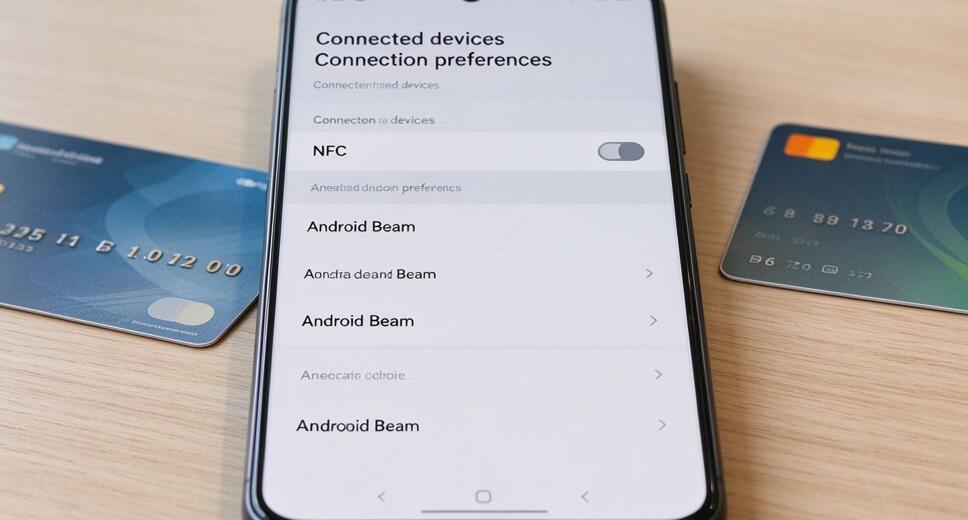
- Look for Connected devices, Connections, or Connection preferences.
- Tap NFC or Contactless payments if the NFC setting appears in that section.
- Locate the NFC switch.
- Turn the switch off to disable NFC.
- Return to the previous screen and verify that the NFC option remains disabled.
On some Samsung devices, the option is usually under Settings and Connections. Google Pixel devices may list NFC under Connected devices or Connection preferences, depending on the Android version. If the menu structure differs, use the search bar at the top of Settings and enter “NFC.”
How to Manage NFC on iPhones
Unlike many Android smartphones, iPhones do not generally provide a system-wide NFC on/off switch. NFC functions are integrated into features such as Apple Pay, supported digital keys, and background tag reading on compatible models. Therefore, users cannot follow the same steps used on Android to completely disable NFC.
Steps to Limit NFC-Related Features on an iPhone
- Open the Settings app on your iPhone.
- Tap Wallet & Apple Pay.
- Review your payment cards and related settings if you want to manage contactless payment use.
- To prevent accidental purchases, review your Apple Pay settings and understand which cards and authentication methods are enabled.
- Open Settings and review app permissions or notification settings for apps that interact with NFC accessories, where applicable.
- If you do not want your iPhone to read a particular NFC tag, avoid bringing the phone close to that tag.
These steps help manage certain NFC-related activities, but they do not turn off the iPhone's NFC hardware completely. Apple Pay and other NFC functions may continue to operate according to the device's design and settings.
What Is NFC and Why Might You Turn It Off?
NFC enables communication between compatible devices that are usually only a few centimeters apart. It supports tap-to-pay transactions, public transportation systems, smart access cards, and reading information from NFC tags.
Some people prefer to disable NFC when they rarely use contactless features or want to avoid accidentally triggering NFC tag interactions. On Android, turning NFC off prevents ordinary NFC communication while it is disabled. On iPhones, users should manage individual services and avoid unwanted NFC interactions because a universal off switch is not available.
Does Turning Off NFC Affect Mobile Payments?
On Android phones, disabling NFC generally prevents NFC-based contactless payments from working until the feature is enabled again. If you use Google Wallet or another compatible payment service, remember to turn NFC back on before paying at a contactless terminal.
On iPhones, Apple Pay settings and NFC availability work differently. Managing payment cards or changing Wallet settings does not necessarily disable NFC itself. Payment authentication and availability depend on the device, supported services, and applicable settings.
How to Check Whether NFC Is Disabled
After changing your settings, it is helpful to verify the result. On Android, open Quick Settings or return to the NFC menu in Settings and confirm that the switch is off. If you cannot find an NFC option, search for it in Settings or consult your phone manufacturer's support documentation.
On iPhones, there is no universal NFC status switch to check. Instead, review the settings for the particular service you want to manage, such as Wallet & Apple Pay. Keep in mind that restricting a service is not the same as disabling NFC hardware.
Conclusion
Turning off NFC is straightforward on most Android smartphones. Users can disable the feature through Quick Settings or the Settings menu, then enable it again whenever contactless payments or NFC accessories are needed. The process may vary slightly depending on the device manufacturer and Android version.
For iPhones, completely disabling NFC through a general system setting is not normally possible. Instead, users can manage Apple Pay and other related features according to their needs. Understanding these differences makes it easier to control NFC-related activities, avoid unwanted interactions, and use your smartphone's wireless features more confidently.