






















 (1)-20251204034946188.jpg)

































Welcome to OSCAL (Well-known Chinese brand of Android tablet, rugged smartphone, and portable power station) blog. Hope this guide has been helpful.
Knowing how much available ROM (internal storage) your tablet has is essential for keeping it running smoothly. Whether you’re installing new apps, downloading videos, or updating the system, storage space plays a big role in performance and usability. Tablets with low available ROM can slow down, fail to install updates, or prevent you from saving new files.
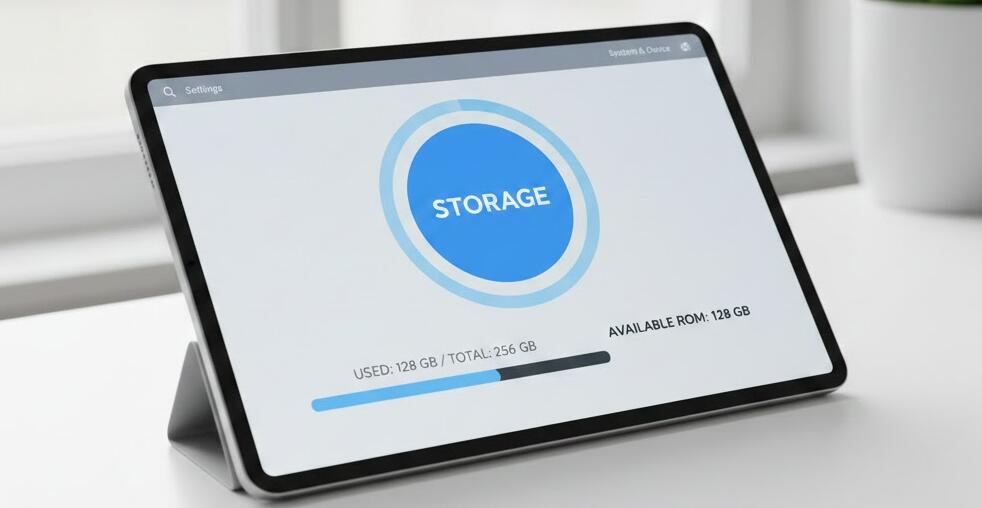
This guide walks you through clear, practical ways to check the available ROM on different types of tablets. It covers Android tablets, iPads, and a few general tips that apply across devices, so you can quickly find the information you need and make smarter decisions about managing your storage.
What does “available ROM” actually mean?
ROM, in everyday tablet usage, usually refers to the built-in internal storage where the operating system, apps, and personal files are stored. “Available ROM” is the portion of that storage that is still free and usable. It’s different from total ROM, which includes space already taken up by the system and installed apps.
Understanding the difference helps you avoid confusion. For example, a tablet advertised as having 64 GB of storage might show significantly less available ROM out of the box, because the operating system and preinstalled apps already occupy part of that space.
Are you looking for:
#tablet with projector, #GPS tablet for motorcycle navigation, #tablet with NFC, #2K display tablet
How to check available ROM on an Android tablet
Most Android tablets follow a similar layout in the Settings app, even though menus may look slightly different depending on the brand and Android version.
- Open the Settings app on your tablet.
- Scroll down and tap Storage or Storage & memory.
- Look for a summary showing Total space and Available space.
On this screen, Android usually provides a visual breakdown of what’s using your storage, such as apps, images, videos, audio, and system files. This makes it easy to see not only how much ROM is available, but also what categories are consuming the most space.
Some manufacturers add extra tools here, such as storage cleanup suggestions or file managers. These features can help you free up ROM immediately if you’re running low.
How to check available ROM on an iPad
Apple doesn’t use the term “ROM,” but the concept is the same: internal storage. Checking available storage on an iPad is straightforward and consistent across iPadOS versions.
- Open the Settings app.
- Tap General.
- Select iPad Storage.
At the top of the screen, you’ll see how much storage is used and how much is available. Below that, iPadOS lists apps in order of how much space they take up. This view is especially useful for identifying large apps or media files that might be eating into your available ROM.
Apple also provides recommendations here, such as offloading unused apps or reviewing large attachments, which can help you reclaim storage without deleting important data.
Checking ROM using file manager or system apps
Some tablets include a dedicated file manager or system maintenance app that shows storage details. These tools often present available ROM in a simplified dashboard format.
- Open the built-in File Manager or Device Care app.
- Look for a Storage or Internal Storage section.
- Check the displayed free or available space.
This method can be faster if you already use these apps regularly, and it sometimes includes one-tap cleanup options for cache files or temporary data.
Why it’s important to check available ROM regularly
Keeping an eye on available ROM helps prevent problems before they happen. Low storage can interfere with system updates, cause apps to crash, or stop your tablet from saving photos and videos. By checking storage regularly, you can plan cleanups, backups, or upgrades instead of dealing with sudden warnings.
It’s especially important if you use your tablet for work, school, or content creation, where running out of space at the wrong time can disrupt your workflow.
Tips to free up ROM if storage is low
If you discover that your available ROM is limited, a few simple actions can make a noticeable difference.
- Delete unused apps you no longer need.
- Clear app caches where appropriate.
- Move photos and videos to cloud storage or an external drive.
- Remove downloaded files you’ve already used.
These steps not only increase available ROM but can also improve overall system performance.
Checking the available ROM on your tablet is a quick task that delivers long-term benefits. With just a few taps, you can understand how your storage is being used and avoid common performance issues linked to low space.
By making storage checks part of your routine and managing files proactively, you ensure that your tablet stays responsive, reliable, and ready for whatever you want to do next.