(1)-20251204034946188.jpg)


































Welcome to OSCAL (Well-known China brand of rugged smartphone, Android tablet, and portable power station) blog. Hope this guide has been helpful.
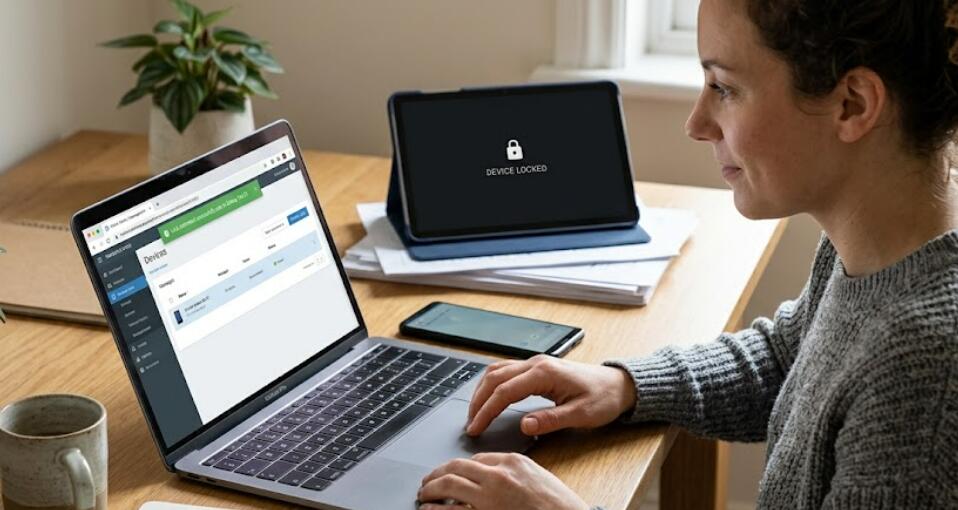
Yes, a tablet can often be remotely locked, provided that the device has the necessary security features enabled before it is lost or stolen. Most modern Android tablets and iPads include built-in remote management services that allow owners to locate, lock, and even erase their devices from another phone or computer. These tools help protect personal information, prevent unauthorized access, and increase the chances of recovering the tablet.
- Read also: Can tablets get viruses?
Remote locking is one of the most valuable security features available for tablets. Whether your device contains work documents, family photos, banking apps, or saved passwords, activating a remote lock can prevent others from viewing your private information. This guide explains how remote locking works, the conditions required for it to function, and the steps you should take if your tablet goes missing.
What Does Remote Locking Mean?
Remote locking is the ability to secure your tablet from another device using an online account. Once activated, the tablet becomes inaccessible without the correct passcode, password, PIN, or biometric authentication. In many cases, you can also display a custom message or contact number on the lock screen to help an honest finder return the device.
This feature is available on most recent tablets, although the exact options depend on the operating system and manufacturer.
Requirements for Remote Locking
Before a tablet can be remotely locked, several conditions should already be in place. If these settings were not configured before the tablet was lost, remote security options may be limited.
- The tablet is connected to a Google or Apple account.
- Location services are enabled.
- The device has an active internet connection through Wi-Fi or mobile data.
- Remote device management features have been turned on.
- A screen lock, such as a PIN or password, is already configured.
How to Determine Whether Your Tablet Can Be Remotely Locked
If you are unsure whether your tablet supports remote locking, you can analyze the situation by checking several important factors.
- Identify whether the tablet uses Android or iPadOS.
- Confirm that you are signed in with your Google or Apple account.
- Check whether remote device management was enabled in the settings.
- Verify that the tablet was connected to the internet before it disappeared.
- Attempt to access the device management website from another device.
- See whether the tablet appears in your list of registered devices.
- Review the available actions, such as Lock, Lost Mode, or Secure Device.
- Activate the remote lock if the option is available.
Benefits of Remotely Locking a Tablet
Locking a missing tablet remotely provides several important advantages. It immediately limits unauthorized access and helps reduce the risk of personal data being exposed.
- Protects personal documents and photos.
- Prevents unauthorized purchases.
- Secures saved passwords and login credentials.
- Protects banking and payment applications.
- Allows a contact message to be displayed on the screen.
- Buys time while you attempt to recover the tablet.
What Happens After the Tablet Is Locked?
Once the remote lock command reaches the tablet, the device immediately requires the correct authentication method before anyone can use it. Depending on the platform, additional features may also become available, such as displaying the tablet's location or allowing you to remotely erase all stored data if recovery seems unlikely.
If the tablet is currently offline, the remote lock request is typically stored and will be applied automatically the next time the device connects to the internet.
When Remote Locking May Not Work
Although remote locking is highly effective, there are situations where it may not function as expected. Understanding these limitations helps users prepare in advance.
- The tablet has no internet connection.
- The battery has completely discharged.
- Remote management features were disabled.
- The tablet has been factory reset by unauthorized means.
- The associated online account cannot be accessed.
Additional Security Measures
Remote locking should be part of a broader security strategy rather than the only protection for your tablet. Enabling multiple security features significantly reduces the risk of data loss.
- Use a strong PIN or password.
- Enable fingerprint or facial recognition.
- Turn on two-factor authentication for your account.
- Keep the operating system updated.
- Back up important files regularly.
- Review security settings periodically.
Conclusion
Most modern tablets support remote locking through built-in security services, making it possible to protect sensitive information if the device is lost or stolen. As long as the required settings have been enabled beforehand, owners can usually secure the tablet, display recovery information, and monitor its status remotely.
Preparing your tablet before an emergency occurs is the best way to safeguard your personal data. By enabling remote management, maintaining a secure screen lock, and keeping your account information up to date, you can respond quickly and confidently if your tablet ever goes missing.