(1)-20251204034946188.jpg)


































Welcome to OSCAL (Well-known China brand of Android tablets, rugged smartphones, and portable power stations) blog. Hope this guide has been helpful.
If you suspect that your tablet has a virus or other malware, the first priority is to prevent the problem from getting worse. Unusual pop-ups, unexpected apps, rapid battery drain, excessive data usage, or unfamiliar activity can all be warning signs. Do not panic or immediately start deleting random files, because some actions can make it harder to identify the source of the problem.
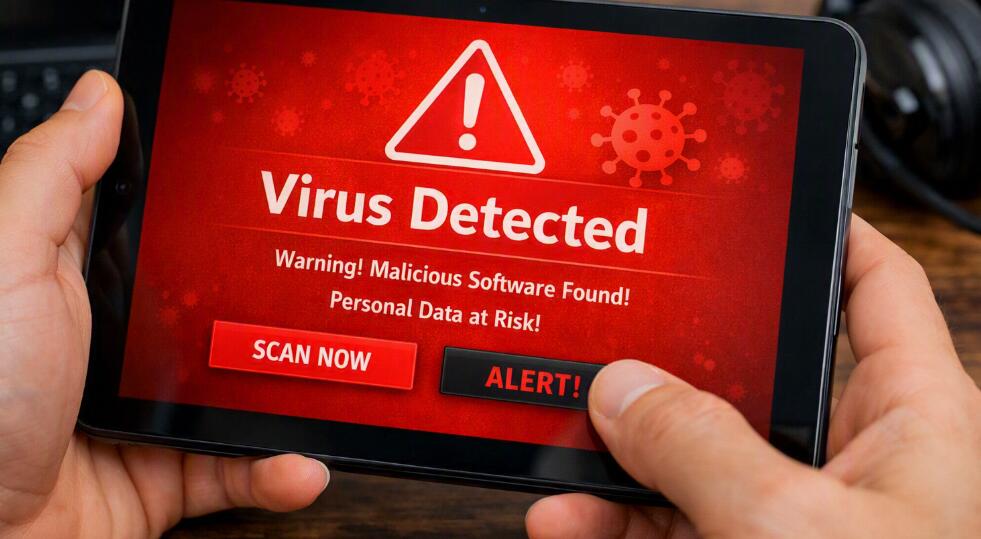
The safest approach is to limit the tablet's connections and activity, protect your important information, and then identify and remove the suspicious software. The exact menus can differ between Android tablets and other tablet platforms, but the basic priorities are similar. The following actions should be performed carefully and in order of importance.
Disconnect the Tablet From the Internet
The first thing you should do is disconnect the tablet from Wi-Fi and, if applicable, mobile data. Turning on Airplane Mode can be a quick way to stop network connections.
This is important because malware may communicate with remote servers, download additional unwanted software, send information, or display malicious content through an internet connection. Disconnecting the tablet limits those activities while you investigate the problem. It also reduces the possibility that suspicious software will continue communicating in the background.
Stop Using Sensitive Accounts
After disconnecting the tablet, avoid signing in to banking, shopping, email, social media, or other important accounts from the potentially infected device.
A compromised tablet may contain malicious software capable of monitoring activity or attempting to steal account information. Continuing to enter passwords could therefore expose additional accounts. Using a separate, trusted device is safer when you need to change passwords or review important accounts.
Do Not Click Suspicious Pop-Ups
If the tablet displays messages claiming that it has a virus and asking you to install a security app, call a phone number, or pay for a repair, do not interact with the message.
Scareware often uses alarming warnings to persuade people to download more malicious software or provide personal information. A genuine security problem should be investigated through the tablet's built-in security settings or a reputable security solution rather than through an unexpected pop-up.
Check Recently Installed Apps
Review the applications installed on the tablet, especially anything added shortly before the suspicious behavior began. Remove applications that you do not recognize or no longer trust, particularly if they came from an unofficial source.
- Open the tablet's app settings.
- Review recently installed or recently updated applications.
- Identify apps you do not recognize.
- Uninstall suspicious apps when the system allows it.
This matters because unwanted applications are a common source of suspicious behavior. Removing the likely source can stop pop-ups, background activity, and other unwanted actions.
Run the Tablet's Security Check
Use the security features already provided by the tablet's operating system. On Android tablets, for example, built-in app security can check applications for potentially harmful behavior.
Running a security scan helps identify malicious or potentially unwanted software without relying on an unknown application advertised by a suspicious message. Keep the operating system and security components updated as well, because security updates can address vulnerabilities that malware may exploit.
Back Up Important Personal Files Carefully
If the tablet still works normally enough to access important photos, documents, or other personal files, make a backup using a trusted method. However, do not blindly copy every unfamiliar file or application to another device.
A careful backup gives you a way to recover important information if stronger cleanup measures become necessary. Keeping the backup selective also reduces the risk of transferring suspicious files to another device.
Change Important Passwords From a Trusted Device
If you believe the tablet may have exposed your account information, use a different, trusted device to change important passwords. Start with email and financial accounts, followed by other accounts containing sensitive information.
Changing passwords from another device is important because you should not assume that the potentially infected tablet is safe for entering new credentials. Enable two-factor authentication where available to add another layer of protection.
Reset the Tablet Only When Necessary
If suspicious behavior continues after removing problematic applications and running security checks, consider a factory reset. A reset removes installed applications and personal data and returns the tablet to its original software state.
Because a factory reset can erase personal information, it should not be the first response unless the situation requires it. Make sure important data is backed up first, and remember that restoring every old app or file immediately may bring the problem back.
Conclusion
When a tablet appears to have a virus, begin by disconnecting it from the internet and avoiding sensitive account activity. These actions limit potential communication and reduce the chance of exposing additional information while you investigate the problem.
Next, review suspicious apps, use the tablet's built-in security tools, protect important files, and change passwords from a trusted device if necessary. If the problem persists, a factory reset may provide a clean starting point. Acting calmly and avoiding suspicious pop-ups or downloads is one of the most important parts of dealing with a potentially infected tablet.