








































 (1)-20251204034946188.jpg)

































Welcome to OSCAL (Well-known Chinese brand of Android tablet, rugged outdoor smartphone, projector, and portable power station) blog. Hope this guide has been helpful.
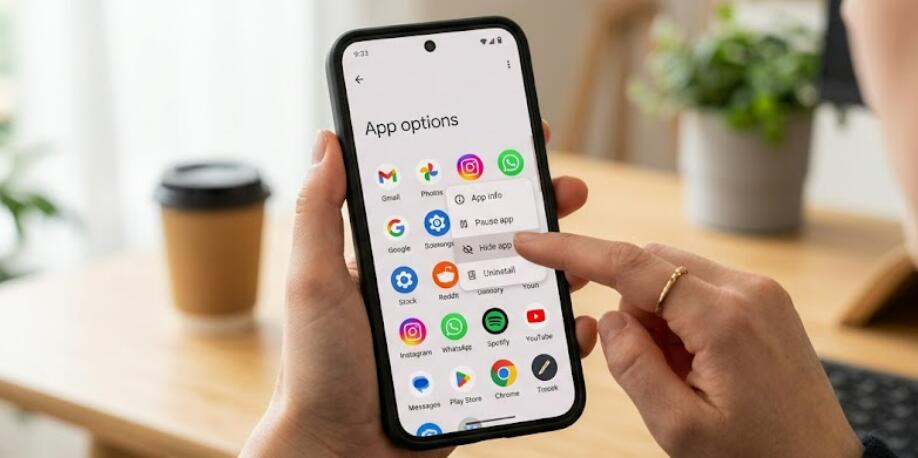
Android devices offer a high level of customization, allowing users to organize their smartphones and tablets according to their preferences. One useful feature available on many Android devices is the ability to hide apps from the home screen or app drawer. This can help keep the interface clean, protect privacy, and prevent others from easily accessing certain applications.
- Read also: How to share location with a friend in Messenger?
- How to share location to others on WhatsApp?
- How to Completely Remove Apps from Android?
Whether you want to hide social media apps, work-related tools, banking applications, or games, Android provides several ways to make apps less visible. Likewise, if you later need quick access to a hidden application, you can easily unhide it. This guide explains the most common methods for hiding and unhiding apps on Android devices, including smartphones and tablets.
Why Hide Apps on Android Devices?
There are many reasons why users choose to hide apps rather than uninstall them. Hiding an app keeps it installed and functional while removing it from obvious locations such as the home screen or app drawer.
- Improve privacy when sharing a device with others
- Reduce clutter on the home screen
- Organize work and personal apps separately
- Prevent children from opening certain apps
- Keep rarely used apps out of sight
- Maintain a cleaner and more organized app drawer
Check Whether Your Android Device Supports App Hiding
Many Android manufacturers include a built-in app hiding feature. However, the exact location of the setting may vary depending on the brand, Android version, and launcher being used. Samsung, OnePlus, Xiaomi, Honor, and several other manufacturers often provide this feature as part of their customized Android interface.
If your device does not include a built-in option, you may be able to use a third-party launcher that supports app hiding functionality.
How to Hide Apps Using Home Screen Settings
On many Android smartphones and tablets, apps can be hidden directly through the launcher settings.
- Open the home screen on your device
- Press and hold an empty area of the screen
- Tap Settings or Home Screen Settings
- Look for an option called Hide Apps or Hidden Apps
- Select the applications you want to hide
- Tap Apply, Done, or Save
Once completed, the selected apps will no longer appear in the app drawer or home screen, depending on the device's software.
How to Hide Apps Through the App Drawer
Some Android devices allow users to hide applications directly from the app drawer menu.
- Open the app drawer
- Tap the menu icon, usually represented by three dots
- Select Home Screen Settings or Hide Apps
- Choose the apps you want to conceal
- Confirm your selection
This method is often one of the quickest ways to hide multiple applications at the same time.
Using Secure Folders or Private Spaces
Several Android manufacturers offer advanced privacy features such as Secure Folder, Private Space, or App Lock environments. These tools allow users to move apps into a protected area that requires authentication before access.
- Open the device settings
- Navigate to the privacy or security section
- Select the available secure storage feature
- Set up a password, PIN, or biometric authentication
- Add the apps you want to hide or protect
- Complete the setup process
This option provides stronger privacy protection because the apps are hidden behind an additional layer of security.
How to Hide Apps Using a Third-Party Launcher
If your Android device lacks a built-in hiding feature, a third-party launcher may provide additional customization options. Many launchers include tools for hiding apps from the app drawer without uninstalling them.
- Install a launcher that supports app hiding
- Set the launcher as the default home app
- Open the launcher settings
- Locate the app hiding feature
- Select the apps you want to hide
- Save the changes
Before installing any launcher, review its permissions and download it from a trusted source.
How to Unhide Apps on Android Devices
If you decide that a hidden application should become visible again, the process is usually straightforward. You simply need to revisit the same settings menu used to hide the app.
- Open the home screen or launcher settings
- Navigate to Hidden Apps or a similar menu
- View the list of currently hidden applications
- Deselect the apps you want to restore
- Tap Apply or Save
After completing these steps, the apps should reappear in the app drawer and, in some cases, on the home screen.
How to Access Hidden Apps
Even when an application is hidden, it remains installed on the device. Depending on the hiding method used, you may still be able to access it through search functions, settings menus, or secure folders.
- Use the device search feature
- Open the Apps section in Settings
- Access the secure folder or private space
- Temporarily unhide the application if necessary
The exact process depends on how the app was originally hidden.
Tips for Managing Hidden Apps
Proper management of hidden apps helps ensure you can easily find important applications when needed while maintaining a tidy device interface.
- Keep a record of which apps are hidden
- Review hidden apps periodically
- Use secure passwords for private folders
- Avoid hiding critical system applications
- Update hidden apps regularly
- Remove apps you no longer need
Conclusion
Hiding apps on Android devices is an effective way to improve privacy, reduce screen clutter, and organize applications more efficiently. Whether you use built-in Android features, secure folders, or third-party launchers, the process is generally simple and can be completed in just a few steps.
Unhiding apps is equally easy, allowing you to restore access whenever needed. By understanding how to hide and unhide apps properly, users can enjoy a cleaner, more personalized experience on their Android smartphones and tablets while keeping important applications secure and organized.


