(1)-20251204034946188.jpg)



































Welcome to OSCAL (Well-known Chinese brand of outdoor smartphone, Android tablet, and portable power station) blog. Hope this guide has been helpful.
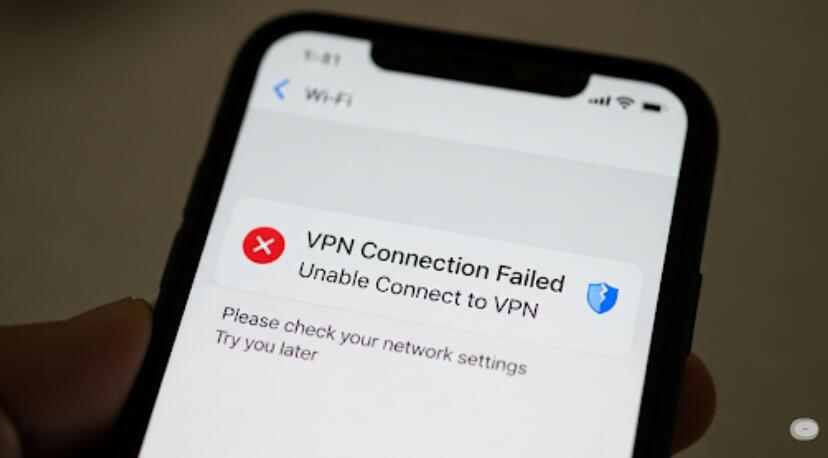
A VPN can help protect your online traffic, access private networks, and maintain a more secure connection when you are using the internet. However, it can be frustrating when the VPN suddenly stops connecting, connects without providing internet access, or repeatedly disconnects from your computer. The problem can come from the VPN application, your internet connection, network settings, or the VPN server itself.
Before changing advanced settings, it is useful to identify what is preventing the VPN from working correctly. A systematic approach can save time and reduce the risk of changing settings unnecessarily. The following guide first examines the most common causes and then provides practical steps for fixing VPN problems on Windows or other desktop and laptop computers.

- Read also: How to fix a VPN not working on my phone?
- The advantages and disadvantages of using a VPN
- Does VPNs improve internet speed?
- How to find the VPN server address?
Possible Reasons Why Your VPN Is Not Working on PC
Several different issues can cause a VPN connection to fail. Understanding the likely cause can make troubleshooting much easier.
- Unstable internet connection: A VPN cannot establish a reliable tunnel if your normal internet connection is weak or frequently disconnects.
- VPN server problems: The server you selected may be overloaded, temporarily unavailable, or experiencing maintenance.
- Incorrect VPN credentials: An expired password, authentication error, or changed account subscription can prevent a connection.
- Outdated VPN software: An old VPN application may not work correctly after an operating system or network update.
- Firewall or antivirus interference: Security software can sometimes block VPN protocols or network traffic.
- Conflicting VPN connections: Running two VPN applications or network tunnels at the same time can cause conflicts.
- Incorrect network settings: DNS, proxy, adapter, or TCP/IP configuration problems may prevent the VPN from functioning properly.
- Blocked VPN protocols: Some networks restrict particular VPN protocols or ports, especially public, corporate, or school networks.
Steps to Fix a VPN That Is Not Working on PC
- Check your internet connection. Disconnect the VPN and open several websites normally. If the internet does not work without the VPN, restart your router or reconnect to your Wi-Fi or Ethernet connection first.
- Restart the VPN application. Completely close the VPN program rather than simply minimizing it. Open it again and try connecting to the same server.
- Restart your computer. A reboot can clear temporary network problems, stuck VPN processes, and software conflicts.
- Try another VPN server. Connect to a different location within the VPN application. If another server works, the original server may be unavailable or overloaded.
- Change the VPN protocol. If your VPN application supports multiple protocols, try another available option. A protocol that works on one network may fail on another.
- Check your VPN account. Sign in again and confirm that your subscription is active and your username and password are correct.
- Update the VPN application. Install the latest version available from your VPN provider. Also check for pending operating system updates.
- Temporarily check security software. Firewall or antivirus software may interfere with VPN connections. Review its network permissions and make sure the VPN application is allowed to communicate. Avoid leaving security protection disabled after testing.
- Disable other VPN or proxy connections. Close other VPN clients and check your computer's proxy settings. Multiple network tunnels can interfere with one another.
- Restart the network adapter. Disable and re-enable your Wi-Fi or Ethernet adapter through your computer's network settings, then attempt the VPN connection again.
- Flush DNS and reset network components. If the VPN connects but websites cannot load, corrupted DNS or network configuration may be responsible. Windows users can use the appropriate network reset commands in an administrator Command Prompt.
- Reinstall the VPN software. Uninstall the VPN application, restart the computer, and install a fresh copy from the provider's official source.
- Contact the VPN provider. If none of these solutions works, provide the provider with the VPN application version, operating system version, error message, and connection type. This information can help identify account or server-side problems.
What to Do When the VPN Connects but There Is No Internet
A VPN that shows “Connected” but does not allow websites or applications to access the internet is a slightly different problem. The VPN tunnel may have been established successfully while DNS resolution, routing, or a security feature is preventing normal traffic.
First, disconnect the VPN and confirm that the internet works normally. Then reconnect using another VPN server. If the problem continues, check whether the VPN application has features such as a kill switch, DNS filtering, or split tunneling enabled. Temporarily adjusting these features can help determine whether one of them is blocking traffic.
How to Troubleshoot VPN Connection Errors
Pay attention to the exact error message displayed by the VPN. Messages involving authentication generally point toward account credentials or subscription problems, while timeout errors can indicate server, firewall, protocol, or network issues.
If the VPN works on your home network but not on another network, the network itself may be restricting VPN traffic. In that situation, switching protocols or using another permitted network may help. Avoid attempting to bypass network restrictions where you do not have permission to do so.
When Your VPN Becomes Slow or Keeps Disconnecting
A VPN does not always fail completely. Slow speeds and repeated disconnections can also indicate a VPN-related problem. A server that is geographically far away can increase latency, while an overloaded server can reduce connection speed.
Try a server closer to your physical location and compare the connection. You can also test the VPN using a wired Ethernet connection if available. If the connection remains unstable across multiple servers and networks, updating or reinstalling the VPN application may resolve software-related problems.
How to Prevent Future VPN Problems
Keeping both your computer and VPN software updated is one of the simplest ways to reduce compatibility problems. It is also useful to maintain only the VPN applications you actually need and avoid running several network-management tools simultaneously.
- Keep the VPN application updated
- Install operating system security and network updates
- Use reliable Wi-Fi or Ethernet connections
- Remember your VPN account and authentication requirements
- Keep firewall and antivirus rules configured correctly
- Try a different VPN server when one location becomes unstable
Conclusion
When a VPN stops working on a computer, the cause may be as simple as an unstable internet connection or as specific as a blocked protocol, incorrect DNS configuration, or VPN server problem. Starting with basic checks and progressing toward network troubleshooting is usually the most efficient approach.
By checking the internet connection, changing servers, updating the application, reviewing security settings, and reinstalling the VPN when necessary, you can resolve many common VPN problems. If the issue continues across different networks and servers, the VPN provider's support team can investigate account, server, or compatibility issues that cannot be fixed locally.