(1)-20251204034946188.jpg)


































Welcome to OSCAL (Well-known Chinese brand of rugged smartphone, tablet, projector, and portable power station) blog. Hope this guide has been helpful.
WiFi 7 is the latest generation of WiFi technology, designed to deliver faster wireless speeds, lower latency, and more reliable connections than previous standards. Also known as IEEE 802.11be, WiFi 7 introduces advanced features that can improve online gaming, 4K and 8K streaming, video conferencing, and other bandwidth-intensive activities. However, not every smartphone supports this technology, even if it was released recently.
- Read also: How to find hidden WiFi networks?
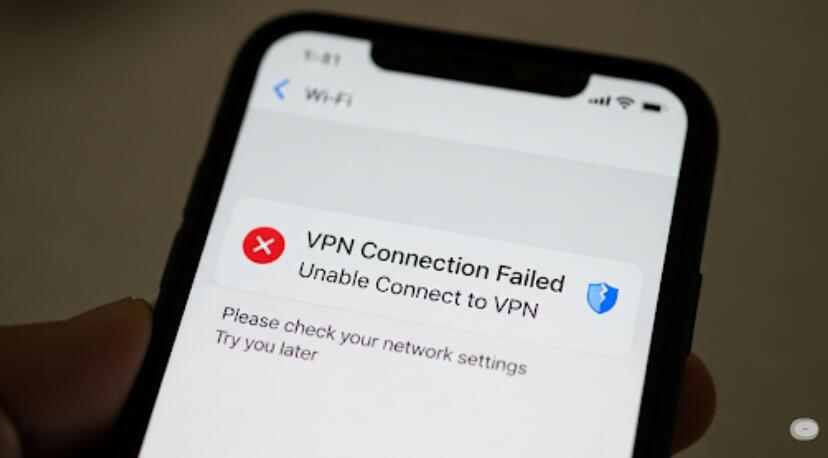
- How to fix VPN not working on a phone?
- How far can a wifi signal reach?
If you want to determine whether your phone supports WiFi 7, there are several ways to check its specifications, wireless settings, and compatibility with your router. The following guide explains how to identify WiFi 7 support and understand what you need to enjoy its benefits.
Check Your Phone's Technical Specifications
The easiest way to find out whether your phone supports WiFi 7 is to check the manufacturer's official specifications. These details usually identify the supported WiFi standards and wireless capabilities.
- Open your phone's Settings and find the device model under About Phone.
- Visit the manufacturer's official website.
- Search for your exact phone model and open its specifications page.
- Look for WiFi 7, IEEE 802.11be, or wireless networking specifications.
- Confirm that WiFi 7 support is explicitly listed.
Do not assume that a phone supports WiFi 7 simply because it has a powerful processor or supports 5G. Cellular connectivity and WiFi standards are separate technologies.
Identify Your Phone Model and Processor
Your phone's model and processor can provide useful clues about its wireless capabilities. Some newer mobile chipsets include WiFi 7 support, while others are limited to WiFi 6 or WiFi 6E.
- Open Settings and select About Phone.
- Record the complete model name and model number.
- Check the processor specifications if they are available.
- Search the manufacturer's documentation for WiFi 7 compatibility.
Remember that a compatible processor alone does not guarantee WiFi 7 support. The phone manufacturer must also implement the necessary wireless hardware and enable the feature in the device.
Check Your Phone's WiFi Settings
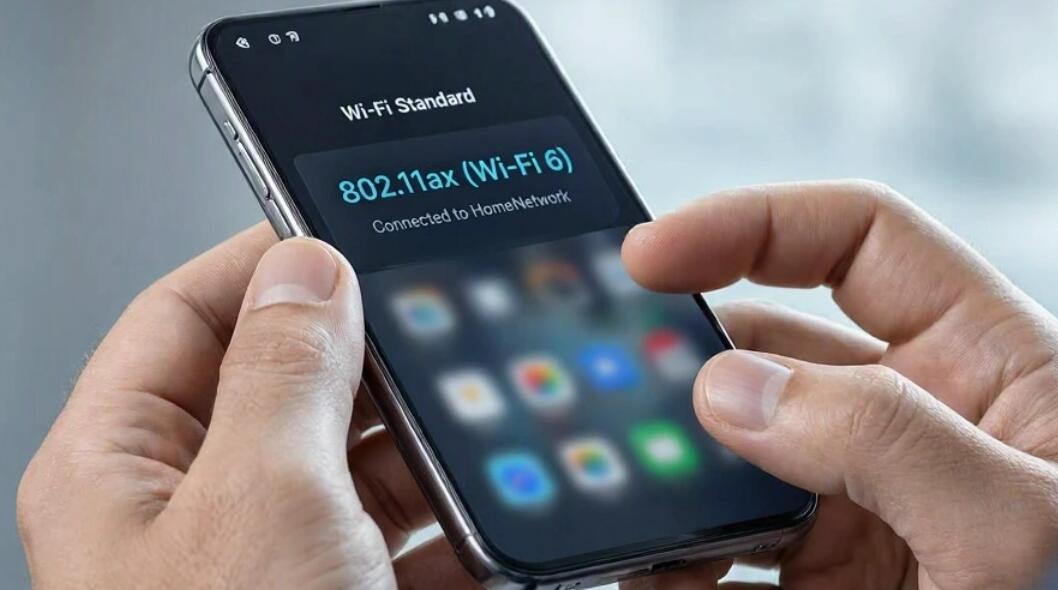
Some Android phones provide information about their wireless connection in the network settings. Although these menus do not always identify the WiFi generation, they can help you inspect available connection details.
- Open Settings and tap Network & Internet or Connections.
- Select WiFi and connect to a compatible wireless network.
- Open the connected network's details.
- Look for information about the connection frequency, link speed, or supported features.
On many phones, these details do not explicitly confirm WiFi 7 capability. The absence of a WiFi 7 label does not necessarily mean the phone lacks support, so check the official specifications as well.
802.11be. Your phone model, processor, and wireless settings can provide additional cluesUnderstand the Difference Between WiFi 6, WiFi 6E, and WiFi 7
Understanding the differences between WiFi generations can prevent confusion when checking your device.
- WiFi 6: Uses the 2.4 GHz and 5 GHz bands and improves network efficiency.
- WiFi 6E: Extends compatible WiFi 6 technology to the 6 GHz band.
- WiFi 7: Introduces features such as 320 MHz channels, 4K QAM, and Multi-Link Operation (MLO), where supported.
WiFi 6E support does not automatically mean a phone supports WiFi 7. Look specifically for IEEE 802.11be or an explicit WiFi 7 designation in the specifications.
Verify Your Router and Network Compatibility
Even if your phone supports WiFi 7, you need a compatible router to experience its full benefits. A WiFi 7 phone can still connect to older routers, but the connection will use the capabilities supported by the network and device.
- Check whether your router is advertised as WiFi 7 or IEEE 802.11be.
- Review the router's supported frequency bands.
- Update your phone's operating system and router firmware when appropriate.
- Connect to the WiFi 7 network and check the connection details if available.
Actual performance also depends on signal strength, internet speed, network congestion, and the capabilities of your connected devices.
Conclusion
The most reliable way to determine whether your phone supports WiFi 7 is to check its official technical specifications for WiFi 7 or IEEE , but not every device displays its WiFi generation directly.
Once you confirm compatibility, pair your phone with a WiFi 7 router to take advantage of supported features. By checking both devices and understanding the differences between WiFi generations, you can make an informed decision about upgrading your wireless network.