(1)-20251204034946188.jpg)


































Welcome to OSCAL (Well-known Chinese brand of rugged smartphones, Android tablets, and portable power stations) blog. Hope this guide has been helpful.
RAM (Random Access Memory) plays an important role in smartphone performance. It temporarily stores the data that apps and the operating system need while running. When a phone runs out of available RAM, users may experience slow performance, delayed responses, app crashes, or problems switching between applications. The issue can become especially frustrating when you manually close several apps, see the available RAM increase, and then notice that those apps automatically start running again shortly afterward.
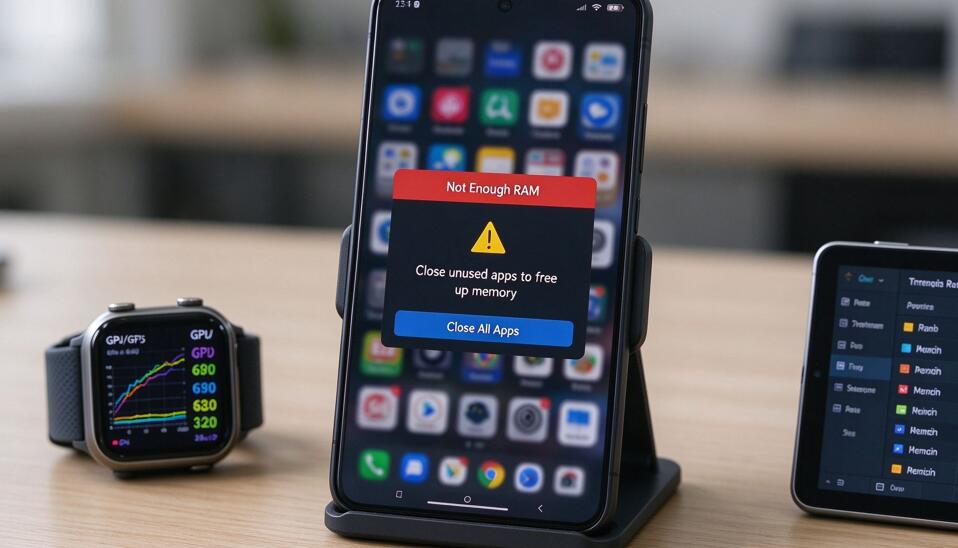
This behavior is common on Android smartphones and can also occur on other mobile platforms. Modern operating systems automatically manage memory, restart certain background processes, and keep frequently used apps ready for use. Therefore, repeatedly closing apps may not solve the underlying problem. This guide explains what happens when a phone runs out of RAM and provides practical steps to reduce memory pressure, identify problematic apps, and improve overall performance.
What happens if a phone runs out of RAM?
When a phone has insufficient available RAM, its operating system must work harder to manage active applications and background processes. It may reclaim memory from inactive apps, terminate background processes, or reload applications when users return to them. These actions help the phone continue operating, but they can affect the user experience.
Common symptoms include sluggish animations, delayed touch responses, apps refreshing unexpectedly, browser tabs reloading, and games closing without warning. In severe cases, applications may crash or the device may become temporarily unresponsive. Some phones may also feel warmer or consume more battery when an app repeatedly crashes, restarts, or performs intensive background tasks.
If you manually close apps and available RAM increases before quickly dropping again, the operating system may be restarting essential services, synchronizing data, or allowing apps to resume background activities. This does not automatically mean the phone is defective. RAM is designed to be used, and high memory usage alone is not necessarily a problem. The more important question is whether the device becomes noticeably slower or unstable.
How to fix a phone that keeps running out of RAM
Follow these steps to identify the cause and reduce unnecessary memory consumption instead of repeatedly closing every app.
- Step 1: Restart your phone. Press and hold the power button, then select Restart. This clears temporary system states and stops processes that may be stuck. Check whether performance improves after restarting.
- Step 2: Identify memory-hungry apps. Open Settings and look for Memory, RAM, or Developer Options, depending on your device. Some Android phones display memory usage under Developer Options or a device maintenance utility. Check which apps consume the most memory.
- Step 3: Update your apps and operating system. Open the Google Play Store to update Android apps, then check Settings for system updates. Updates may fix memory leaks and background-process problems.
- Step 4: Restrict unnecessary background activity. Open Settings, select Apps, choose a frequently running app, and review its battery or background usage settings. Restrict background activity where appropriate, especially for apps that do not need continuous updates.
- Step 5: Clear the cache of problematic apps. Go to Settings, open Apps, select the affected app, and tap Storage or Storage and cache. Choose Clear cache. Avoid Clear data unless you understand that it may erase local settings, downloaded content, or login information.
- Step 6: Uninstall or disable unnecessary apps. Remove apps you rarely use, particularly third-party cleaners, launchers, or utilities that constantly run background services. Disable preinstalled apps only when Android provides that option and you know they are unnecessary.
- Step 7: Check whether the problem continues. After making changes, restart the phone and use it normally for a while. If memory usage rises sharply again, check the apps that were recently installed or updated.
Why do closed apps automatically start again?
Android manages background processes according to system requirements, app permissions, scheduled tasks, notifications, and synchronization needs. Some apps may restart to receive messages, update information, or complete scheduled work. System services may also restart automatically because they are necessary for normal phone operation.
Consequently, force-closing an app does not always prevent it from running again. Some applications may relaunch when a notification arrives or another service triggers them. Instead of repeatedly swiping apps away, identify which applications genuinely cause performance problems and adjust their background activity.
Check whether an app has a memory leak
A memory leak occurs when an app continues using memory that it no longer needs without releasing it properly. Over time, the app may consume increasing amounts of RAM, making the phone slower or causing other apps to reload.
To investigate, observe memory usage over time and note whether a particular app consistently consumes more memory after extended use. Update the app, clear its cache, or uninstall and reinstall it if the problem persists. If the same issue occurs across several apps, the cause may involve the operating system rather than one application.
Reduce unnecessary background activity
Some apps need background access, while others do not. Social media platforms, shopping apps, games, and promotional utilities may perform background tasks that are not essential to their main functions.
Review notification permissions, background data settings, and battery restrictions for apps that do not need constant activity. Avoid disabling essential messaging, security, or system applications indiscriminately, because doing so may interrupt notifications or important functions. The available controls vary by phone manufacturer and Android version.
Does freeing up storage space increase RAM?
Internal storage and RAM serve different purposes. Deleting photos, videos, and downloads frees storage space, but it does not directly increase the phone's physical RAM capacity. However, having sufficient free storage can help the operating system and apps function properly, particularly when storage is nearly full.
Some Android phones offer virtual RAM or memory expansion features that use part of the internal storage to support memory management. These features are not equivalent to physical RAM and may not improve every workload. They should not be treated as a guaranteed solution to persistent memory problems.
When should you consider a factory reset?
If the phone remains slow, repeatedly crashes, or experiences excessive memory usage despite updates and app troubleshooting, a factory reset may help resolve persistent software problems. Before resetting, back up your photos, contacts, documents, and other important data. A factory reset erases personal information and installed applications from the device.
After resetting, install essential apps gradually and monitor performance. If the same symptoms return immediately, or the phone frequently becomes unresponsive even with few apps installed, contact the manufacturer's support team or an authorized repair service.
Conclusion
When a phone runs out of RAM, the operating system usually attempts to free memory by stopping background processes or reloading inactive apps. Although this can cause delays and unexpected app refreshes, high RAM usage by itself is not necessarily a sign of a problem. The key is to determine whether memory pressure is affecting normal performance.
If apps keep restarting after you close them, focus on identifying memory-intensive applications, restricting unnecessary background activity, updating software, and checking for memory leaks. By addressing the underlying cause instead of repeatedly closing apps, you can improve your phone's stability and make better use of its available memory.