













 (1)-20251204034946188.jpg)





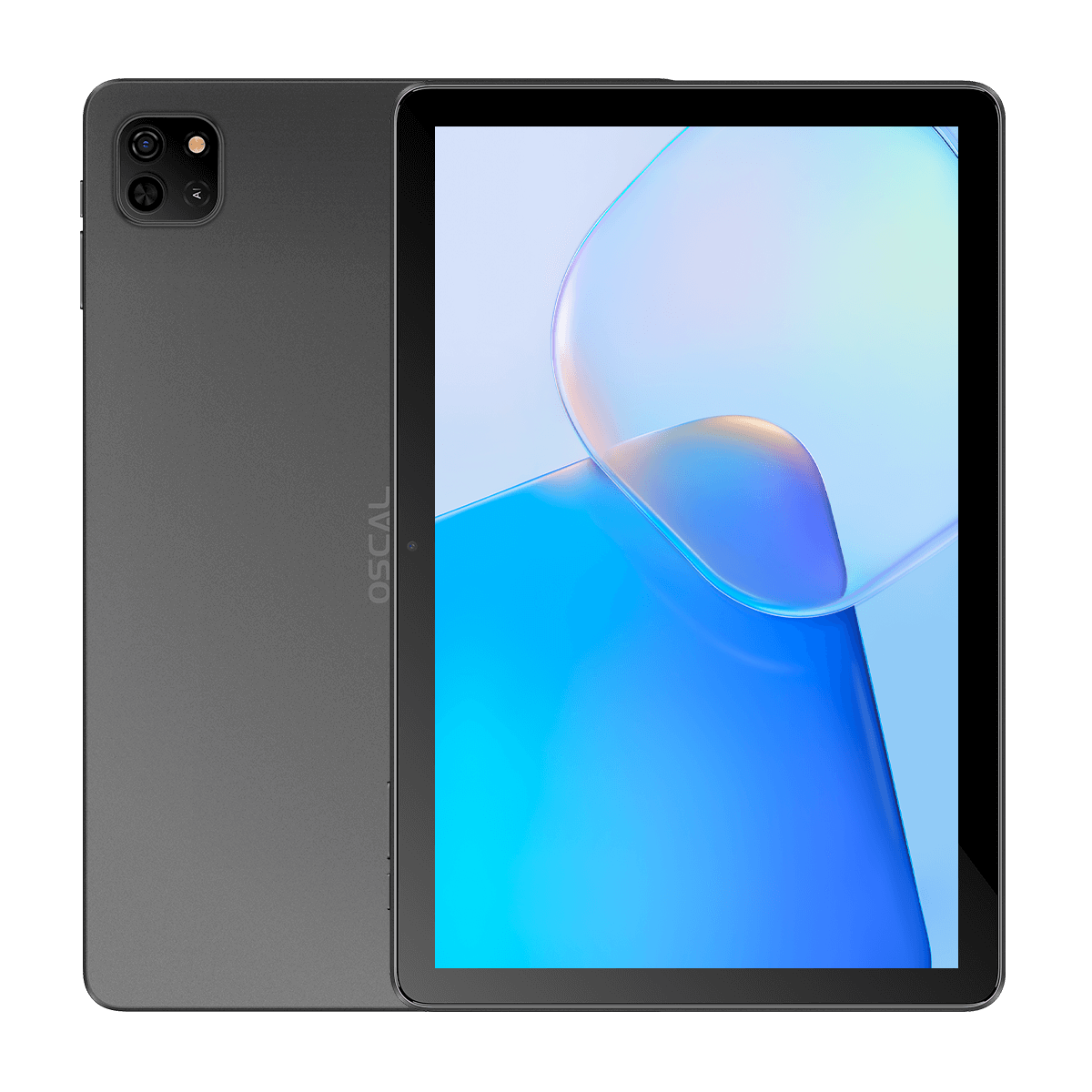
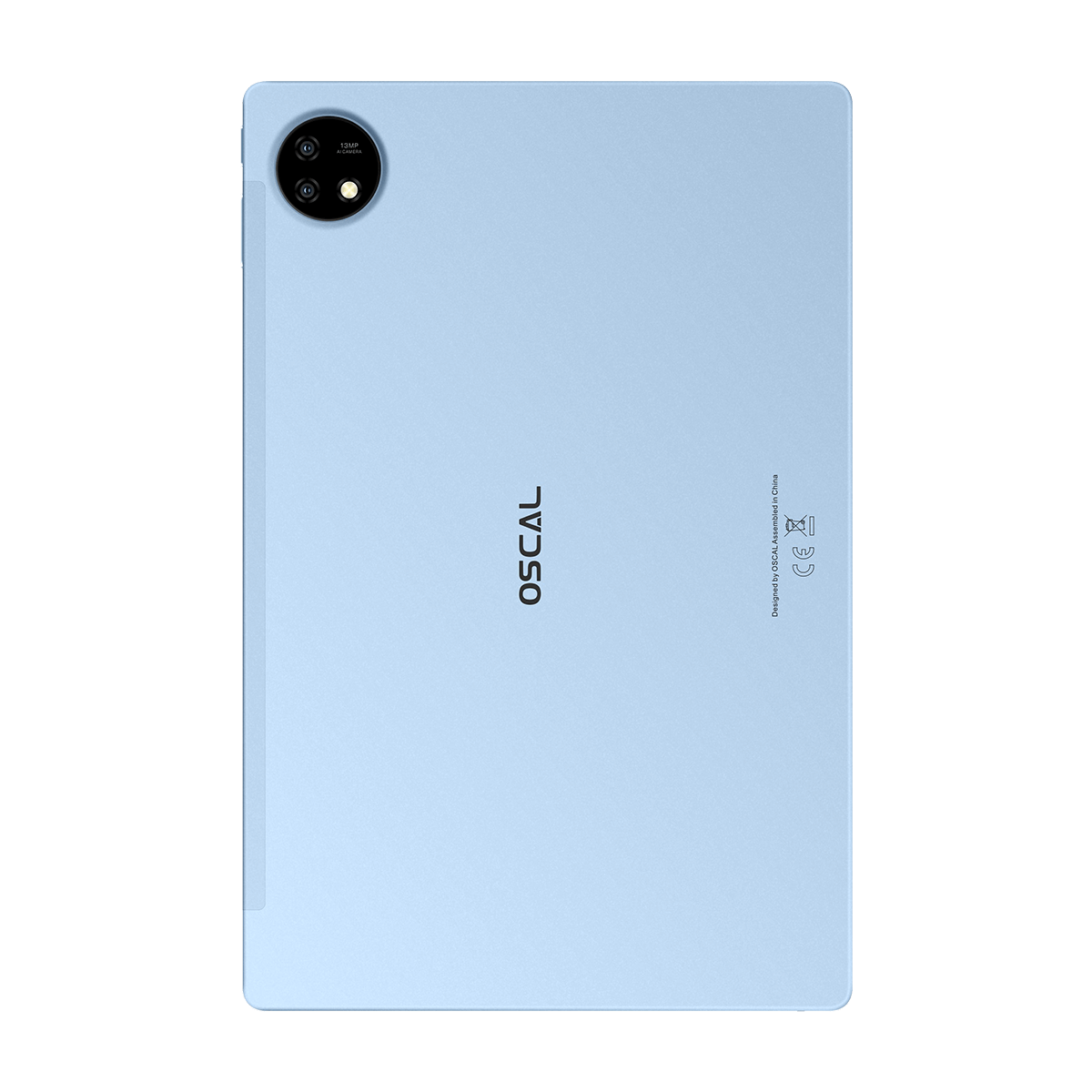










Welcome to the OSCAL (Well-known Chinese brand of Android tablets, rugged smartphones, and portable power stations) blog. Hope this guide has been helpful.
Running out of storage space on your tablet can be frustrating, especially when you want to download new apps, save photos, watch videos, or store important documents. As applications and media files become larger, the built-in storage of a tablet may quickly become insufficient. Fortunately, many tablet users have several options for increasing available storage without immediately purchasing a new device.

- Read also: How much ROM storage is good for a tablet?
- How to check the available storage in your tablet?
- How to increase RAM in tablet?
So, can you add more storage to your tablet? The answer is yes, in many cases. However, the available options depend on your tablet's brand, model, operating system, and hardware design. Some tablets support microSD cards, while others rely on external storage devices or cloud services. This guide explores the different ways to expand tablet storage and explains what you should consider before choosing a solution.
1. Check Whether Your Tablet Supports a microSD Card
One of the easiest ways to increase tablet storage is by installing a microSD card. Many Android tablets include a dedicated memory card slot that allows users to expand their available storage.
Before purchasing a card, check the following points:
- Card compatibility: Confirm that your tablet supports microSD, microSDHC, or microSDXC cards.
- Maximum capacity: Check the manufacturer's specifications to determine the largest supported card size.
- Card speed: Choose a suitable speed class for storing videos, photos, and other files.
- Physical location: Find out whether the memory card slot is located on the side or beneath a removable cover.
2. Install a microSD Card in Your Tablet
If your tablet supports expandable storage, installing a microSD card is usually straightforward.
- Turn off your tablet if recommended by the manufacturer.
- Locate the microSD card slot.
- Open the card tray using the supplied eject tool if necessary.
- Insert the microSD card in the correct direction.
- Close the tray and turn on your tablet.
- Follow the on-screen instructions to format or configure the card if prompted.
Once installed, you can move supported photos, videos, documents, and other files to the memory card. Some Android devices also allow compatible applications to use external storage, although this feature depends on the manufacturer and Android version.
3. Use an External USB Flash Drive
If your tablet does not have a microSD card slot, an external USB flash drive may provide another storage option. Many modern Android tablets support USB-C flash drives, while older models may require a compatible adapter.
Consider these factors before using an external drive:
- Check whether your tablet supports USB OTG (On-The-Go).
- Choose a USB-C or compatible USB-A flash drive.
- Use an appropriate adapter if the connector does not match.
- Open the file manager to access the connected drive.
- Transfer documents, photos, and videos to free up internal storage.
External drives are particularly useful for transferring large files or keeping backups without permanently connecting additional storage to your tablet.
4. Expand Storage With Cloud Services
Cloud storage provides another convenient way to manage limited tablet storage. Instead of keeping every file on your device, you can upload documents, photographs, and videos to an online storage platform.
Popular cloud storage options include Google Drive, Microsoft OneDrive, and Dropbox. Depending on the service, users can access their files through an app or web browser.
The main advantages include:
- Access files across multiple devices.
- Reduce the amount of locally stored data.
- Keep important documents backed up online.
- Share files without using physical storage devices.
However, cloud storage usually requires an internet connection to access files that have not been downloaded for offline use. Free storage limits may also apply, and additional capacity may require a subscription.
5. Can You Upgrade Your Tablet's Internal Storage?
Unlike desktop computers, most modern tablets do not allow users to upgrade internal storage by replacing or adding a conventional storage drive. Their storage components are usually soldered directly onto the motherboard.
Before considering an internal storage upgrade, remember these points:
- Check whether the manufacturer officially supports storage upgrades.
- Understand that opening the tablet may void its warranty.
- Consider the cost and difficulty of professional hardware repairs.
- Avoid attempting to replace internal components without the necessary technical experience.
For most users, a microSD card, external USB drive, or cloud storage service is a more practical alternative.
6. Free Up Existing Tablet Storage
You do not always need additional hardware to solve storage problems. Removing unnecessary files and applications can help recover valuable space.
- Uninstall apps that you no longer use.
- Delete duplicate photos and videos.
- Clear temporary app cache files.
- Remove downloaded movies and music that are no longer needed.
- Transfer large files to external or cloud storage.
- Review your Downloads folder regularly.
Conclusion
Adding more storage to a tablet is possible, but the best method depends on its hardware and operating system. Android tablets with microSD card support can often expand storage easily, while USB flash drives and cloud services provide alternatives for devices without memory card slots.
Before purchasing additional storage, check your tablet's specifications and identify your actual storage needs. By combining suitable storage solutions with regular file management, you can enjoy more available space, keep important files accessible, and extend the usefulness of your tablet without necessarily replacing it.