(1)-20251204034946188.jpg)


































Welcome to OSCAL (Well-known Chinese brand of Android tablets, rugged phones, projectors, and portable power stations) blog. Hope this guide has been helpful.
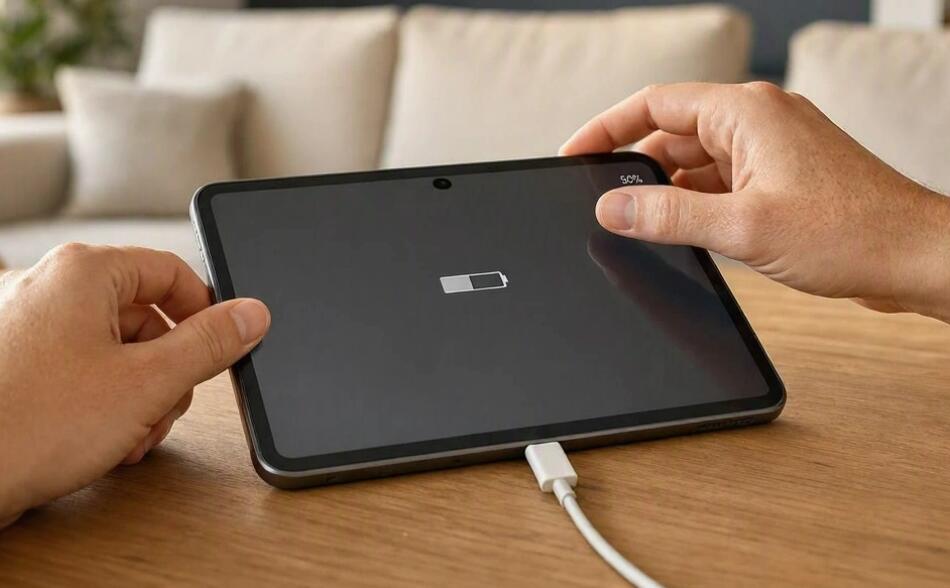
Tablets are essential devices for work, studying, entertainment, and everyday communication. However, it can be frustrating when your tablet stops charging at 80%, 90%, or another percentage instead of reaching 100%. Sometimes, the battery percentage remains unchanged for a long time, while in other cases, the device charges unusually slowly or stops charging altogether. These issues can affect both Android tablets and Apple iPads, but they do not always indicate a serious hardware problem.
- Read also: What causes a tablet to get so hot when charging?
- Can you charge a phone with a tablet charger?
- How to fix a tablet won't connect to WiFi?
Understanding why your tablet cannot reach a full charge is the first step toward finding the right solution. Battery protection features, charging accessories, excessive heat, software problems, and battery aging can all contribute to this issue. This guide explains the common causes and provides practical troubleshooting steps for Android tablets and iPads, helping you restore normal charging behavior and maintain battery health.
Common Reasons Why Your Tablet Cannot Charge to 100%
Before attempting any repairs, identify the possible cause of the charging problem. Different causes require different solutions, so understanding the symptoms can save time and prevent unnecessary expenses.
Battery Protection Features
Many modern tablets include battery protection features designed to reduce battery aging. These features may limit charging to approximately 80% or delay charging to 100% until shortly before you typically use the device. On Android tablets, the setting may be called Battery Protection or Protect Battery. On iPads, Optimized Battery Charging may delay a full charge under certain conditions.
Faulty Charging Accessories
A damaged USB cable, incompatible power adapter, loose connector, or unreliable power outlet can prevent a tablet from charging properly. If charging repeatedly disconnects or the battery percentage increases very slowly, inspect the entire charging setup before assuming the battery is defective.
Overheating During Charging
Tablets generate heat while charging, especially when running games, streaming videos, or performing demanding tasks. When the device becomes too hot or too cold, its charging system may temporarily reduce or pause charging to protect the battery and internal components.
Aging or Damaged Battery
Lithium-ion batteries gradually lose their capacity after repeated charging cycles. An aging battery may charge inconsistently, drain quickly, or display an inaccurate percentage. Physical battery damage can also cause charging problems and requires professional assessment.
Software Errors and Dirty Charging Ports
Operating system bugs, background processes, and incorrect battery readings can interfere with normal charging behavior. Dust, lint, or debris inside the charging port can also prevent a reliable electrical connection, particularly when the cable feels loose or works only at a certain angle.
How to Fix an Android Tablet That Cannot Charge to 100%
Follow these troubleshooting steps in order, checking whether the tablet reaches a full charge after each relevant change.
- Check battery protection settings: Open Settings and navigate to Battery or Battery Protection. If your tablet has a charging limit enabled, review the manufacturer's options. Temporarily change the limit if appropriate and check whether charging continues beyond 80%. Menu names vary by brand and Android version.
- Inspect the charger and cable: Use a compatible, reliable power adapter and charging cable. Try another known-good cable and adapter that meet your tablet's power requirements. Connect the charger directly to a working wall outlet.
- Reduce the tablet's temperature: Stop gaming, video streaming, or other demanding activities while charging. Remove a thick case if it traps heat, place the tablet in a cool, dry location, and allow it to return to a normal operating temperature.
- Restart the device: Restart your tablet to clear temporary software errors. Then reconnect the charger and allow sufficient time for the battery percentage to increase.
- Check the charging port: Inspect the port under good lighting. If debris is visible, follow the manufacturer's cleaning guidance. Avoid metal objects, liquids, and forceful cleaning. If the port is damaged or the connector is loose, seek professional repair. Related: How to safely clean your tablet?
- Update Android: Open Settings, select System or Software Update, and install any available stable updates. The exact menu depends on your tablet manufacturer. Keep the device connected to a reliable power source and follow the update instructions.
- Check battery condition: If your tablet consistently stops charging at an unusual percentage, drains rapidly, or shuts down unexpectedly, consult the manufacturer's diagnostic tools or an authorized service provider.
How to Fix an iPad That Cannot Charge to 100%
Apple iPads have battery management features that may affect charging behavior. The following steps help identify whether the problem comes from settings, accessories, temperature, or hardware.
- Review battery charging settings: On supported iPad models and software versions, open Settings and look under Battery for available charging options. If an 80% charge limit is enabled, adjust it if you want a full charge. Some models offer different battery management features, so available settings vary.
- Check Optimized Battery Charging: If your iPad supports this feature, it may delay charging beyond 80% based on your usage routine. Allow the device to continue charging if the feature is intentionally managing the charging schedule.
- Use a compatible power adapter: Connect the iPad using a suitable USB-C or Lightning cable and a compatible power adapter. Inspect the cable for damage and test another reliable accessory if charging remains incomplete.
- Check the charging port: Examine the port for visible debris or damage. Do not insert sharp objects or liquids. If the connector cannot fit securely, contact Apple Support or an authorized service provider.
- Let the iPad cool down: Disconnect it temporarily if it becomes unusually hot. Avoid direct sunlight and intensive applications while charging. Resume charging after the device returns to a suitable temperature.
- Restart your iPad: Restart the device and reconnect the charger. If it still fails to charge, follow Apple's instructions for updating iPadOS to the latest compatible version.
- Seek battery service if necessary: If the iPad repeatedly stops charging despite correct settings and reliable accessories, arrange a battery assessment through Apple or an authorized service provider.
How to Tell Whether the Battery Is Damaged
Not every charging problem means the battery needs replacement. However, several warning signs suggest that professional inspection may be necessary.
- The tablet loses charge unusually quickly after reaching 100%.
- The battery percentage changes suddenly or inaccurately.
- The device repeatedly shuts down despite showing remaining battery power.
- The tablet becomes unusually hot during ordinary charging.
- The battery appears swollen or the screen begins lifting away from the device.
If you notice swelling, smoke, unusual odors, or severe overheating, stop using and charging the tablet. Do not press, puncture, or attempt to remove a swollen battery. Arrange professional service promptly.
How to Maintain Your Tablet Battery Health
Good charging habits can help reduce unnecessary battery wear. Although modern tablets manage charging automatically, a few simple precautions can support long-term battery performance.
- Use reputable charging accessories that meet the manufacturer's specifications.
- Avoid exposing the tablet to extreme temperatures.
- Keep the operating system updated.
- Enable battery protection features when they suit your usage habits.
- Avoid covering the tablet with blankets or other materials that trap heat while charging.
- Do not repeatedly force a full charge if the device intentionally limits charging to protect battery health.
When Should You Contact Technical Support?
If the tablet still cannot charge properly after checking settings, testing compatible accessories, restarting the device, and updating its software, the issue may involve the battery, charging port, or internal charging circuitry. A qualified technician can run diagnostic tests and determine whether repair or battery replacement is necessary.
Before arranging service, back up important photos, documents, and other data if the tablet is safe to operate. Check your warranty coverage and use an authorized repair provider when possible. Avoid opening the device yourself unless you have the appropriate training and equipment.
Conclusion
A tablet that cannot charge to 100% may be experiencing normal battery protection behavior rather than a malfunction. Charging limits, optimized charging, temperature conditions, and incompatible accessories are common causes that can often be addressed without replacing the battery.
By following the appropriate troubleshooting steps for Android tablets or iPads, you can identify the source of the problem and determine the next course of action. If charging remains inconsistent or physical damage is suspected, professional inspection is the safest option. Regular maintenance and sensible charging habits can help keep your tablet reliable for everyday use.